F5 VPN Download: How to Get the Right Client
Find the official F5 VPN download for your device and learn how to install it safely.
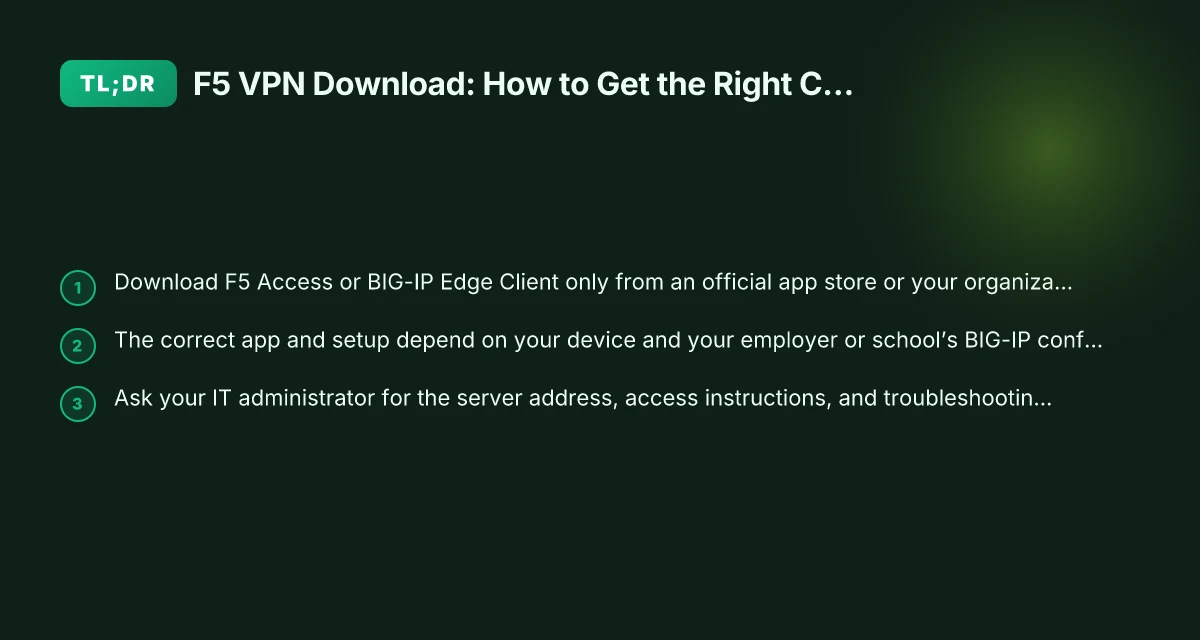
To download an F5 VPN client, first check your organization’s remote-access instructions. F5 provides client options such as F5 Access and BIG-IP Edge Client, but the right one depends on your device and how your employer or school has configured its BIG-IP VPN. Use an official app store or the download link supplied by your IT administrator, not an unfamiliar third-party download site.
Choose the right F5 VPN client
| Client | Best for | Platform | Typical use | Download source |
|---|---|---|---|---|
| BIG-IP Edge Client | Desktop VPN access | Windows | Connect to an organization’s BIG-IP VPN | Organization’s IT portal |
| F5 Access | Mobile VPN access | iOS and Android | Connect from a phone or tablet | Official app store |
| F5 Access | Mac VPN access | macOS | Connect to an organization’s VPN | Organization’s IT portal |
| Browser-based access | Organizations that support it | Supported browsers | Access web apps without a full client | Organization’s IT portal |
| Built-in VPN settings | Only when IT provides compatible settings | Supported operating systems | Configure a connection manually | Organization’s IT team |
| Unknown or unofficial client | Not recommended | Any | Avoid unverified downloads | Do not use |
Compiled November 2026; check the provider's site for current details.
| VPN | Obfuscation | From / month | Plan | Free plan | Refund | Alipay | UnionPay | Crypto | Website opens in China | Trustpilot | |
|---|---|---|---|---|---|---|---|---|---|---|---|
 ZoogVPN | Turn on manually Shadow | $2.49/mo | 27 months: $59.99 | Yes | 7 days | ✓ | ✓ | ✓ | ✓ | Official site blocked; our special link opens (4.4 s) | 4.2/5 (195 reviews) |
 NordVPN | Turn on manually Obfuscated Servers / NordWhisper | $3.49/mo | 27 months: $94.23 | No | 30 days | ? | ✗ | ✓ | ✓ | ✗ Blocked | 4.2/5 (51,628 reviews) |
 ExpressVPN | ✓ On by default all servers | $3.00/mo | 28 months: $84 | No | 30 days | ✗ | ✗ | ✓ | ✗ | ✗ Blocked | 4.4/5 (29,706 reviews) |
 Surfshark | ✓ On by default Camouflage, with OpenVPN | See site | See site | No | 30 days | ✗ | ✗ | ✗ | ✓ | ✗ Blocked | 4.3/5 (31,823 reviews) |
 Proton VPN | Turn on manually Stealth, free plan too | $2.99/mo | 12 months: $35.88 | Yes | 30 days | ✗ | ✗ | ✗ | ✓ | ✗ Blocked | 2.1/5 (1,040 reviews) |
 Astrill VPN | Turn on manually StealthVPN / OpenWeb | $12.50/mo | 24 months: $300 | No | See site | ✗ | ✗ | ✗ | ✓ | ✗ Blocked | 1.3/5 (110 reviews) |
 Private Internet Access | Turn on manually Shadowsocks, OpenVPN only | $2.03/mo | 40 months: $81.2 | No | 30 days | ✗ | ✗ | ✗ | ✗ | ✗ Blocked | 4.2/5 (11,033 reviews) |
 CyberGhost | Turn on manually selected servers | $2.19/mo | 28 months: $61.32 | No | 45 days | ✗ | ✗ | ✗ | ✓ | ✗ Blocked | 4.0/5 (24,178 reviews) |
 PureVPN | Turn on manually switch to OpenVPN | $1.69/mo | 60 months: $101.55 | No | 31 days | ? | ? | ✗ | ✓ | ✗ Blocked | 4.4/5 (17,994 reviews) |
 AdGuard VPN | ✓ On by default TrustTunnel | $2.99/mo | 24 months: $71.76 | Yes | 30 days | ✓ | ✗ | ✓ | ✓ | Official site blocked; our special link opens (3.7 s) | 4.3/5 (290 reviews) |
 Mullvad | Turn on manually QUIC / Shadowsocks / LWO | $5.61/mo | €5/mo | No | 14 days | ✗ | ✗ | ✗ | ✓ | ✗ Blocked | 3.2/5 (192 reviews) |
 Windscribe | Turn on manually Stealth / WStunnel | $5.75/mo | 12 months: $69 | Yes | See site | ✗ | ✗ | ✗ | ✓ | ✗ Blocked | 4.7/5 (13,355 reviews) |
 StrongVPN | Turn on manually Scramble, OpenVPN TCP | See site | See site | No | 30 days | ✓ | ✗ | ✗ | ✗ | ✗ Blocked | 4.4/5 (2,695 reviews) |
 LightXtreme 闪连 | Not listed | $7.08/mo | 12 months: $84.99 | Yes | 30 days | ✓ | ✓ | ✓ | ✓ | ✓ Yes (3.5 s) | No page |
Prices checked 2026-11-10 on each vendor's pricing page (cheapest long plan, USD). Check the vendor's checkout for the final price.
Obfuscation checked 2026-11-14 on each vendor's site and help center: "on by default" = nothing to set; "turn on manually" = switch protocol or mode in settings; "not listed" = the vendor describes no obfuscation.
Payment methods checked 2026-11-10 on each vendor's payment pages: all 14 take cards and PayPal; ✗ = not listed, ? = the vendor's own pages disagree.
China access: whether the official website opens from mainland China networks (tests the website only, not the VPN connection). Last checked 2026-11-18 01:02 Beijing time.
Trustpilot score and review count checked 2026-11-10.
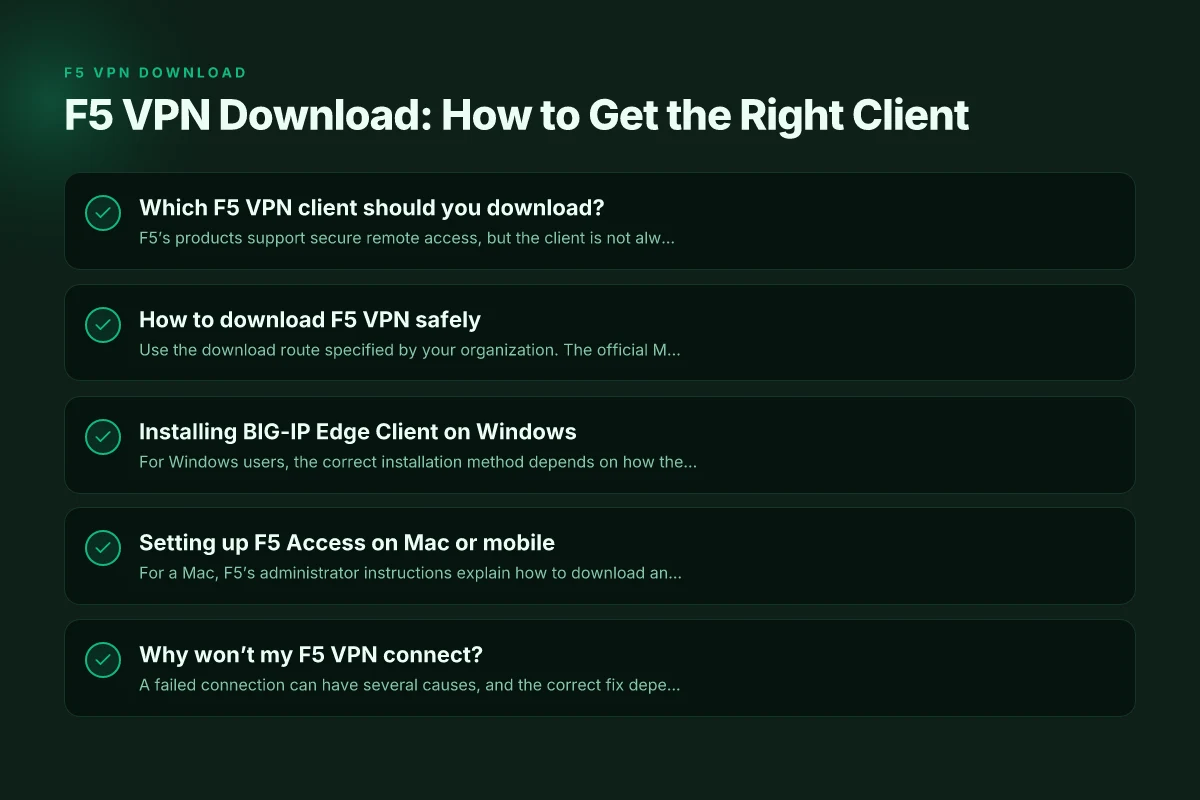
Which F5 VPN client should you download?
F5’s products support secure remote access, but the client is not always interchangeable across devices or organizations. Check the instructions from your company, school, or service provider before installing anything.
| Client | Where to look | What to know |
|---|---|---|
| F5 Access for Windows | Microsoft Store | The listing describes access to enterprise applications and files using SSL VPN technologies. |
| F5 Access for iPhone or iPad | Apple App Store | The App Store listing says the app uses iOS VPN technologies; follow your organization’s setup instructions. |
| BIG-IP Edge Client for Windows | Your organization’s BIG-IP VPN portal or administrator | Availability and installation steps can depend on the BIG-IP configuration. |
| F5 Access for Mac | Your BIG-IP administrator’s instructions | F5’s guidance for administrators covers downloading and installing the Mac app through the BIG-IP Configuration utility. |
These names refer to different client options. Do not assume that seeing “F5 VPN” in a search result means a particular app is the one your organization supports.
How to download F5 VPN safely
Use the download route specified by your organization. The official Microsoft Store and Apple App Store listings are appropriate sources for the F5 Access apps, while Windows BIG-IP Edge Client may be provided through your organization’s BIG-IP portal.
A safe download process is: Cisco VPN Client: What It Is, How to Connect, and What to Use Today
- Check your organization’s remote-access page or contact its IT help desk.
- Confirm the client name and version recommended for your device.
- Open the official store listing or the VPN portal link your organization provides.
- Install the client and follow your organization’s connection instructions.
- Enter only the server address and sign-in details supplied by your organization.
Avoid download sites that repackage installers or promise a universal F5 VPN setup. A VPN client alone does not provide access: you generally need an authorized account and the connection details for your organization’s VPN.
Installing BIG-IP Edge Client on Windows
For Windows users, the correct installation method depends on how the organization has set up BIG-IP. F5’s documentation describes BIG-IP Edge Client for Windows, and its support guidance also covers cases where an installation package is not available.
In the package-free installation process described in F5’s support article, the config.f5c file must be present in the Download\F5 VPN folder. That file is included in the BIG-IP setup provided for the client. If your organization has not supplied the required file or you are unsure where to get it, contact its IT administrator rather than downloading a configuration file from an unrelated source.
Some BIG-IP portals also provide client components through a Downloads area. Follow the instructions on the portal you use. The available options may depend on your organization’s configuration. Free VPN to Change Location: How to Choose and Use One
Compare safe F5 VPN download routes
| Download route | Suitable for | Trust level | What to check | Recommendation |
|---|---|---|---|---|
| Organization’s IT portal | Employees and students | Preferred | Correct client and setup instructions | Use when available |
| Official app store | Mobile users | Preferred | Publisher is F5 Networks | Use for F5 Access |
| F5’s official website | Users directed there by IT | Trusted | Product and platform match | Follow IT’s link |
| Search-engine result | Anyone | Unverified | Domain and publisher | Avoid direct downloads |
| Third-party download site | Anyone | Unverified | Installer origin may be unclear | Avoid |
| Email attachment | Anyone | Unverified | Sender and file authenticity | Confirm with IT first |
Compiled November 2026; check the provider's site for current details.
Setting up F5 Access on Mac or mobile
For a Mac, F5’s administrator instructions explain how to download and install F5 Access through the BIG-IP Configuration utility. In practice, your organization’s administrator may need to provide or configure the appropriate connectivity profile. If the app installs but you cannot connect, ask IT whether your account and profile are set up for that client.
For iPhone and iPad, find F5 Access in the Apple App Store. The listing recommends consulting F5’s FAQ before using the app. Your organization may also have its own instructions for adding a VPN configuration, signing in, or approving access. Cisco Secure Client VPN: How It Works and How to Connect
For Windows, F5 Access is listed in the Microsoft Store. The listing describes it as a way to secure enterprise application and file access using SSL VPN technologies. Check with your organization before choosing it instead of BIG-IP Edge Client.
Why won’t my F5 VPN connect?
A failed connection can have several causes, and the correct fix depends on your organization’s setup. Try these basic checks first:
- Confirm that you installed the client your organization supports.
- Check that you have the correct VPN server address and sign-in credentials.
- Make sure your account is authorized for remote access.
- Follow any required organization-specific setup or configuration steps.
- Check whether your organization’s VPN service is available.
If the app requests a profile or configuration file you do not have, ask your IT administrator for the approved file or download route. Do not guess the server address or use configuration details from another organization. If you see a specific error message, include it when contacting support.
Troubleshoot common F5 VPN connection problems NordVPN Download Windows 11: How to Get and Install the App
| Symptom | Possible cause | What to check | Next step |
|---|---|---|---|
| Client will not install | Wrong client or platform | Match the app to your device | Get the approved installer from IT |
| Login is rejected | Credentials or account issue | Username, password, and account status | Contact your organization’s IT team |
| Connection times out | Network or VPN gateway issue | Internet access and service status | Try another trusted network |
| VPN connects but apps fail | Access or routing settings | Whether the app is covered by VPN | Ask IT to check your access |
| F5 Access cannot find a server | Missing connection details | Organization-provided server address | Request setup instructions from IT |
| Connection stops after an update | Client or device compatibility | Approved client version and device updates | Follow IT’s update guidance |
Compiled November 2026; check the provider's site for current details.
Recommendation
For the most reliable F5 VPN download, start with your employer’s or school’s remote-access instructions. Use the official store for F5 Access or your organization’s BIG-IP portal for BIG-IP Edge Client, then ask IT to confirm the correct client, profile, and connection details.