Free VPN Extension for Edge Browser: What to Choose and How to Use It
Learn how to choose, install, and safely use a free VPN extension for Edge, including its limits and privacy trade-offs.
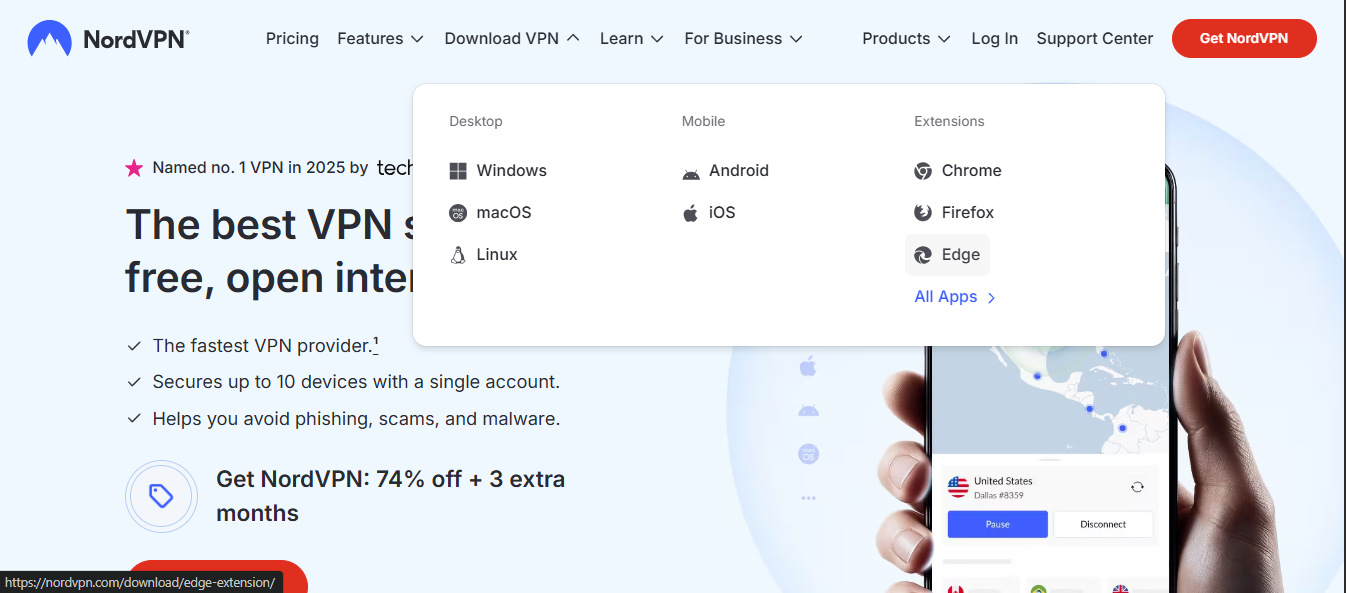
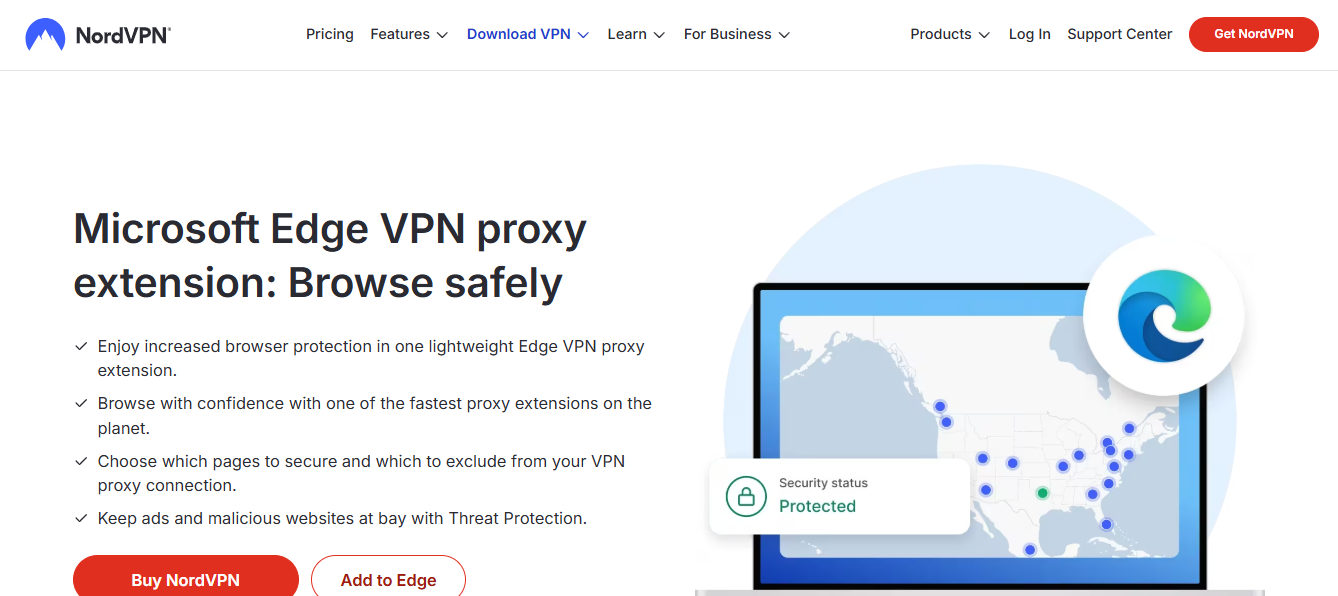
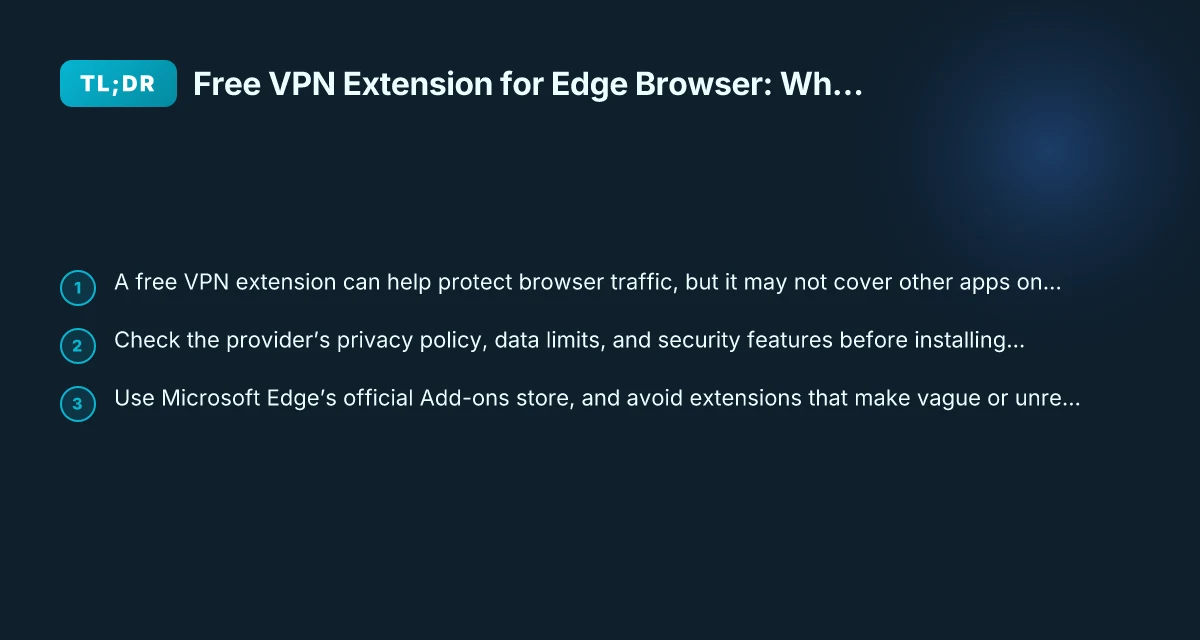
A free VPN extension for Edge browser can route your browser traffic through a VPN provider’s servers, helping conceal your IP address from websites and adding protection on untrusted networks. To get started, choose a reputable provider, install its extension from the Microsoft Edge Add-ons store, and review what the free plan includes. An extension is convenient, but it is not always the same as a full VPN app: it may protect only traffic inside Edge, and free plans commonly limit speed, locations, or data.
Browser extensions, free plans, and full VPN apps compared
| Option | What it protects | Covers other apps | Setup | Common trade-off |
|---|---|---|---|---|
| Edge VPN extension | Browser traffic, depending on provider | No | Add to Edge and sign in | Other device traffic may remain exposed |
| Free VPN app | Device traffic, depending on provider | Usually | Install app and connect | Free-plan limits may apply |
| Paid VPN extension | Browser traffic, depending on provider | No | Add to Edge and sign in | Requires a subscription |
| Paid VPN app | Device traffic, depending on provider | Usually | Install app and connect | Requires a subscription |
| Proxy extension | Browser traffic routed through a proxy | No | Add to Edge and configure | May not provide VPN-level protection |
| Built-in private browsing | Does not hide traffic from networks or providers | No | Open a private window | Not a VPN |
| Browser with a VPN feature | Browser traffic, depending on the feature | No | Enable the feature | Scope and availability vary |
| No VPN | No VPN protection | No | No setup | Traffic uses the regular connection |
Compiled November 2026; check the provider's site for current details.
| VPN | Obfuscation | From / month | Plan | Free plan | Refund | Alipay | UnionPay | Crypto | Website opens in China | Trustpilot | |
|---|---|---|---|---|---|---|---|---|---|---|---|
 ZoogVPN | Turn on manually Shadow | $2.49/mo | 27 months: $59.99 | Yes | 7 days | ✓ | ✓ | ✓ | ✓ | Official site blocked; our special link opens (4.4 s) | 4.2/5 (195 reviews) |
 NordVPN | Turn on manually Obfuscated Servers / NordWhisper | $3.49/mo | 27 months: $94.23 | No | 30 days | ? | ✗ | ✓ | ✓ | ✗ Blocked | 4.2/5 (51,628 reviews) |
 ExpressVPN | ✓ On by default all servers | $3.00/mo | 28 months: $84 | No | 30 days | ✗ | ✗ | ✓ | ✗ | ✗ Blocked | 4.4/5 (29,706 reviews) |
 Surfshark | ✓ On by default Camouflage, with OpenVPN | See site | See site | No | 30 days | ✗ | ✗ | ✗ | ✓ | ✗ Blocked | 4.3/5 (31,823 reviews) |
 Proton VPN | Turn on manually Stealth, free plan too | $2.99/mo | 12 months: $35.88 | Yes | 30 days | ✗ | ✗ | ✗ | ✓ | ✗ Blocked | 2.1/5 (1,040 reviews) |
 Astrill VPN | Turn on manually StealthVPN / OpenWeb | $12.50/mo | 24 months: $300 | No | See site | ✗ | ✗ | ✗ | ✓ | ✗ Blocked | 1.3/5 (110 reviews) |
 Private Internet Access | Turn on manually Shadowsocks, OpenVPN only | $2.03/mo | 40 months: $81.2 | No | 30 days | ✗ | ✗ | ✗ | ✗ | ✗ Blocked | 4.2/5 (11,033 reviews) |
 CyberGhost | Turn on manually selected servers | $2.19/mo | 28 months: $61.32 | No | 45 days | ✗ | ✗ | ✗ | ✓ | ✗ Blocked | 4.0/5 (24,178 reviews) |
 PureVPN | Turn on manually switch to OpenVPN | $1.69/mo | 60 months: $101.55 | No | 31 days | ? | ? | ✗ | ✓ | ✗ Blocked | 4.4/5 (17,994 reviews) |
 AdGuard VPN | ✓ On by default TrustTunnel | $2.99/mo | 24 months: $71.76 | Yes | 30 days | ✓ | ✗ | ✓ | ✓ | Official site blocked; our special link opens (3.7 s) | 4.3/5 (290 reviews) |
 Mullvad | Turn on manually QUIC / Shadowsocks / LWO | $5.61/mo | €5/mo | No | 14 days | ✗ | ✗ | ✗ | ✓ | ✗ Blocked | 3.2/5 (192 reviews) |
 Windscribe | Turn on manually Stealth / WStunnel | $5.75/mo | 12 months: $69 | Yes | See site | ✗ | ✗ | ✗ | ✓ | ✗ Blocked | 4.7/5 (13,355 reviews) |
 StrongVPN | Turn on manually Scramble, OpenVPN TCP | See site | See site | No | 30 days | ✓ | ✗ | ✗ | ✗ | ✗ Blocked | 4.4/5 (2,695 reviews) |
 LightXtreme 闪连 | Not listed | $7.08/mo | 12 months: $84.99 | Yes | 30 days | ✓ | ✓ | ✓ | ✓ | ✓ Yes (3.5 s) | No page |
Prices checked 2026-11-10 on each vendor's pricing page (cheapest long plan, USD). Check the vendor's checkout for the final price.
Obfuscation checked 2026-11-14 on each vendor's site and help center: "on by default" = nothing to set; "turn on manually" = switch protocol or mode in settings; "not listed" = the vendor describes no obfuscation.
Payment methods checked 2026-11-10 on each vendor's payment pages: all 14 take cards and PayPal; ✗ = not listed, ? = the vendor's own pages disagree.
China access: whether the official website opens from mainland China networks (tests the website only, not the VPN connection). Last checked 2026-11-18 01:02 Beijing time.
Trustpilot score and review count checked 2026-11-10.
What a VPN extension does in Edge
A VPN, or virtual private network, creates an encrypted connection between your device or browser and a VPN server. Websites generally see the server’s IP address rather than your regular public IP address. Encryption can also make browser traffic harder for others on the same public Wi-Fi network to inspect.
A browser extension is a lightweight way to manage a VPN connection from Edge. Depending on how the provider built it, the extension may work as a browser proxy or connect to the provider’s VPN service. These approaches can differ in how they handle traffic, so check the extension’s description and documentation rather than assuming every extension offers identical protection.
In particular, a browser extension may not protect traffic from other browsers, games, email clients, or background apps. If you want VPN coverage across your whole device, look for a provider’s desktop VPN app instead.
A VPN also does not make you completely anonymous. Websites can still identify you through account sign-ins, cookies, browser fingerprinting, or information you choose to share. It does not replace antivirus software or protect you from every scam or malicious download. FortiClient VPN Only: What It Is, How to Install It, and When to Use It
How to choose a free option
“Free” describes the price, not the quality or privacy standard. Before installing an extension, look at who operates it, what information it collects, and how its free tier works.
Use this checklist:
- Clear ownership: The developer should be identifiable, with a working website and support information.
- Understandable privacy policy: Check whether the provider logs browsing activity, connection details, or device identifiers, and how long it keeps them.
- Transparent free-plan limits: Look for monthly data caps, speed restrictions, server locations, and any account requirements.
- Security information: Prefer providers that explain their encryption and connection protections in plain language.
- Reasonable permissions: Review what the extension asks to access. Broad permissions may be needed for some features, but the provider should explain why.
- No unrealistic claims: Treat promises of guaranteed anonymity, unlimited speed, or protection from every online threat with caution.
- Recent maintenance: Check the store listing for update history and recent user feedback. Reviews are useful clues, not proof of security.
A free plan may be suitable for occasional browsing or trying out a service. If you need frequent streaming, large downloads, or consistent access to specific locations, a paid plan may be a better fit.
Free VPN extension checks before choosing Free VPN That Lets You Choose Location: What to Know
| Check | What to look for | Why it matters | Warning sign |
|---|---|---|---|
| Traffic coverage | Clear statement of browser-only coverage | Shows what is protected | Claims all device traffic is covered by an extension |
| Privacy policy | Specific data collection and retention details | Helps assess privacy practices | Vague or missing policy |
| Logging | Clear explanation of connection or activity logs | Indicates what may be recorded | Unsupported no-logs claims |
| Free-plan limits | Clearly stated caps or restrictions | Avoids surprises during use | Limits not disclosed |
| Permissions | Requests relevant to stated features | Limits unnecessary access | Broad permissions without explanation |
| Provider identity | Verifiable company and support details | Makes accountability easier | Unclear operator |
| Security claims | Specific, understandable explanations | Helps evaluate protection | Absolute or unsubstantiated promises |
| Business model | Transparent explanation of how service is funded | Helps assess incentives | No clear explanation |
Compiled November 2026; check the provider's site for current details.
Free extensions and full VPN apps compared
The right choice depends on which traffic you want to protect and how often you use a VPN.
| Feature | Free Edge extension | Full VPN app |
|---|---|---|
| Coverage | Often limited to Edge traffic | Usually covers traffic across the device |
| Setup | Installed through the browser | Installed as a desktop or mobile application |
| Convenience | Quick controls inside Edge | Runs separately from the browser |
| Free-plan limits | May include data, speed, or location restrictions | Free availability and limits vary by provider |
| Best suited for | Occasional browser use | Broader, device-wide VPN protection |
Do not assume an extension is safer just because it is simpler, or that a desktop app is automatically more private. The provider’s practices and the product’s actual behavior matter most.
How to install a VPN extension in Microsoft Edge
Install extensions from the official Microsoft Edge Add-ons store whenever possible. This helps reduce the risk of downloading an imitation from an unfamiliar site. NordVPN Windows 10 VPN: How to Download, Install, and Use It
- Open Microsoft Edge and go to the Extensions menu.
- Select Get extensions for Microsoft Edge to open the official Add-ons store.
- Search for the provider by its exact name.
- Open the listing and verify the developer, description, permissions, update history, and privacy information.
- Select Get, then confirm the installation.
- Open the extension from the toolbar, sign in or create an account if required, and connect to a server.
- Visit a reputable IP-checking website to confirm that your visible IP address has changed.
After installation, review the extension’s settings. If Edge warns you about a permission or the extension requests access that does not match its stated purpose, pause and investigate before proceeding.
Common limitations and privacy checks
Free VPN extensions often impose trade-offs. A data cap may run out quickly if you watch video or download files. A small server selection can make it harder to find a nearby, fast connection. Some providers reserve more locations or higher speeds for paid subscribers.
Privacy deserves particular attention. A VPN provider can handle traffic routed through its service, so its data practices matter. Read the privacy policy and look for a direct explanation of what is collected, why it is collected, whether it is shared, and when it is deleted. Be cautious if these details are missing or difficult to understand.
You can also reduce browser tracking separately by limiting third-party cookies, clearing site data when appropriate, and using Edge’s built-in privacy and security settings. These steps complement a VPN. They do not replace one. How to Add or Change a VPN Connection in Windows 10
If a connection fails, try a different server, check whether the extension is enabled, and review the provider’s help page. Avoid installing multiple VPN extensions at once, since they may conflict or make it unclear which connection is active.
Edge extension installation and first-use checklist
| Step | Action | Check before proceeding | If something goes wrong |
|---|---|---|---|
| 1 | Open Microsoft Edge Add-ons | Confirm the publisher and listing | Avoid unclear or look-alike listings |
| 2 | Review the extension details | Check features, permissions, and policy | Choose another option if details are vague |
| 3 | Select the install option | Confirm the requested permissions | Decline if permissions seem excessive |
| 4 | Open the extension from Edge’s toolbar or menu | Confirm it is the extension you installed | Remove unfamiliar extensions |
| 5 | Sign in or create an account if required | Read the provider’s account and privacy terms | Do not reuse a sensitive password |
| 6 | Choose a server or location if available | Check whether selection is included in the free plan | Use an available default if choices are limited |
| 7 | Connect and test the extension | Check its connection status and expected coverage | Disconnect and review settings if unclear |
| 8 | Recheck settings and permissions later | Review updates and privacy changes | Remove it if trust or support declines |
Compiled November 2026; check the provider's site for current details.
Recommendation
For occasional browsing, a free VPN extension for Edge browser can be a convenient option if it comes from a transparent provider and its limits meet your needs. Install it from the official Microsoft Edge Add-ons store, check its permissions and privacy policy, and remember that it may cover only browser traffic. If you need protection for all apps or reliable performance for regular use, compare full VPN apps and consider whether a reputable paid plan is worth the cost. Microsoft Edge Free VPN: What’s Available and Is It Worth Using?