TunnelBear Extension Edge: How to Install and Use It

Learn whether TunnelBear works as an Edge extension, how to set it up, and when to choose its Windows app instead.
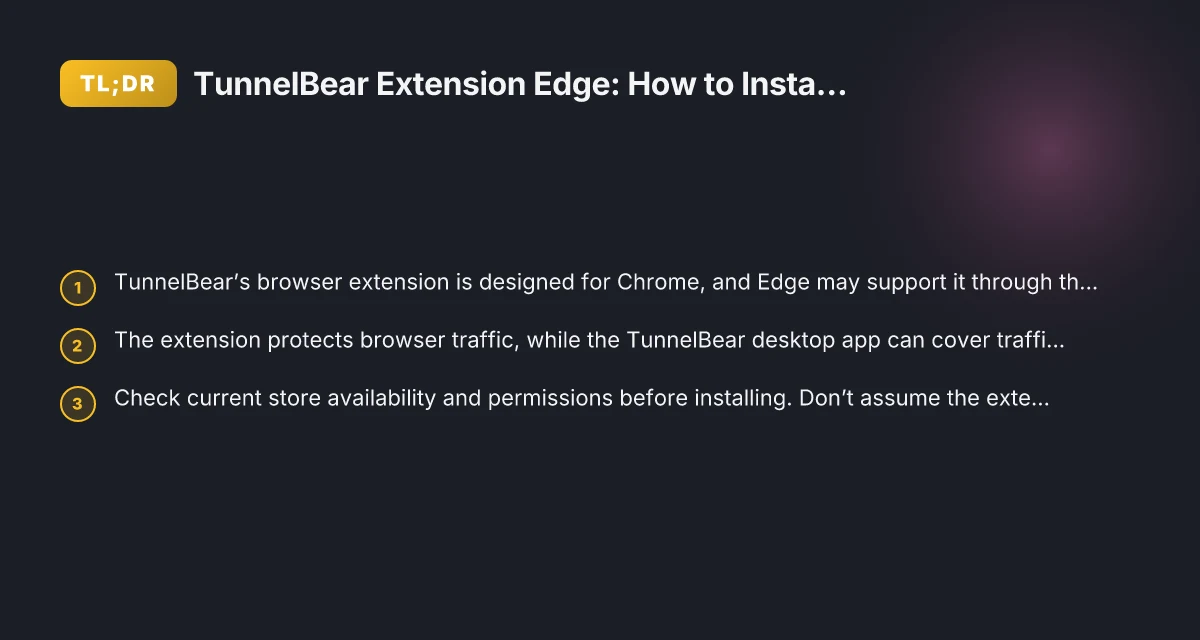
If you’re looking for a TunnelBear extension for Edge, the practical route is to check whether TunnelBear’s official browser extension is currently available through the Chrome Web Store and install it in Microsoft Edge. Edge is based on Chromium and can run many Chrome extensions, but availability and compatibility can change. For broader device protection, use TunnelBear’s official Windows app rather than relying on a browser extension alone.
Compare the TunnelBear Edge extension with the Windows app
| Feature | Edge extension | Windows app | Best fit |
|---|---|---|---|
| Works with Microsoft Edge | Yes, as a browser extension | Yes, through the app | Either |
| Protects browser traffic | Yes | Yes | Browser-only use: extension |
| Protects traffic outside the browser | No | Yes | Whole-device use: app |
| Requires a TunnelBear account | Yes | Yes | Either |
| Installs in Edge | Yes | No | Extension |
| Runs as a Windows application | No | Yes | App |
| Connection controls | Browser extension controls | App controls | Depends on preference |
Compiled November 2026; check the provider's site for current details.
Does TunnelBear have an Edge extension?
TunnelBear has offered a browser extension for Chrome. Because Microsoft Edge uses the Chromium engine, it can often install compatible extensions from the Chrome Web Store. That does not guarantee that every Chrome extension will be listed, supported, or work perfectly in Edge.
Start by checking TunnelBear’s official website and the extension’s current Chrome Web Store listing. Use those sources to confirm that the extension is genuine, supported, and available for your version of Edge. Avoid third-party download sites that offer extension files or installers.
An extension is not necessarily the same thing as a full VPN application. Browser extensions generally handle browser traffic, while a desktop VPN app can route traffic from other programs on your computer as well. Check TunnelBear’s product information to understand exactly what the extension protects.

How to install TunnelBear in Microsoft Edge
If TunnelBear’s official extension is available in the Chrome Web Store, you can usually install it in Edge as follows: Where Is My VPN Located? Find Your VPN Server and Virtual Location
- Open Microsoft Edge and visit the Chrome Web Store.
- Find the official TunnelBear extension. Confirm the publisher and review the listing details.
- If Edge asks whether you want to allow extensions from other stores, review the prompt and enable that option only if you trust the source.
- Select the option to add the extension, then review the permissions Edge displays.
- Pin the extension to the toolbar if you want to reach it easily.
- Open it, sign in or create an account, and follow the setup instructions shown in the extension.
The names of buttons and prompts can change as Edge updates. If you cannot find the extension, or installation is blocked, check TunnelBear’s official support pages for current instructions rather than downloading an unofficial copy.
Choose an installation route for TunnelBear in Microsoft Edge
| Route | Where to get it | What to check | Suitable when |
|---|---|---|---|
| Edge Add-ons store | Microsoft Edge Add-ons | Confirm the listing is TunnelBear’s official extension | The extension is available in the store |
| Chrome Web Store | Chrome Web Store | Confirm the listing is official and Edge permits installation | The Edge store route is unavailable |
| Windows app | TunnelBear’s official site | Confirm the app supports your Windows setup | You want device-wide protection |
| No extension available | TunnelBear’s official site or support | Check current Edge support information | You cannot find an official Edge listing |
Compiled November 2026; check the provider's site for current details.
Using the extension and checking your connection
After installation, open the TunnelBear icon and follow its prompts to connect. Depending on the current version, you may be able to choose a server location or use a quick-connect option. The extension’s interface and features can change, so use the in-product instructions for the controls available to you. Big IP VPN Download: How to Find and Install a Safe VPN
Once connected, check that the extension indicates an active connection before browsing. If a site behaves unexpectedly, try disconnecting and reconnecting, refreshing the page, or choosing another location if that option is available.
Keep in mind that a VPN extension does not make you anonymous or protect you from every online risk. It does not replace strong passwords, two-factor authentication, secure browsing habits, or protection against phishing. A VPN also cannot guarantee that a website will accept a connection from every server location.
Extension or Windows app?
The right option depends on what you want to protect. A browser extension is convenient for activity in the browser it controls. TunnelBear’s Windows app is the more appropriate choice when you want VPN coverage for traffic from multiple programs on your PC.
| Option | Typical scope | Best suited to |
|---|---|---|
| TunnelBear browser extension | The supported browser and its traffic | Browser-focused use |
| TunnelBear Windows app | The computer’s network traffic, subject to app settings | Protection across browsers and other apps |
| Both, if supported and configured as intended | Depends on how the products interact | Users who need browser-specific controls as well as device-level coverage |
Do not assume that running both products at once improves protection. Their behavior can depend on the versions and settings involved. Check TunnelBear’s documentation before combining them, especially if you experience connection problems. Urban VPN Extension Edge Download: A Safe Setup Guide
Troubleshoot common TunnelBear Edge problems
| Problem | First check | Try next | If it continues |
|---|---|---|---|
| Extension is missing | Check whether installation completed | Reopen Edge and check Extensions | Reinstall from an official store |
| Extension will not install | Check Edge’s store settings | Try the official alternative store, if permitted | Use the Windows app or contact support |
| Cannot sign in | Check account details and internet access | Restart Edge and retry | Contact TunnelBear support |
| Connection will not start | Check the extension’s connection status | Disconnect and reconnect | Try the Windows app |
| Website still detects your location | Confirm the extension is connected | Reload the site | Check for conflicting VPN or proxy settings |
Compiled November 2026; check the provider's site for current details.
Troubleshooting common Edge problems
If you cannot install or use TunnelBear in Edge, try these checks:
- Confirm the source: Make sure you are using the official listing or a link from TunnelBear’s website.
- Update Edge: An outdated browser can cause extension installation or performance issues.
- Review permissions: If a permission prompt concerns you, pause and check TunnelBear’s official explanation before proceeding.
- Check for conflicts: Other VPNs, proxy settings, privacy tools, or security extensions may interfere with connections.
- Restart and retry: Close and reopen Edge, then test the extension again.
- Check account and service status: Sign-in problems or a temporary service issue can prevent a connection.
- Contact official support: If the extension is missing, unsupported, or repeatedly fails, consult TunnelBear’s current help resources.
If you need VPN protection beyond browser activity, install the official TunnelBear Windows app from TunnelBear’s website or another source it explicitly recommends. Avoid unofficial installers and extensions claiming to be TunnelBear. iPhone VPN Keeps Turning On: Why It Happens and How to Stop It
Recommendation
For browser-only use, check TunnelBear’s official extension listing and install it in Edge only if it is currently offered and supported. For protection across your PC’s applications, choose the official TunnelBear Windows app. In either case, verify the product’s coverage and permissions before connecting.