VPN for Edge Free Extension: What to Choose and How to Use It
Learn how free VPN extensions for Microsoft Edge work, what they protect, and how to choose and install one safely.
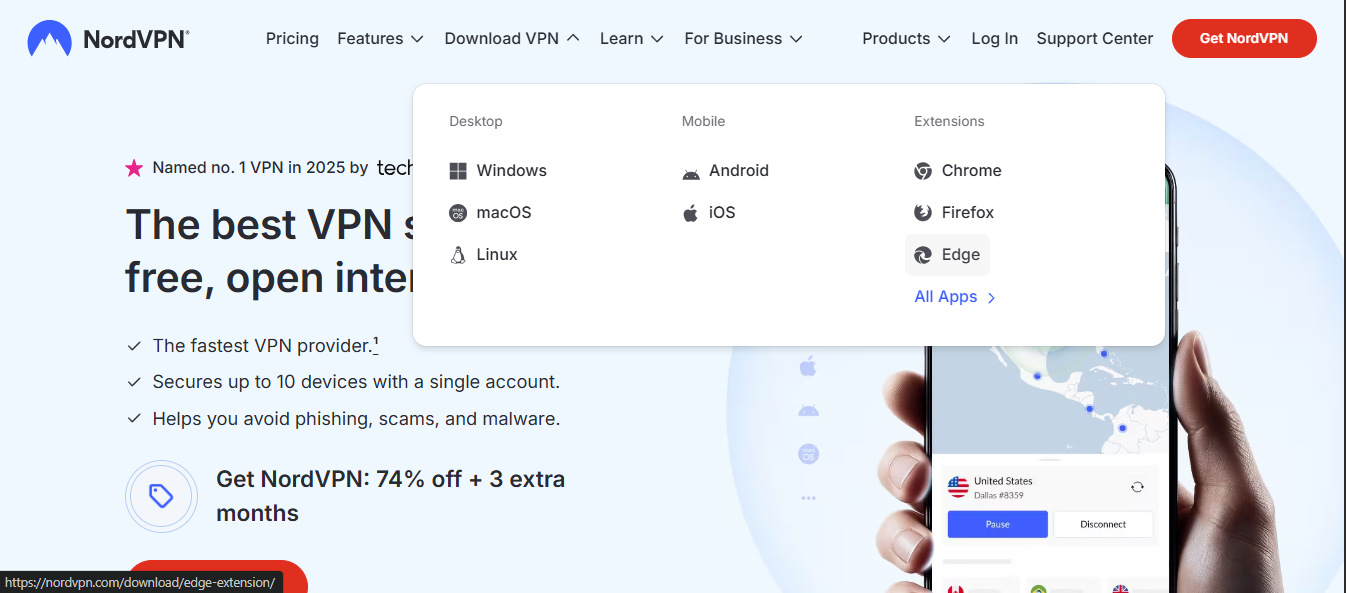
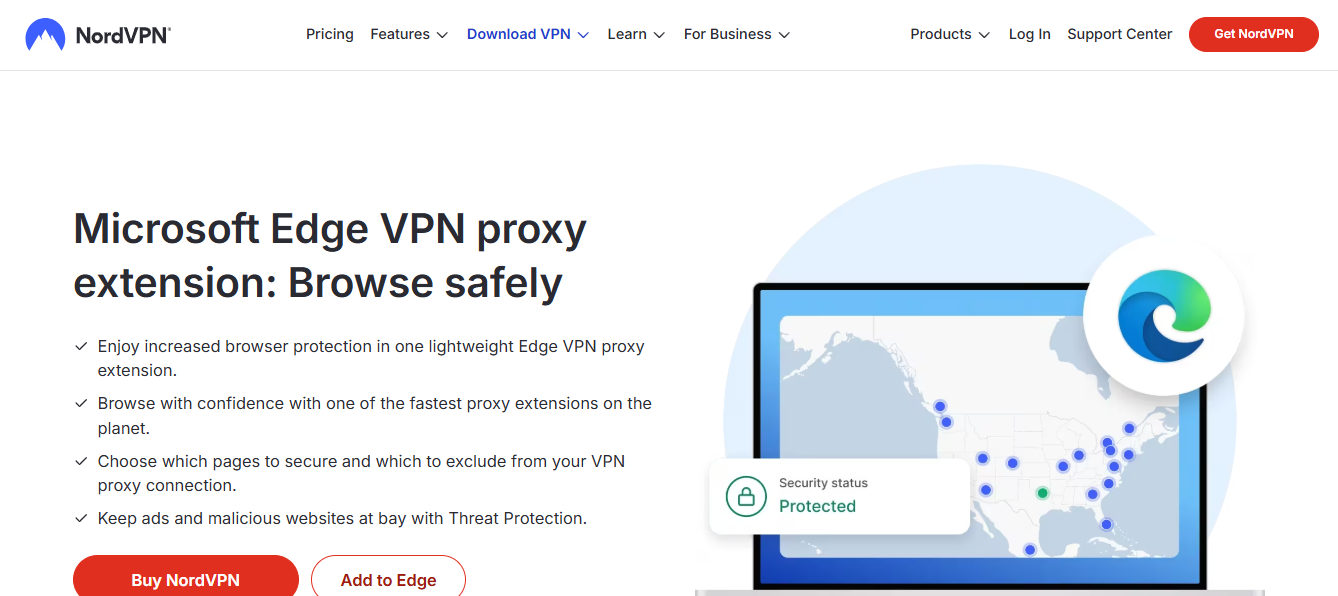
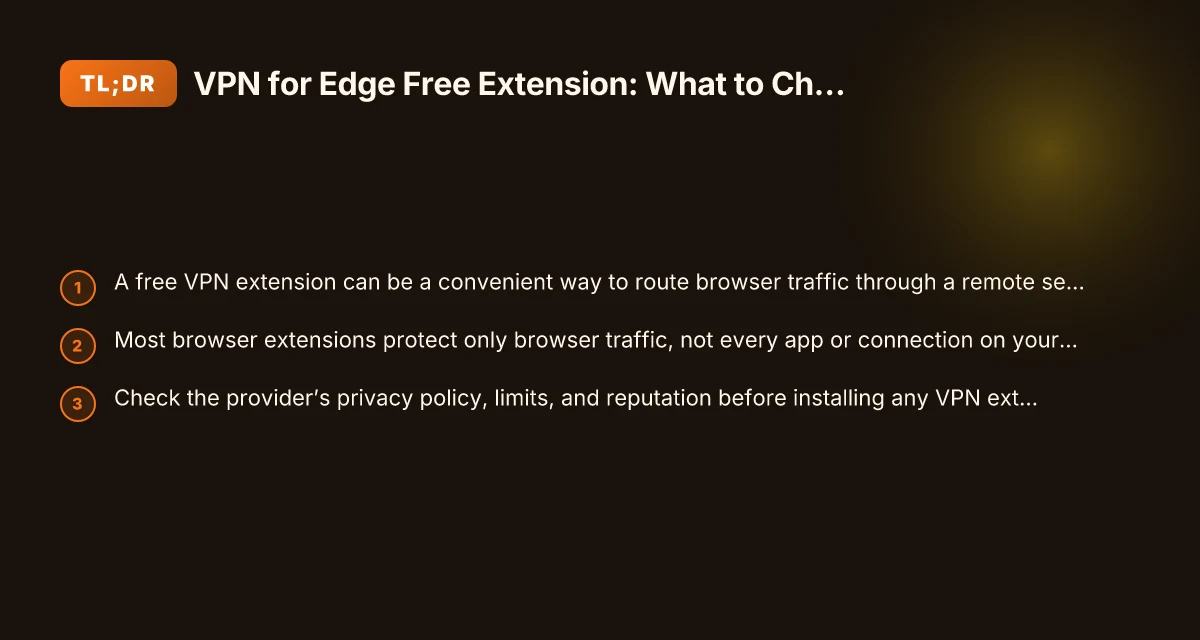
If you’re looking for a VPN for Edge free extension, you can install one from the Microsoft Edge Add-ons store or use a reputable VPN provider’s browser extension. These tools can help route traffic from your browser through a VPN server, which may change the IP address websites see and add protection on untrusted networks. The important distinction is that a browser extension usually protects Edge traffic only. It is not necessarily a full VPN for your entire device.
VPN extension vs. full VPN app
| Feature | Edge VPN extension | Full VPN app |
|---|---|---|
| Setup | Install in Edge | Install on device |
| Coverage | Browser traffic | Device traffic |
| Other apps protected | No | Yes |
| Browser integration | Directly in Edge | Usually system-wide |
| Useful for | Browser-only use | Whole-device protection |
| Free-plan limits | May apply | May apply |
Compiled November 2026; check the provider's site for current details.
| VPN | Obfuscation | From / month | Plan | Free plan | Refund | Alipay | UnionPay | Crypto | Website opens in China | Trustpilot | |
|---|---|---|---|---|---|---|---|---|---|---|---|
 ZoogVPN | Turn on manually Shadow | $2.49/mo | 27 months: $59.99 | Yes | 7 days | ✓ | ✓ | ✓ | ✓ | Official site blocked; our special link opens (4.4 s) | 4.2/5 (195 reviews) |
 NordVPN | Turn on manually Obfuscated Servers / NordWhisper | $3.49/mo | 27 months: $94.23 | No | 30 days | ? | ✗ | ✓ | ✓ | ✗ Blocked | 4.2/5 (51,628 reviews) |
 ExpressVPN | ✓ On by default all servers | $3.00/mo | 28 months: $84 | No | 30 days | ✗ | ✗ | ✓ | ✗ | ✗ Blocked | 4.4/5 (29,706 reviews) |
 Surfshark | ✓ On by default Camouflage, with OpenVPN | See site | See site | No | 30 days | ✗ | ✗ | ✗ | ✓ | ✗ Blocked | 4.3/5 (31,823 reviews) |
 Proton VPN | Turn on manually Stealth, free plan too | $2.99/mo | 12 months: $35.88 | Yes | 30 days | ✗ | ✗ | ✗ | ✓ | ✗ Blocked | 2.1/5 (1,040 reviews) |
 Astrill VPN | Turn on manually StealthVPN / OpenWeb | $12.50/mo | 24 months: $300 | No | See site | ✗ | ✗ | ✗ | ✓ | ✗ Blocked | 1.3/5 (110 reviews) |
 Private Internet Access | Turn on manually Shadowsocks, OpenVPN only | $2.03/mo | 40 months: $81.2 | No | 30 days | ✗ | ✗ | ✗ | ✗ | ✗ Blocked | 4.2/5 (11,033 reviews) |
 CyberGhost | Turn on manually selected servers | $2.19/mo | 28 months: $61.32 | No | 45 days | ✗ | ✗ | ✗ | ✓ | ✗ Blocked | 4.0/5 (24,178 reviews) |
 PureVPN | Turn on manually switch to OpenVPN | $1.69/mo | 60 months: $101.55 | No | 31 days | ? | ? | ✗ | ✓ | ✗ Blocked | 4.4/5 (17,994 reviews) |
 AdGuard VPN | ✓ On by default TrustTunnel | $2.99/mo | 24 months: $71.76 | Yes | 30 days | ✓ | ✗ | ✓ | ✓ | Official site blocked; our special link opens (3.7 s) | 4.3/5 (290 reviews) |
 Mullvad | Turn on manually QUIC / Shadowsocks / LWO | $5.61/mo | €5/mo | No | 14 days | ✗ | ✗ | ✗ | ✓ | ✗ Blocked | 3.2/5 (192 reviews) |
 Windscribe | Turn on manually Stealth / WStunnel | $5.75/mo | 12 months: $69 | Yes | See site | ✗ | ✗ | ✗ | ✓ | ✗ Blocked | 4.7/5 (13,355 reviews) |
 StrongVPN | Turn on manually Scramble, OpenVPN TCP | See site | See site | No | 30 days | ✓ | ✗ | ✗ | ✗ | ✗ Blocked | 4.4/5 (2,695 reviews) |
 LightXtreme 闪连 | Not listed | $7.08/mo | 12 months: $84.99 | Yes | 30 days | ✓ | ✓ | ✓ | ✓ | ✓ Yes (3.5 s) | No page |
Prices checked 2026-11-10 on each vendor's pricing page (cheapest long plan, USD). Check the vendor's checkout for the final price.
Obfuscation checked 2026-11-14 on each vendor's site and help center: "on by default" = nothing to set; "turn on manually" = switch protocol or mode in settings; "not listed" = the vendor describes no obfuscation.
Payment methods checked 2026-11-10 on each vendor's payment pages: all 14 take cards and PayPal; ✗ = not listed, ? = the vendor's own pages disagree.
China access: whether the official website opens from mainland China networks (tests the website only, not the VPN connection). Last checked 2026-11-18 01:02 Beijing time.
Trustpilot score and review count checked 2026-11-10.
What a free VPN extension for Edge does
A VPN extension connects your browser to a provider’s server. Websites then generally see the server’s IP address rather than your regular public IP address. Depending on the extension and provider, your connection between Edge and the VPN server may also be encrypted.
That can be useful when you want to:
- Reduce exposure of your browser traffic on public Wi-Fi.
- Use a different apparent IP address for browsing.
- Add a quick privacy tool without setting up a desktop app.
- Turn the connection on or off directly from Edge.
However, an extension does not make you anonymous. Websites can still recognize you through account sign-ins, cookies, browser fingerprinting, and other tracking methods. A VPN also does not automatically block malware or make suspicious downloads safe.
VPN extension vs. full VPN app
Before choosing an extension, check what it actually protects. Some browser extensions provide a proxy connection rather than a full-device VPN tunnel. Others work alongside a provider’s desktop app and may rely on it for certain features. F5 VPN Client: How It Works, How to Install It, and What to Do If It Fails
| Feature | Edge VPN extension | Full VPN app |
|---|---|---|
| Typical coverage | Browser traffic, depending on the service | Traffic from most or all device apps |
| Setup | Installed in Edge | Installed on Windows or another operating system |
| Convenient for browsing | Yes | Yes, but usually managed outside the browser |
| Device-wide protection | Usually no | Usually yes, subject to settings |
| Common free-plan limits | Data, server choice, speed, or features | Data, server choice, speed, or features |
Neither format is automatically better for everyone. An extension may be enough for occasional browser use, while a full app is a better fit if you want VPN coverage for other applications too. Read the provider’s description carefully, because the word “VPN” is sometimes used loosely.
How to choose a trustworthy free option
Free access can be useful, but it may come with limits. A provider might cap monthly data, offer fewer server locations, restrict speeds, or reserve key features for paid plans. These limits should be stated clearly before you install or subscribe.
Use this checklist when comparing options:
- Check the developer. Confirm that the extension is published by the VPN provider you intended to use.
- Read the privacy policy. Look for clear information about connection data, browsing data, retention, and sharing.
- Review permissions. Make sure the requested access makes sense for the extension’s stated purpose.
- Check recent reviews and updates. A large number of reviews alone does not prove that an extension is trustworthy.
- Look for transparent limits. Find out whether there is a data cap, speed restriction, or limited server selection.
- Avoid unexplained monetization. Be cautious if the provider does not explain how a supposedly free service is funded.
- Verify the connection. After connecting, use a reputable IP-checking site and confirm that the displayed location changes as expected.
A privacy policy should not promise more than the service can support. If the provider’s ownership, terms, or data practices are hard to understand, choose a better-documented alternative. Best Free VPN Extension Edge: Top Options and How to Choose
How to choose a trustworthy free VPN extension
| Check | What to look for | Why it matters | Warning sign |
|---|---|---|---|
| Provider | Recognizable, established company | Easier to assess trust | Unknown operator |
| Privacy policy | Clear data practices | Shows what is collected | Vague or missing policy |
| Permissions | Relevant to VPN features | Limits unnecessary access | Unrelated permissions |
| Business model | Clearly explained | Helps assess incentives | No explanation |
| Limits | Clearly stated | Avoids surprises | Hidden restrictions |
| Reviews | Consistent, credible feedback | Can reveal recurring issues | Suspicious review patterns |
Compiled November 2026; check the provider's site for current details.
How to install and use a VPN extension in Edge
The simplest route is to find the extension through Microsoft Edge Add-ons. You can also follow the provider’s official website, but make sure it directs you to the genuine store listing.
- Open Edge and go to the Microsoft Edge Add-ons store.
- Search for the VPN provider’s official extension.
- Check the publisher name, description, permissions, and reviews.
- Select Get, then approve the installation.
- Open the extension from the Edge toolbar.
- Sign in or create an account if required.
- Choose an available server and connect.
- Visit an IP-checking page to confirm that the browser is using the expected VPN connection.
If the extension will not connect, update Edge, check your internet connection, and review the provider’s support page. Avoid installing a second extension that claims to “fix” the problem unless you can verify its publisher and purpose. Radmin VPN: What It Does, How It Works, and When to Use It
Limitations and safety tips
A free VPN extension can improve convenience, but it has practical limits. The service may not support every website or streaming platform, and a distant server can make pages load more slowly. Free plans may also become crowded during busy periods.
Keep these points in mind:
- Browser-only protection: Other apps may continue using your regular connection.
- Provider visibility: The VPN provider may be able to process connection data, so its policies matter.
- Website tracking: A VPN does not erase cookies or prevent every form of tracking.
- Connection drops: If the VPN disconnects, browser traffic may resume over your normal connection. Check whether the extension offers a reliable connection alert or other safeguards.
- Sensitive tasks: For banking, work, or confidential browsing, choose a provider with clear security practices rather than relying on an unknown free extension.
You can also improve everyday privacy by keeping Edge updated, limiting unnecessary extensions, using strong unique passwords, and reviewing site permissions.
Edge VPN extension setup and safety checklist Does NordVPN Work in China? What to Know Before You Travel
| Step | Action | Check |
|---|---|---|
| 1 | Find the extension in Microsoft Edge Add-ons | Confirm the publisher |
| 2 | Review its description and permissions | Check they fit its purpose |
| 3 | Read the privacy policy | Understand data handling |
| 4 | Install the extension | Use the official store listing |
| 5 | Open its controls in Edge | Sign in or choose a plan if required |
| 6 | Select a server location | Choose an available option |
| 7 | Connect before browsing | Confirm the connection status |
| 8 | Disconnect when finished | Do not assume it protects other apps |
Compiled November 2026; check the provider's site for current details.
Recommendation
For casual browsing, a well-documented VPN for Edge free extension from a known provider can be a practical starting point. Confirm that it protects the type of traffic you care about, understand its free-plan limits, and test the connection after setup. If you need protection for games, messaging apps, downloads, or your whole device, choose a reputable full VPN app instead.