Where Is My VPN? Find It, Check It, and Fix Common Problems
Find your VPN app and connection on any device, confirm it is working, and troubleshoot common issues.
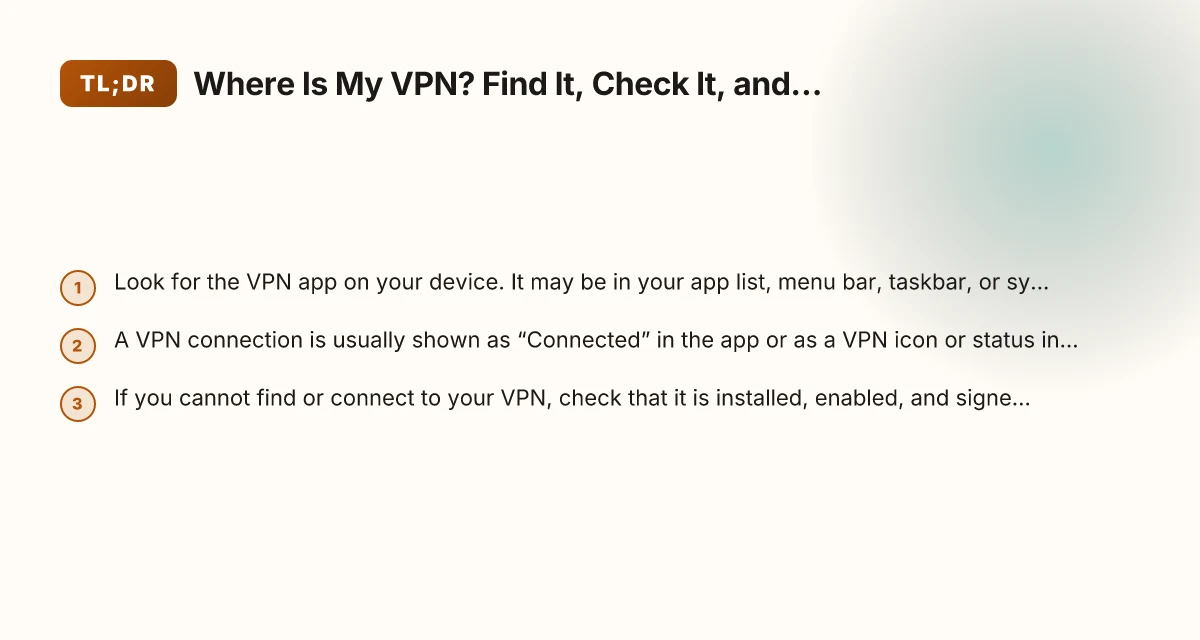
If you’re asking “where is my VPN,” start by checking the device you use to connect to the internet. Your VPN is usually an app or built-in setting, and its connection status appears in that app or in your device’s network settings. If you cannot find it, the VPN may not be installed, may be turned off, or may be managed by your workplace or school.
A VPN, or virtual private network, routes some or all of your internet traffic through a VPN provider’s server. Finding the app tells you where to control the connection. Checking its status tells you whether it is active. Here’s how to locate it on common devices.
| VPN | Obfuscation | From / month | Plan | Free plan | Refund | Alipay | UnionPay | Crypto | Website opens in China | Trustpilot | |
|---|---|---|---|---|---|---|---|---|---|---|---|
 NordVPN | Turn on manually Obfuscated Servers / NordWhisper | $3.49/mo | 27 months: $94.23 | No | 30 days | ? | ✗ | ✓ | ✓ | ✗ Blocked | 4.2/5 (51,628 reviews) |
 ExpressVPN | ✓ On by default all servers | $3.00/mo | 28 months: $84 | No | 30 days | ✗ | ✗ | ✓ | ✗ | ✗ Blocked | 4.4/5 (29,706 reviews) |
 Proton VPN | Turn on manually Stealth, free plan too | $2.99/mo | 12 months: $35.88 | Yes | 30 days | ✗ | ✗ | ✗ | ✓ | ✗ Blocked | 2.1/5 (1,040 reviews) |
 ZoogVPN | Turn on manually Shadow | $2.49/mo | 27 months: $59.99 | Yes | 7 days | ✓ | ✓ | ✓ | ✓ | Official site blocked; our special link opens (4.4 s) | 4.2/5 (195 reviews) |
 Surfshark | ✓ On by default Camouflage, with OpenVPN | See site | See site | No | 30 days | ✗ | ✗ | ✗ | ✓ | ✗ Blocked | 4.3/5 (31,823 reviews) |
 Astrill VPN | Turn on manually StealthVPN / OpenWeb | $12.50/mo | 24 months: $300 | No | See site | ✗ | ✗ | ✗ | ✓ | ✗ Blocked | 1.3/5 (110 reviews) |
 Private Internet Access | Turn on manually Shadowsocks, OpenVPN only | $2.03/mo | 40 months: $81.2 | No | 30 days | ✗ | ✗ | ✗ | ✗ | ✗ Blocked | 4.2/5 (11,033 reviews) |
 CyberGhost | Turn on manually selected servers | $2.19/mo | 28 months: $61.32 | No | 45 days | ✗ | ✗ | ✗ | ✓ | ✗ Blocked | 4.0/5 (24,178 reviews) |
 PureVPN | Turn on manually switch to OpenVPN | $1.69/mo | 60 months: $101.55 | No | 31 days | ? | ? | ✗ | ✓ | ✗ Blocked | 4.4/5 (17,994 reviews) |
 AdGuard VPN | ✓ On by default TrustTunnel | $2.99/mo | 24 months: $71.76 | Yes | 30 days | ✓ | ✗ | ✓ | ✓ | Official site blocked; our special link opens (3.7 s) | 4.3/5 (290 reviews) |
 Mullvad | Turn on manually QUIC / Shadowsocks / LWO | $5.61/mo | €5/mo | No | 14 days | ✗ | ✗ | ✗ | ✓ | ✗ Blocked | 3.2/5 (192 reviews) |
 Windscribe | Turn on manually Stealth / WStunnel | $5.75/mo | 12 months: $69 | Yes | See site | ✗ | ✗ | ✗ | ✓ | ✗ Blocked | 4.7/5 (13,355 reviews) |
 StrongVPN | Turn on manually Scramble, OpenVPN TCP | See site | See site | No | 30 days | ✓ | ✗ | ✗ | ✗ | ✗ Blocked | 4.4/5 (2,695 reviews) |
 LightXtreme 闪连 | Not listed | $7.08/mo | 12 months: $84.99 | Yes | 30 days | ✓ | ✓ | ✓ | ✓ | ✓ Yes (3.5 s) | No page |
Prices checked 2026-11-10 on each vendor's pricing page (cheapest long plan, USD). Check the vendor's checkout for the final price.
Obfuscation checked 2026-11-14 on each vendor's site and help center: "on by default" = nothing to set; "turn on manually" = switch protocol or mode in settings; "not listed" = the vendor describes no obfuscation.
Payment methods checked 2026-11-10 on each vendor's payment pages: all 14 take cards and PayPal; ✗ = not listed, ? = the vendor's own pages disagree.
China access: whether the official website opens from mainland China networks (tests the website only, not the VPN connection). Last checked 2026-11-18 01:02 Beijing time.
Trustpilot score and review count checked 2026-11-10.
Where to look for VPN controls by device
| Device | Common place to check | What to look for | If it is missing |
|---|---|---|---|
| Windows PC | Installed apps or Start menu | Your VPN provider’s app | Search installed apps |
| Windows PC | Settings → Network & internet → VPN | A saved VPN profile | Check whether a profile was added |
| Mac | Applications folder or Launchpad | Your VPN provider’s app | Search Applications |
| Mac | System Settings → VPN | A VPN configuration | Check whether the configuration was added |
| iPhone or iPad | Home Screen or App Library | Your VPN provider’s app | Search the App Library |
| iPhone or iPad | Settings → General → VPN & Device Management | A VPN configuration | Check for a profile or app |
| Android | App drawer | Your VPN provider’s app | Search installed apps |
| Android | Settings → Network & internet → VPN | A saved VPN profile | Check whether a profile was added |
Compiled November 2026; check the provider's site for current details.
Find your VPN app or setting
Windows
Search the Start menu for the name of your VPN provider, such as NordVPN, ExpressVPN, or Proton VPN. You can also open Settings and look under Network & internet > VPN to see VPN connections configured in Windows.
A VPN you installed as an app may appear in the Start menu and in the system tray near the clock. Select the up arrow in the taskbar if you do not see its icon. A built-in Windows VPN connection may not have a separate app. Open its settings to connect or review its details.
Mac
Look in the Applications folder or use Spotlight Search to find your VPN app. If it is running, its icon may appear in the menu bar at the top of the screen.
For a VPN configured through macOS, open System Settings > VPN. Depending on your macOS version and setup, VPN controls may also appear under Network. Select the relevant connection to check its status or connect. iPhone Clash: Why Your iPhone Freezes, Crashes, or Stops Responding
iPhone and iPad
Search your Home Screen or App Library for the VPN provider’s app. To check a VPN configured in iOS or iPadOS, open Settings and look for VPN. The setting may appear near the top level or under General > VPN & Device Management, depending on your device and configuration.
When a VPN is connected, iOS or iPadOS may show a VPN indicator in the status area. The indicator’s visibility can vary by device and software version, so check Settings or the VPN app if you are unsure.
Android
Search the app drawer for your VPN provider’s app. To find a VPN connection configured in Android, open Settings and search for “VPN”. Menus vary by phone manufacturer and Android version. It is often under Network & internet or Connections.
Android may show a key-shaped VPN icon or a VPN status in the notification area when connected. A work-managed device may have a VPN configured automatically, with controls limited by your organization. VPN Extension for Edge Browser: How to Choose and Use One
Check whether your VPN is connected
Finding the app does not necessarily mean the VPN is running. Open it and look for a status such as Connected, Protected, or Disconnect. If it says Connect, Disconnected, or Reconnecting, the VPN is not currently confirmed as connected.
You can also inspect your device’s VPN settings. A connected status there is a useful check, but it does not guarantee every app’s traffic is going through the VPN. Some VPNs use split tunneling, which lets selected apps or websites connect outside the VPN.
For an additional check, use a reputable IP address lookup service before and after connecting. A change in the public IP address or apparent location can indicate that the VPN is routing your traffic through a server. Results can be affected by browser settings, network configuration, and the VPN’s features, so use the provider’s app and connection status as your main reference.
| Where to look | What you may see | What it tells you |
|---|---|---|
| VPN provider’s app | Connected, server name, or Disconnect button | The app reports an active connection |
| Device VPN settings | Connected or a listed VPN profile | The device recognizes the VPN connection |
| Taskbar or menu bar | Provider icon or VPN indicator | The app may be running; open it to confirm |
| IP lookup service | A different public IP or location | Your apparent internet route may have changed |
Ways to check whether a VPN is connected NordVPN Extension for Edge: How to Install, Connect, and Choose
| Check | What to look for | What it indicates | Caveat |
|---|---|---|---|
| VPN app | Connected status | The app reports an active connection | Confirm the selected server |
| Device VPN settings | Connected status or active indicator | The device has an active VPN connection | Labels vary by device |
| Status bar | VPN icon or key symbol | A VPN may be active | Icon meaning varies by device |
| IP address check | A changed public IP address | Traffic may be using the VPN | Compare with VPN disconnected |
| Location check | A location matching the VPN server | The VPN may be routing traffic | Locations can be approximate |
| App traffic indicator | Traffic or session activity | The VPN app is exchanging data | Activity alone does not prove routing |
| Connection test | A successful VPN connection test | The test detects a VPN connection | Test results may vary |
Compiled November 2026; check the provider's site for current details.
If you cannot find your VPN
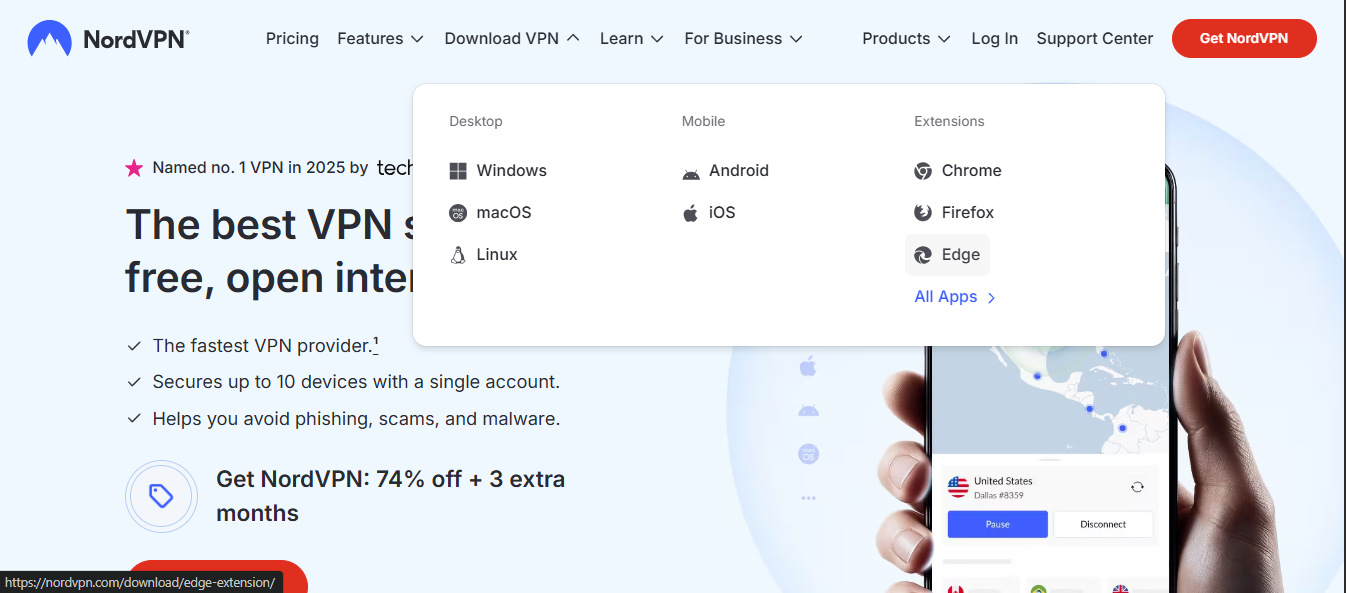
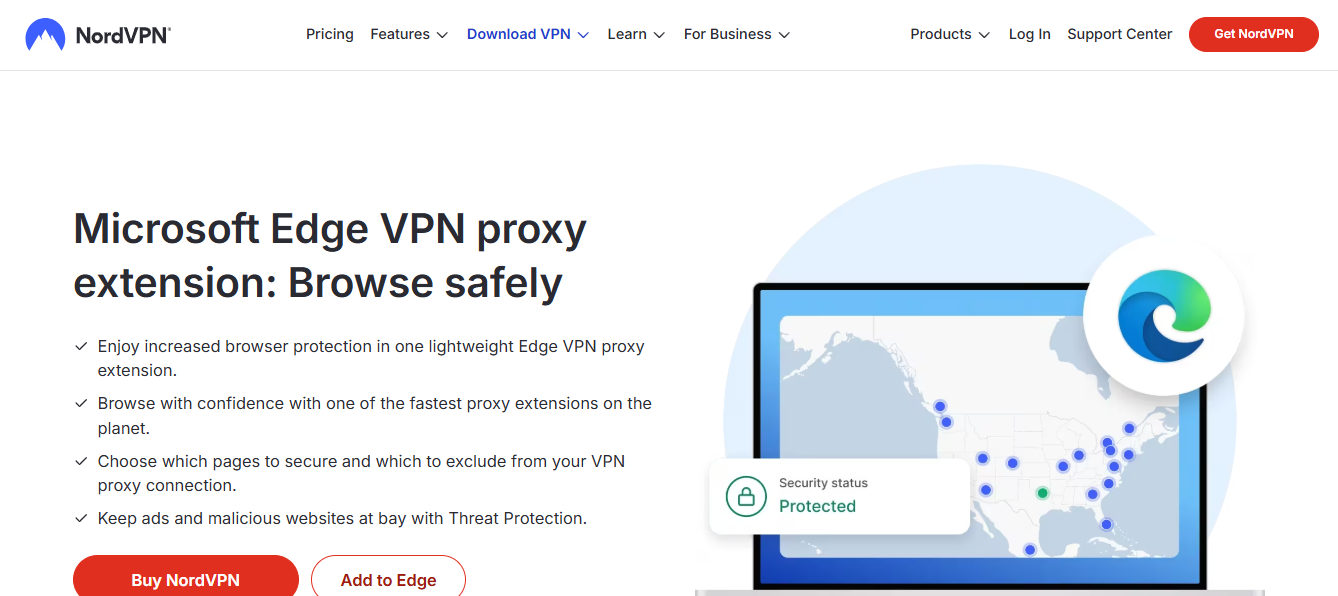
First, search your device for the provider’s name and “VPN.” Check the full app list, not just the Home Screen or desktop. If you use a browser extension instead of a full-device VPN app, look in your browser’s extensions menu. A browser extension usually protects browser traffic only, not every app on the device.
If nothing appears, check your device’s installed apps or application list. The VPN may have been removed, may need reinstalling, or may be available through your employer, school, or internet provider. Use the official app store or the VPN provider’s website to install software, and avoid unfamiliar download links.
A VPN profile can also exist without a visible provider app. This is common when someone manually configured a connection or an organization installed it. Check the device’s VPN settings, and ask your IT administrator before removing a work or school profile. VPN Free Extension Edge: How to Choose One for Microsoft Edge
If your VPN is there but will not connect
Try these steps in order:
- Confirm that your device has an internet connection without the VPN.
- Open the VPN app and make sure you are signed in and your subscription or account is active.
- Choose a different server or location, then try connecting again.
- Turn the VPN off and back on, or restart the device.
- Update the VPN app and your device’s operating system.
- Check whether a firewall, security app, or network restriction is blocking the connection.
- If the VPN is managed by work or school, contact the organization’s IT support.
Public Wi-Fi networks sometimes require you to accept a sign-in page before a VPN can connect. Open a browser, complete the network’s sign-in process, and then reconnect the VPN. On a managed device, do not change configuration profiles or security settings without permission.
Common VPN problems and what to try
| Problem | Check first | Try this | If it still fails |
|---|---|---|---|
| Cannot find the VPN app | Installed apps or app library | Search for the provider’s app | Reinstall from the official app store |
| No VPN profile appears | Device VPN settings | Open the VPN app and sign in | Check whether setup is required |
| App says disconnected | Connection status in the app | Tap Connect and choose a server | Try another server |
| Connection will not start | Internet connection | Switch between Wi-Fi and mobile data | Restart the device |
| VPN keeps disconnecting | App settings and connection | Update the app and reconnect | Contact the VPN provider |
| VPN connects but location looks unchanged | Public IP or location result | Recheck after connecting | Try a different server |
| VPN app is unresponsive | App status and device updates | Close and reopen the app | Update or reinstall the app |
Compiled November 2026; check the provider's site for current details. Fortinet VPN: What It Is, How It Works, and How to Set It Up
Recommendation
For most people, the quickest answer to “where is my VPN?” is to open the VPN provider’s app and check its connection status. If there is no app, search your device’s VPN settings. Confirm the connection before relying on it, and contact your provider or IT administrator if the VPN is missing or repeatedly fails to connect.