Edge Extensions VPN: How to Choose and Use One Safely
Learn what Edge VPN extensions can protect, how to choose a provider, and when to use a full VPN app instead.
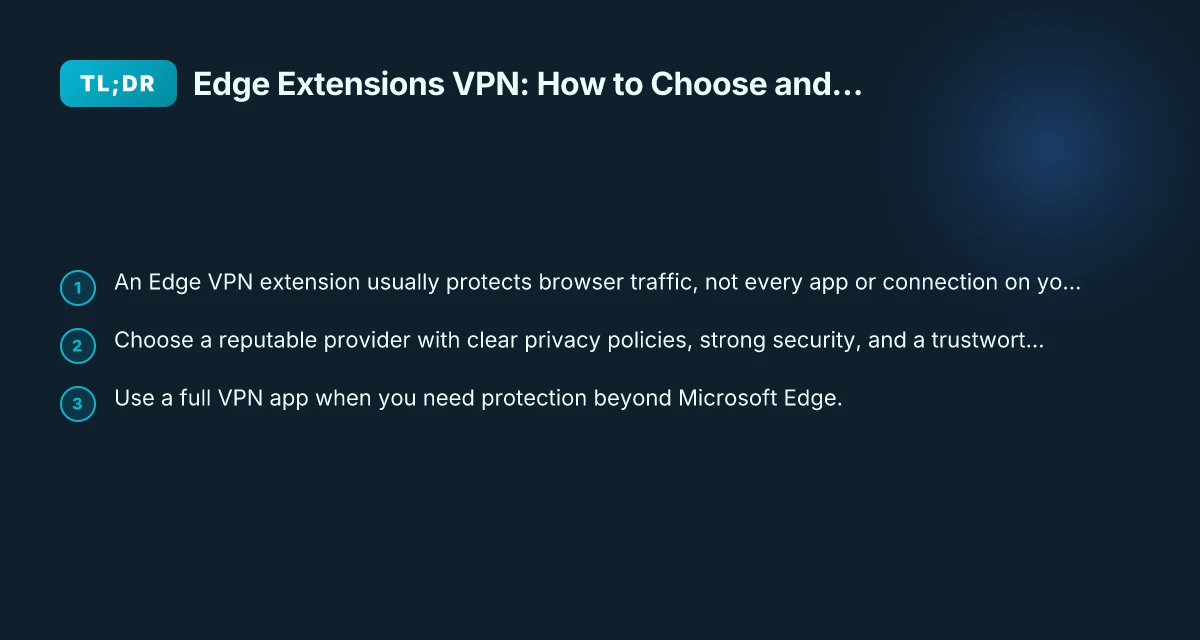
Edge extensions VPN options can route your Microsoft Edge browser traffic through a VPN, helping hide your IP address from websites and encrypting the connection between your browser and the VPN provider. To get started, choose a reputable VPN service, install its official extension from the Microsoft Edge Add-ons store or the provider’s website, and connect to a server. The key limitation is scope: many browser extensions protect only browser traffic, while a VPN app can cover other apps on your device too.
Compare Edge browser extensions with full VPN apps
| Factor | Edge VPN extension | Full VPN app |
|---|---|---|
| What it protects | Browser traffic, depending on provider | Device traffic, depending on app |
| Other apps’ traffic | Usually not covered | Usually covered |
| Setup | Install in Edge and sign in | Install app and sign in |
| Browser convenience | Quick to toggle in Edge | Managed outside the browser |
| Device-wide controls | Limited | More likely to include them |
| Best suited to | Browser-only use | Protection across apps |
| Key check | Confirm what traffic is routed | Check supported devices and features |
Compiled November 2026; check the provider's site for current details.
| VPN | Obfuscation | From / month | Plan | Free plan | Refund | Alipay | UnionPay | Crypto | Website opens in China | Trustpilot | |
|---|---|---|---|---|---|---|---|---|---|---|---|
 ZoogVPN | Turn on manually Shadow | $2.49/mo | 27 months: $59.99 | Yes | 7 days | ✓ | ✓ | ✓ | ✓ | Official site blocked; our special link opens (4.4 s) | 4.2/5 (195 reviews) |
 NordVPN | Turn on manually Obfuscated Servers / NordWhisper | $3.49/mo | 27 months: $94.23 | No | 30 days | ? | ✗ | ✓ | ✓ | ✗ Blocked | 4.2/5 (51,628 reviews) |
 ExpressVPN | ✓ On by default all servers | $3.00/mo | 28 months: $84 | No | 30 days | ✗ | ✗ | ✓ | ✗ | ✗ Blocked | 4.4/5 (29,706 reviews) |
 Surfshark | ✓ On by default Camouflage, with OpenVPN | See site | See site | No | 30 days | ✗ | ✗ | ✗ | ✓ | ✗ Blocked | 4.3/5 (31,823 reviews) |
 Proton VPN | Turn on manually Stealth, free plan too | $2.99/mo | 12 months: $35.88 | Yes | 30 days | ✗ | ✗ | ✗ | ✓ | ✗ Blocked | 2.1/5 (1,040 reviews) |
 Astrill VPN | Turn on manually StealthVPN / OpenWeb | $12.50/mo | 24 months: $300 | No | See site | ✗ | ✗ | ✗ | ✓ | ✗ Blocked | 1.3/5 (110 reviews) |
 Private Internet Access | Turn on manually Shadowsocks, OpenVPN only | $2.03/mo | 40 months: $81.2 | No | 30 days | ✗ | ✗ | ✗ | ✗ | ✗ Blocked | 4.2/5 (11,033 reviews) |
 CyberGhost | Turn on manually selected servers | $2.19/mo | 28 months: $61.32 | No | 45 days | ✗ | ✗ | ✗ | ✓ | ✗ Blocked | 4.0/5 (24,178 reviews) |
 PureVPN | Turn on manually switch to OpenVPN | $1.69/mo | 60 months: $101.55 | No | 31 days | ? | ? | ✗ | ✓ | ✗ Blocked | 4.4/5 (17,994 reviews) |
 AdGuard VPN | ✓ On by default TrustTunnel | $2.99/mo | 24 months: $71.76 | Yes | 30 days | ✓ | ✗ | ✓ | ✓ | Official site blocked; our special link opens (3.7 s) | 4.3/5 (290 reviews) |
 Mullvad | Turn on manually QUIC / Shadowsocks / LWO | $5.61/mo | €5/mo | No | 14 days | ✗ | ✗ | ✗ | ✓ | ✗ Blocked | 3.2/5 (192 reviews) |
 Windscribe | Turn on manually Stealth / WStunnel | $5.75/mo | 12 months: $69 | Yes | See site | ✗ | ✗ | ✗ | ✓ | ✗ Blocked | 4.7/5 (13,355 reviews) |
 StrongVPN | Turn on manually Scramble, OpenVPN TCP | See site | See site | No | 30 days | ✓ | ✗ | ✗ | ✗ | ✗ Blocked | 4.4/5 (2,695 reviews) |
 LightXtreme 闪连 | Not listed | $7.08/mo | 12 months: $84.99 | Yes | 30 days | ✓ | ✓ | ✓ | ✓ | ✓ Yes (3.5 s) | No page |
Prices checked 2026-11-10 on each vendor's pricing page (cheapest long plan, USD). Check the vendor's checkout for the final price.
Obfuscation checked 2026-11-14 on each vendor's site and help center: "on by default" = nothing to set; "turn on manually" = switch protocol or mode in settings; "not listed" = the vendor describes no obfuscation.
Payment methods checked 2026-11-10 on each vendor's payment pages: all 14 take cards and PayPal; ✗ = not listed, ? = the vendor's own pages disagree.
China access: whether the official website opens from mainland China networks (tests the website only, not the VPN connection). Last checked 2026-11-18 01:02 Beijing time.
Trustpilot score and review count checked 2026-11-10.
What an Edge VPN extension does
A VPN extension adds controls to Edge for connecting to a VPN provider. Depending on the service, it may let you choose a server location, change connection settings, or block certain browser connections when the VPN disconnects.
When active, the extension typically routes supported Edge traffic through the provider’s servers. Websites may then see the VPN server’s IP address rather than your usual public IP address. The connection between your browser and the VPN server is generally encrypted, which can help protect browser traffic on public Wi-Fi.
A VPN does not make you completely anonymous. The VPN provider may be able to see connection information, and websites can still identify you through account logins, cookies, browser fingerprints, or other tracking methods. A VPN also does not replace antivirus software or protect against every scam or malicious download.
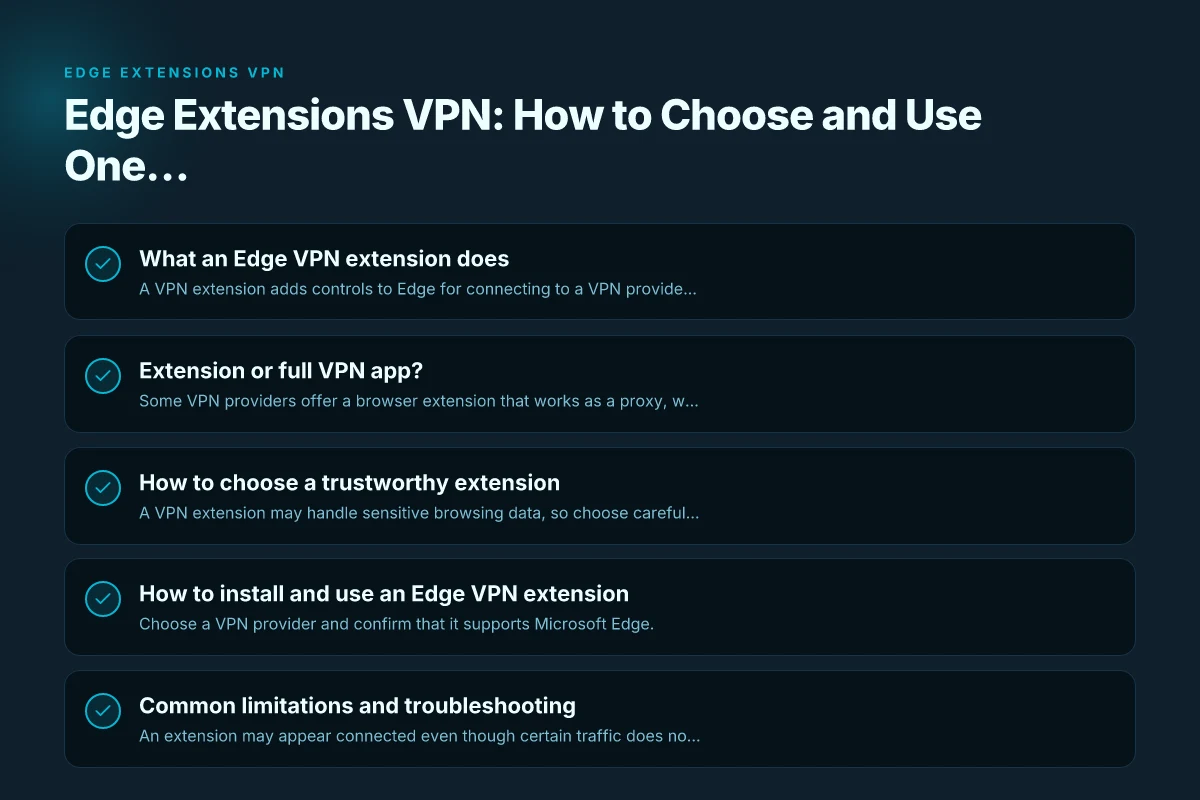
Extension or full VPN app?
Some VPN providers offer a browser extension that works as a proxy, while others connect through a VPN app installed on your device. The distinction matters because an extension may not protect traffic from other software. Urban VPN for Microsoft Edge: Setup, Features, and Safety
| Feature | Edge extension | Full VPN app |
|---|---|---|
| Typical coverage | Browser traffic in Edge | Most or all device traffic |
| Setup | Installed in the browser | Installed on the device |
| Best suited to | Browser-focused privacy and location changes | Broader protection across apps and browsers |
| Possible limitation | Other apps may use your regular connection | May require more setup or system permissions |
Providers use different technical designs, so check the product’s documentation instead of assuming every extension works the same way. Some extensions are controlled by a companion app, and some offer proxy-style protection rather than a device-wide VPN tunnel.
How to choose a trustworthy extension
A VPN extension may handle sensitive browsing data, so choose carefully. An attractive price or a large server list does not by itself prove that a service is safe.
Look for:
- A clear privacy policy: It should explain what information the provider collects, how long it keeps it, and whether it shares data.
- A credible provider: Check the company’s history, contact details, and reputation. Independent security reviews or audits can provide useful evidence, though they are not a guarantee.
- Strong security practices: Look for secure connections and clear explanations of how the extension handles DNS requests and browser traffic.
- Honest coverage claims: Confirm whether the extension protects Edge only, depends on a desktop app, or covers device-wide traffic.
- Useful controls: Server selection, automatic connection, and protection against accidental exposure can be helpful, depending on your needs.
- A sensible business model: Be cautious with unknown free extensions that request broad permissions or do not explain how they fund the service.
Read the extension’s permissions before installing it. Browser extensions may request access to information such as websites you visit or data on those pages. Some access can be needed for a feature to work, but the provider should explain why it is required. F5 VPN Download: How to Get the Right Client
Evaluate an Edge VPN extension before choosing it
| Check | What to look for | Why it matters | Warning sign |
|---|---|---|---|
| Provider identity | A clearly named, verifiable provider | Helps establish who operates it | Unclear ownership |
| Privacy policy | Plain explanation of data collection and use | Shows what information may be retained | Missing or vague policy |
| Permissions | Requests relevant to its features | Limits unnecessary access | Broad, unexplained access |
| Traffic coverage | Clear explanation of what is protected | Avoids assuming all device traffic is covered | Claims are unclear |
| Security details | Published information about protection | Helps assess the service’s safeguards | No meaningful details |
| Pricing and limits | Clear plan terms and restrictions | Helps avoid unexpected limits | Unclear fees or conditions |
| Support | Instructions and a way to get help | Useful for setup and troubleshooting | No help resources |
Compiled November 2026; check the provider's site for current details.
How to install and use an Edge VPN extension
- Choose a VPN provider and confirm that it supports Microsoft Edge.
- Find the extension through the Edge Add-ons store or follow the installation instructions on the provider’s official website.
- Check the publisher name, reviews, permissions, and privacy information before adding it.
- Open the extension, sign in if required, and choose a server location.
- Connect, then check the provider’s connection status. If the service offers a DNS or IP leak test, use it to check that your browser traffic appears to use the VPN.
- Disconnect when you no longer need the connection, or set the extension to connect automatically if that fits your routine.
Avoid installing lookalike extensions from unfamiliar publishers. If a provider directs you to install a companion desktop app, download it only from the provider’s official source and review what access it requests.
Common limitations and troubleshooting
An extension may appear connected even though certain traffic does not pass through it. For example, another browser, a desktop application, or some device services may continue using your regular internet connection. If your goal is to protect all internet activity, use a full VPN app and confirm its coverage settings. Cisco VPN Client: What It Is, How to Connect, and What to Use Today
If a website does not load or shows the wrong region:
- Disconnect and reconnect, or try a different server.
- Check whether the extension needs its companion app open.
- Review Edge’s site permissions and the extension’s settings.
- Temporarily turn off conflicting proxy or privacy extensions.
- Clear the site’s cookies if it is retaining an earlier location signal.
Some websites block known VPN server addresses, and changing servers may help. A VPN does not guarantee access to every service or bypass every restriction. Follow local laws, workplace rules, and the terms of the services you use.
Install and troubleshoot an Edge VPN extension
| Stage | Action | What to check | If it does not work |
|---|---|---|---|
| Choose | Select a provider you trust | Privacy policy and permissions | Compare another provider |
| Install | Add the extension through Edge’s extension flow | Provider and extension identity | Remove an unexpected extension |
| Sign in | Use the provider’s account flow | Account status | Check credentials and subscription |
| Connect | Choose an available location and connect | Extension shows a connected state | Try another location |
| Test | Open a site and check access | Whether the site loads as expected | Reconnect or test another site |
| Diagnose | Review Edge and extension settings | Conflicting extensions or permissions | Temporarily disable conflicts |
| Escalate | Consult provider instructions | Service status and supported features | Contact provider support |
Compiled November 2026; check the provider's site for current details. Free VPN to Change Location: How to Choose and Use One
Recommendation
For browser-only privacy or a quick change to the location shown to websites, a reputable Edge VPN extension can be convenient. Choose one with transparent privacy practices and verify exactly what it protects. If you want to cover other browsers, apps, and device traffic, install a trusted full VPN app instead. An extension alone may not be enough.