Best Free VPN Extension for Microsoft Edge: What to Know Before You Install
Learn how free VPN extensions for Microsoft Edge work, what they protect, and how to choose one safely.
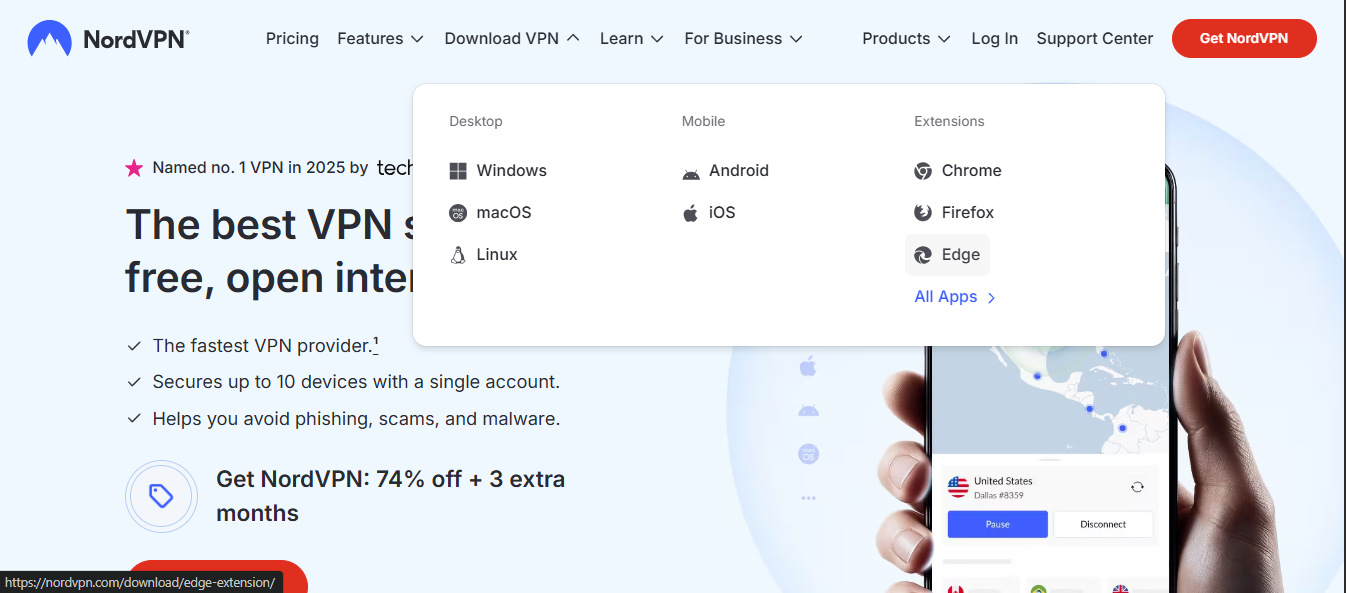
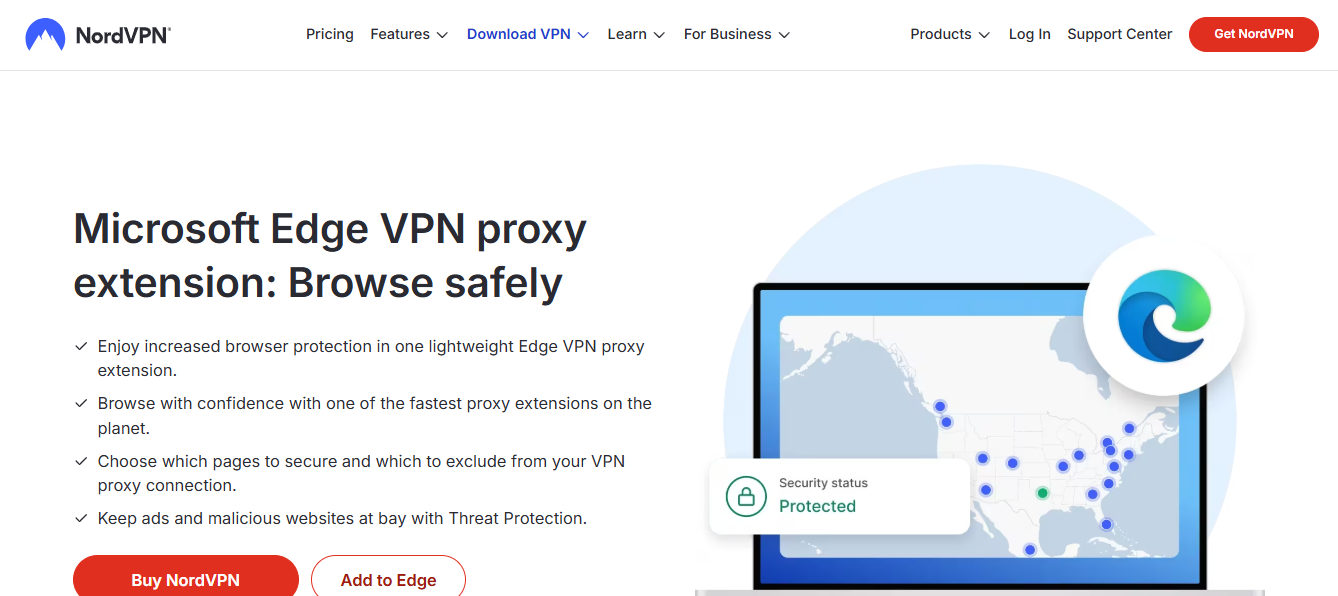
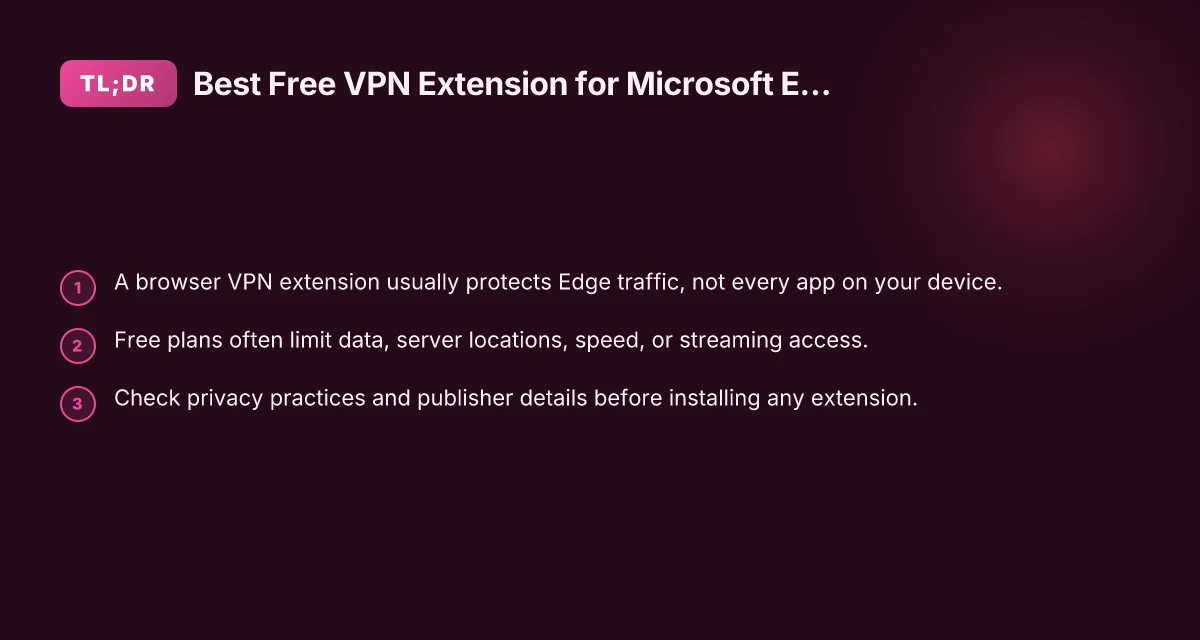
If you’re looking for a free VPN extension for Microsoft Edge, choose one from a reputable VPN provider with a clearly explained privacy policy and realistic free-plan limits. A browser extension can be convenient for protecting traffic in Edge, but it may not encrypt connections from other apps, and it cannot guarantee complete anonymity. Compare the provider’s data allowance, server options, and permissions before you install.
Compare common free VPN extension options for Microsoft Edge
| Option type | Edge support | Cost | Typical limits | Best for | Check before installing |
|---|---|---|---|---|---|
| Browser VPN extension | Usually available | Free tier | Browser traffic only | Simple browsing | Coverage outside Edge |
| Full VPN app | Often works with Edge | Free tier or paid | May limit data or servers | Device-wide protection | Free-plan restrictions |
| Proxy extension | May be available | Free | Often limited privacy | Basic location changes | Logging and encryption |
| Built-in browser privacy tools | Built into Edge | Free | Not a VPN | Tracking reduction | What traffic is covered |
| Paid VPN extension | Usually available | Subscription | Plan-dependent | More features | Renewal terms |
| Unknown free extension | Varies | Free | Unclear | Not recommended without checks | Developer and privacy policy |
Compiled November 2026; check the provider's site for current details.
| VPN | Obfuscation | From / month | Plan | Free plan | Refund | Alipay | UnionPay | Crypto | Website opens in China | Trustpilot | |
|---|---|---|---|---|---|---|---|---|---|---|---|
 ZoogVPN | Turn on manually Shadow | $2.49/mo | 27 months: $59.99 | Yes | 7 days | ✓ | ✓ | ✓ | ✓ | Official site blocked; our special link opens (4.4 s) | 4.2/5 (195 reviews) |
 NordVPN | Turn on manually Obfuscated Servers / NordWhisper | $3.49/mo | 27 months: $94.23 | No | 30 days | ? | ✗ | ✓ | ✓ | ✗ Blocked | 4.2/5 (51,628 reviews) |
 ExpressVPN | ✓ On by default all servers | $3.00/mo | 28 months: $84 | No | 30 days | ✗ | ✗ | ✓ | ✗ | ✗ Blocked | 4.4/5 (29,706 reviews) |
 Surfshark | ✓ On by default Camouflage, with OpenVPN | See site | See site | No | 30 days | ✗ | ✗ | ✗ | ✓ | ✗ Blocked | 4.3/5 (31,823 reviews) |
 Proton VPN | Turn on manually Stealth, free plan too | $2.99/mo | 12 months: $35.88 | Yes | 30 days | ✗ | ✗ | ✗ | ✓ | ✗ Blocked | 2.1/5 (1,040 reviews) |
 Astrill VPN | Turn on manually StealthVPN / OpenWeb | $12.50/mo | 24 months: $300 | No | See site | ✗ | ✗ | ✗ | ✓ | ✗ Blocked | 1.3/5 (110 reviews) |
 Private Internet Access | Turn on manually Shadowsocks, OpenVPN only | $2.03/mo | 40 months: $81.2 | No | 30 days | ✗ | ✗ | ✗ | ✗ | ✗ Blocked | 4.2/5 (11,033 reviews) |
 CyberGhost | Turn on manually selected servers | $2.19/mo | 28 months: $61.32 | No | 45 days | ✗ | ✗ | ✗ | ✓ | ✗ Blocked | 4.0/5 (24,178 reviews) |
 PureVPN | Turn on manually switch to OpenVPN | $1.69/mo | 60 months: $101.55 | No | 31 days | ? | ? | ✗ | ✓ | ✗ Blocked | 4.4/5 (17,994 reviews) |
 AdGuard VPN | ✓ On by default TrustTunnel | $2.99/mo | 24 months: $71.76 | Yes | 30 days | ✓ | ✗ | ✓ | ✓ | Official site blocked; our special link opens (3.7 s) | 4.3/5 (290 reviews) |
 Mullvad | Turn on manually QUIC / Shadowsocks / LWO | $5.61/mo | €5/mo | No | 14 days | ✗ | ✗ | ✗ | ✓ | ✗ Blocked | 3.2/5 (192 reviews) |
 Windscribe | Turn on manually Stealth / WStunnel | $5.75/mo | 12 months: $69 | Yes | See site | ✗ | ✗ | ✗ | ✓ | ✗ Blocked | 4.7/5 (13,355 reviews) |
 StrongVPN | Turn on manually Scramble, OpenVPN TCP | See site | See site | No | 30 days | ✓ | ✗ | ✗ | ✗ | ✗ Blocked | 4.4/5 (2,695 reviews) |
 LightXtreme 闪连 | Not listed | $7.08/mo | 12 months: $84.99 | Yes | 30 days | ✓ | ✓ | ✓ | ✓ | ✓ Yes (3.5 s) | No page |
Prices checked 2026-11-10 on each vendor's pricing page (cheapest long plan, USD). Check the vendor's checkout for the final price.
Obfuscation checked 2026-11-14 on each vendor's site and help center: "on by default" = nothing to set; "turn on manually" = switch protocol or mode in settings; "not listed" = the vendor describes no obfuscation.
Payment methods checked 2026-11-10 on each vendor's payment pages: all 14 take cards and PayPal; ✗ = not listed, ? = the vendor's own pages disagree.
China access: whether the official website opens from mainland China networks (tests the website only, not the VPN connection). Last checked 2026-11-18 01:02 Beijing time.
Trustpilot score and review count checked 2026-11-10.
What a VPN extension for Edge does
A VPN routes your internet traffic through a VPN server. Websites you visit generally see the server’s IP address instead of your regular public IP address. The connection between your browser and the VPN server is encrypted, helping protect browser traffic from people monitoring the same public Wi-Fi network.
A browser extension is not always the same thing as a full VPN app. Depending on the provider, an Edge extension may act as a browser proxy, or it may control a VPN app installed on your device. In many cases, only traffic from Edge goes through the extension. Games, email clients, and other browsers may continue using your regular connection.
Read the provider’s description carefully so you know which type you’re installing and what traffic it covers.
How to choose a free option
“Free” does not mean every feature is available at no cost. A free plan may be a useful way to browse more privately, but providers commonly place limits on usage or access. NordVPN in China: Does It Work and How to Prepare
| Feature | What to check | Why it matters |
|---|---|---|
| Data allowance | Monthly or daily cap | A small cap may run out quickly when browsing or streaming |
| Server locations | Countries and number of locations | Fewer choices can mean slower connections or limited access |
| Speed | Any stated restrictions | Congestion or throttling can make pages load slowly |
| Privacy policy | Data collected, stored, and shared | A VPN provider can see important connection information |
| Coverage | Browser-only or device-wide | An extension may not protect traffic outside Edge |
| Permissions | What the extension can access | Broad access can be necessary for routing traffic, but deserves scrutiny |
A free plan is most appropriate for occasional browsing or trying out a service. If you need consistent speeds, more locations, or whole-device protection, compare the provider’s paid plan with other reputable services rather than assuming the free tier will meet those needs.
Checklist for choosing a free Edge VPN option
| Check | Good sign | Warning sign | Why it matters |
|---|---|---|---|
| Microsoft Edge listing | Available in Edge Add-ons | Unofficial download link | Helps reduce install risk |
| Developer identity | Clear, established provider | Unknown or obscured owner | Shows who operates it |
| Privacy policy | Explains collection and use | Missing or vague policy | Reveals data practices |
| Permissions | Relevant to stated features | Broad, unexplained access | Limits unnecessary access |
| Traffic coverage | Clearly states browser-only or device-wide | Implies unclear coverage | Sets realistic expectations |
| Free-plan terms | Limits explained plainly | Hidden caps or conditions | Avoids surprise restrictions |
| Security features | Encryption details disclosed | Security claims without detail | Helps assess protection |
| Reviews and updates | Recent, consistent history | Repeated complaints or inactivity | Offers useful reliability clues |
Compiled November 2026; check the provider's site for current details.
Install an extension safely in Microsoft Edge
Use the Microsoft Edge Add-ons store or follow the download instructions on the VPN provider’s official website. Confirm that the publisher name matches the provider. Avoid sponsored search results, lookalike names, and download sites that offer extensions outside the official store. IPsec VPN connection is down forticlient: Causes and Fixes
Before adding an extension:
- Read its store listing and recent user reviews.
- Check when it was last updated and who publishes it.
- Review the requested permissions and ask whether they fit the extension’s purpose.
- Read the provider’s privacy policy and free-plan terms.
- Look for clear instructions on connecting, disconnecting, and handling leaks.
After installation, open the extension, sign in or create an account if required, and select a server. Visit an IP-checking site before and after connecting to see whether the displayed IP address changes. This simple check can confirm that the browser appears to be using a different public IP, but it does not prove that every connection is protected or that the service keeps no records.
Understand the privacy and security limits
A VPN is one part of online privacy, not a complete solution. It can reduce the exposure of your browsing traffic to your local network, but websites can still identify or track you through cookies, account logins, browser fingerprinting, and other methods. A VPN does not automatically block malware or make unsafe downloads harmless.
The VPN provider also becomes an important part of your trust decision. Depending on how the service works, it may be able to observe connection details. Look for a specific explanation of what information is collected, how long it is retained, and whether it is shared. Claims such as “no logs” should be supported by clear policy details. Marketing language alone is not proof. FortiClient IPsec: How to Set Up and Troubleshoot a VPN
For sensitive activities, consider whether a browser extension is sufficient. A full VPN app may offer device-wide coverage and additional settings, while an extension may be easier to switch on for browser use. Neither option makes you completely anonymous.
Decide whether an Edge VPN extension fits your needs
| Need or situation | Extension may fit | Consider another option | Key limitation |
|---|---|---|---|
| Protecting browser traffic | Yes, if coverage is stated | Full VPN app for device-wide traffic | Other apps may remain uncovered |
| Changing apparent location | Sometimes | Paid plan if locations are limited | Free locations may be restricted |
| Using public Wi-Fi | Only with trusted, clear security details | Reputable full VPN app | An extension may not protect all traffic |
| Streaming or gaming | Sometimes, but performance varies | Service with suitable plan and support | Speed and access are not guaranteed |
| Keeping browsing private | Only after reviewing logging terms | Provider with clearer privacy commitments | VPN use does not ensure anonymity |
| Fixing a connection issue | Try reconnecting or checking settings | Remove the extension if problems persist | Extensions can conflict with sites |
| Avoiding risky software | Install from Edge Add-ons and verify the developer | Skip unclear or unofficial downloads | Store presence is not a guarantee |
| Protecting the whole device | No, unless explicitly device-wide | Full VPN application | Browser extensions usually cover Edge only |
Compiled November 2026; check the provider's site for current details.
Troubleshooting common problems
If Edge feels slower after connecting, try a different server location or disconnect and reconnect. Free servers can be busy, and routing traffic through a distant location can add delay. VPN Cisco: How Cisco VPN Works and When to Use It
If a website does not load or behaves unexpectedly:
- Switch servers, if the free plan offers a choice.
- Check whether the extension is connected and still signed in.
- Temporarily disable other VPN, proxy, or privacy extensions to check for conflicts.
- Review the provider’s support guidance before changing browser security settings.
If the extension stops working, check its store listing and the provider’s official status or support page. Do not install an unofficial replacement just because it appears in search results.
Recommendation
A free VPN extension for Microsoft Edge can be a practical choice for occasional browser protection, provided it comes from a trustworthy provider and its limits suit your needs. Verify whether it protects only Edge or your whole device, review its privacy policy, and test that it connects as expected. If you need dependable high-speed access, more server locations, or protection beyond the browser, compare reputable paid VPN services and full VPN apps.