How to Check My VPN Location and Fix It if It’s Wrong
Learn how to check your VPN location, understand why it may differ, and troubleshoot common location leaks.
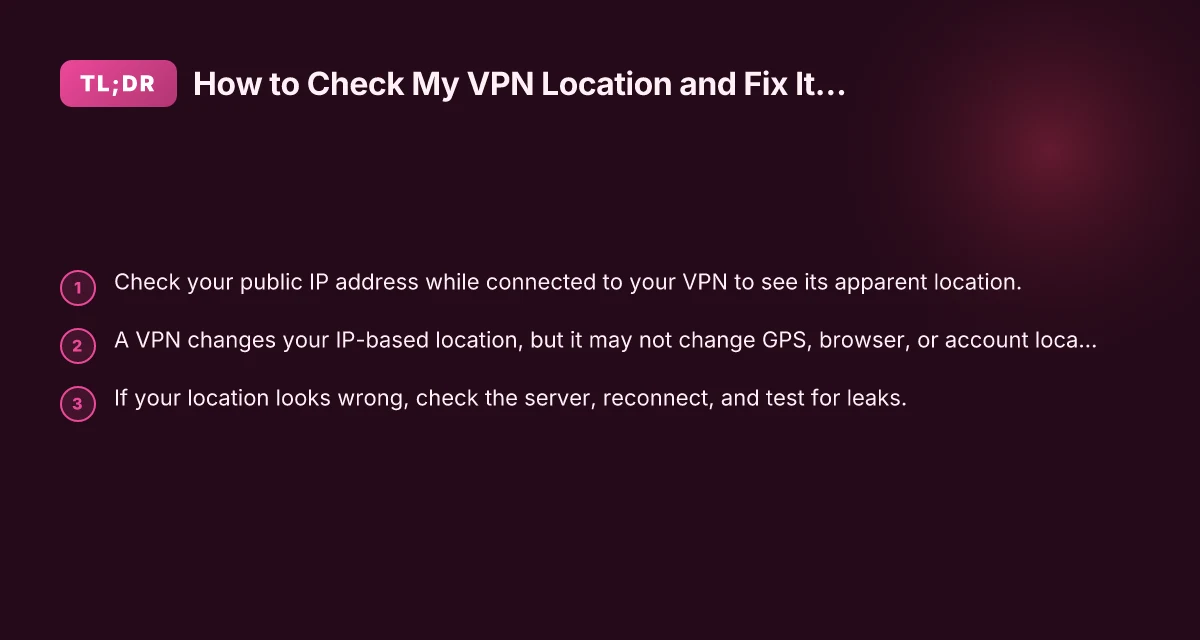
If you’re asking, “What is my VPN location?” check your public IP address while connected to your VPN. An IP lookup should show the location associated with the VPN server you selected, rather than your usual internet connection. Keep in mind that this is only your apparent IP-based location: GPS, Wi-Fi, browser settings, and websites that already know your details can show something different.
How VPN location checks compare
| Check | What it shows | Uses VPN IP? | Uses device location? | Best for |
|---|---|---|---|---|
| VPN app | Selected server | Yes | No | Quick status check |
| IP lookup site | Public IP location | Yes | No | Checking apparent location |
| Second IP lookup site | Public IP location | Yes | No | Confirming a result |
| Browser location prompt | Browser-reported location | Not necessarily | May use GPS or Wi-Fi | Checking site permissions |
| Map app | Device location | Not necessarily | Often | Checking GPS-based location |
| Search results | Location signals | Sometimes | May use several signals | Spotting inconsistent results |
Compiled November 2026; check the provider's site for current details.
| VPN | Obfuscation | From / month | Plan | Free plan | Refund | Alipay | UnionPay | Crypto | Website opens in China | Trustpilot | |
|---|---|---|---|---|---|---|---|---|---|---|---|
 ZoogVPN | Turn on manually Shadow | $2.49/mo | 27 months: $59.99 | Yes | 7 days | ✓ | ✓ | ✓ | ✓ | Official site blocked; our special link opens (4.4 s) | 4.2/5 (195 reviews) |
 NordVPN | Turn on manually Obfuscated Servers / NordWhisper | $3.49/mo | 27 months: $94.23 | No | 30 days | ? | ✗ | ✓ | ✓ | ✗ Blocked | 4.2/5 (51,628 reviews) |
 ExpressVPN | ✓ On by default all servers | $3.00/mo | 28 months: $84 | No | 30 days | ✗ | ✗ | ✓ | ✗ | ✗ Blocked | 4.4/5 (29,706 reviews) |
 Surfshark | ✓ On by default Camouflage, with OpenVPN | See site | See site | No | 30 days | ✗ | ✗ | ✗ | ✓ | ✗ Blocked | 4.3/5 (31,823 reviews) |
 Proton VPN | Turn on manually Stealth, free plan too | $2.99/mo | 12 months: $35.88 | Yes | 30 days | ✗ | ✗ | ✗ | ✓ | ✗ Blocked | 2.1/5 (1,040 reviews) |
 Astrill VPN | Turn on manually StealthVPN / OpenWeb | $12.50/mo | 24 months: $300 | No | See site | ✗ | ✗ | ✗ | ✓ | ✗ Blocked | 1.3/5 (110 reviews) |
 Private Internet Access | Turn on manually Shadowsocks, OpenVPN only | $2.03/mo | 40 months: $81.2 | No | 30 days | ✗ | ✗ | ✗ | ✗ | ✗ Blocked | 4.2/5 (11,033 reviews) |
 CyberGhost | Turn on manually selected servers | $2.19/mo | 28 months: $61.32 | No | 45 days | ✗ | ✗ | ✗ | ✓ | ✗ Blocked | 4.0/5 (24,178 reviews) |
 PureVPN | Turn on manually switch to OpenVPN | $1.69/mo | 60 months: $101.55 | No | 31 days | ? | ? | ✗ | ✓ | ✗ Blocked | 4.4/5 (17,994 reviews) |
 AdGuard VPN | ✓ On by default TrustTunnel | $2.99/mo | 24 months: $71.76 | Yes | 30 days | ✓ | ✗ | ✓ | ✓ | Official site blocked; our special link opens (3.7 s) | 4.3/5 (290 reviews) |
 Mullvad | Turn on manually QUIC / Shadowsocks / LWO | $5.61/mo | €5/mo | No | 14 days | ✗ | ✗ | ✗ | ✓ | ✗ Blocked | 3.2/5 (192 reviews) |
 Windscribe | Turn on manually Stealth / WStunnel | $5.75/mo | 12 months: $69 | Yes | See site | ✗ | ✗ | ✗ | ✓ | ✗ Blocked | 4.7/5 (13,355 reviews) |
 StrongVPN | Turn on manually Scramble, OpenVPN TCP | See site | See site | No | 30 days | ✓ | ✗ | ✗ | ✗ | ✗ Blocked | 4.4/5 (2,695 reviews) |
 LightXtreme 闪连 | Not listed | $7.08/mo | 12 months: $84.99 | Yes | 30 days | ✓ | ✓ | ✓ | ✓ | ✓ Yes (3.5 s) | No page |
Prices checked 2026-11-10 on each vendor's pricing page (cheapest long plan, USD). Check the vendor's checkout for the final price.
Obfuscation checked 2026-11-14 on each vendor's site and help center: "on by default" = nothing to set; "turn on manually" = switch protocol or mode in settings; "not listed" = the vendor describes no obfuscation.
Payment methods checked 2026-11-10 on each vendor's payment pages: all 14 take cards and PayPal; ✗ = not listed, ? = the vendor's own pages disagree.
China access: whether the official website opens from mainland China networks (tests the website only, not the VPN connection). Last checked 2026-11-18 01:02 Beijing time.
Trustpilot score and review count checked 2026-11-10.
How to check your VPN location
First, connect to a VPN server. Then open an IP address or IP geolocation checker and review the country, region, and city it reports. You can also search online for “what is my IP” and compare the result with your normal location.
For a useful check:
- Note your public IP address and location before connecting to the VPN.
- Connect to a server in your chosen country or city.
- Refresh the IP lookup page.
- Confirm that the displayed IP address has changed and that its reported location is broadly consistent with the server you selected.
An IP lookup identifies the location associated with an address in a database. It does not pinpoint the physical position of the VPN server or your device. Results can vary between lookup services, so a city-level mismatch does not necessarily mean your VPN has failed.
Why your VPN location may look different
The location shown by an IP checker is an estimate, not a guarantee of the server’s exact physical location. Several factors can explain a surprising result: Nord VPN in China: Does It Work and How to Prepare?
- IP databases are not identical. Services update their records at different times and may associate the same IP address with different cities or regions.
- The provider may use virtual locations. A server listed in one country may use an IP registered there while its hardware is located elsewhere. Check your provider’s server information for details.
- The server may be in a nearby city. Some VPN apps let you choose a country but automatically connect you to a particular city or available server.
- Your connection may have changed. A dropped VPN connection, app setting, or automatic server switch can reconnect you to a different location.
- A website may use other clues. Browser location permissions, GPS, cookies, account settings, or previously saved preferences can influence what a site displays.
A changed IP is a helpful sign, but it does not prove that every app or website is using the VPN location.
Why your VPN location can look different
| Cause | What may differ | Typical signal | Check | Possible next step |
|---|---|---|---|---|
| IP geolocation database | Reported city or country | IP lookup sites disagree | Compare multiple lookup sites | Allow time for databases to update |
| VPN server location | City or country shown | IP maps to another area | Check the selected server | Choose a different server |
| GPS | Device’s physical location | Map app shows your actual area | Review device location settings | Disable location access if appropriate |
| Wi-Fi or mobile network | Approximate device location | Browser or app shows a nearby area | Compare with GPS settings | Review app permissions |
| Browser permissions | Location shared with a site | Site location differs from IP | Check site permissions | Block or reset permission |
| DNS leak | DNS requests may reveal network details | DNS test shows unexpected provider | Run a DNS leak test | Change VPN settings or contact support |
| Cached site data | Older location persists | One site stays inconsistent | Try a private window | Clear site data |
Compiled November 2026; check the provider's site for current details.
IP location, GPS, and browser location compared
Different tools can answer different versions of “Where am I?” A VPN typically changes the public IP address visible to online services, but it does not automatically move your device’s GPS coordinates. Does Microsoft Edge Have VPN? What Edge Secure Network Does
| Location method | What it uses | What a VPN usually changes |
|---|---|---|
| IP geolocation | Public IP address and location databases | Usually changes the location shown |
| GPS | Satellite and device location services | Usually does not change it |
| Wi-Fi or mobile network location | Nearby networks, cell towers, or network information | May not change it |
| Browser location | Device permissions and location signals | Usually does not change it by itself |
| Account or saved location | Profile details, billing information, or past activity | Does not change it |
If a map or website asks for your location, it may request permission to access your device’s location. Allowing that access can reveal a location independent of your VPN-assigned IP. Likewise, a streaming service may use account region, payment details, or other checks as well as IP location.
What to do if your VPN location is wrong
If an IP checker still shows your usual location, or a different country from the one you selected, try these steps:
- Check the VPN app. Make sure it says you are connected, and confirm the selected country or server.
- Reconnect. Disconnect and reconnect, or choose another server in the same country.
- Check for automatic switching. Disable features such as auto-connect or server selection temporarily, then test again.
- Refresh the lookup. Close and reopen the page, or check with a second IP lookup service.
- Review split tunneling. If the app routes only selected apps through the VPN, your browser may be using your regular connection.
- Restart the app or device. This can resolve a stale connection or an app that is not routing traffic as expected.
- Contact your VPN provider. Ask whether the selected server uses a virtual location and whether its IP records need updating.
Do not assume that a different city result means your real IP is exposed. First compare the IP address before and after connecting. If it remains the same, the VPN may not be routing that traffic through the tunnel.
What to try when a VPN location is wrong VPN Free for Edge: The Best Ways to Protect Your Browser
| Step | Action | What to check | If still wrong |
|---|---|---|---|
| 1 | Confirm the VPN is connected | App shows an active connection | Reconnect |
| 2 | Check the selected server | Server matches the intended location | Choose another server |
| 3 | Visit two IP lookup sites | Both show the VPN IP location | Try another server |
| 4 | Review browser location access | Site is not using unwanted device location | Change site permission |
| 5 | Check device location settings | GPS access matches your needs | Restrict app access |
| 6 | Run a DNS leak test | DNS results do not expose unexpected details | Review VPN DNS settings |
| 7 | Restart the browser or app | Updated location appears | Clear relevant site data |
| 8 | Contact VPN support | Server and test results are available | Ask about that server |
| 9 | Retest after changes | IP, DNS, and browser results are consistent | Try a different VPN server |
Compiled November 2026; check the provider's site for current details.
Check for DNS and other location leaks
An IP check is a good first step, but you can also use reputable DNS leak and WebRTC leak test pages. Run the checks with the VPN connected and follow the site’s instructions. If a test shows details associated with your internet provider or normal location, review your VPN app’s leak protection settings.
A DNS leak can reveal which DNS resolver is handling your requests. WebRTC can sometimes expose network information through a browser, depending on the browser and configuration. Some VPN apps include DNS leak protection or controls to limit WebRTC-related exposure.
For a more reliable check, test the exact browser or app you plan to use. Different apps may handle connections differently, especially if split tunneling, proxy settings, or custom DNS settings are enabled. VPN IPsec: How It Works, Benefits, and When to Use It
Recommendation
To check your VPN location, connect to a server and verify the public IP with an IP lookup service. Treat the reported city as an estimate, and remember that GPS, browser permissions, and account information can reveal or suggest another location. If the IP does not change or appears tied to your normal connection, reconnect, review your routing and leak-protection settings, and contact your VPN provider if the issue persists.