VPN for Edge Free: Safe Options, Setup, and What to Know
Find a free VPN for Microsoft Edge, compare browser extensions with full VPN apps, and set one up safely.
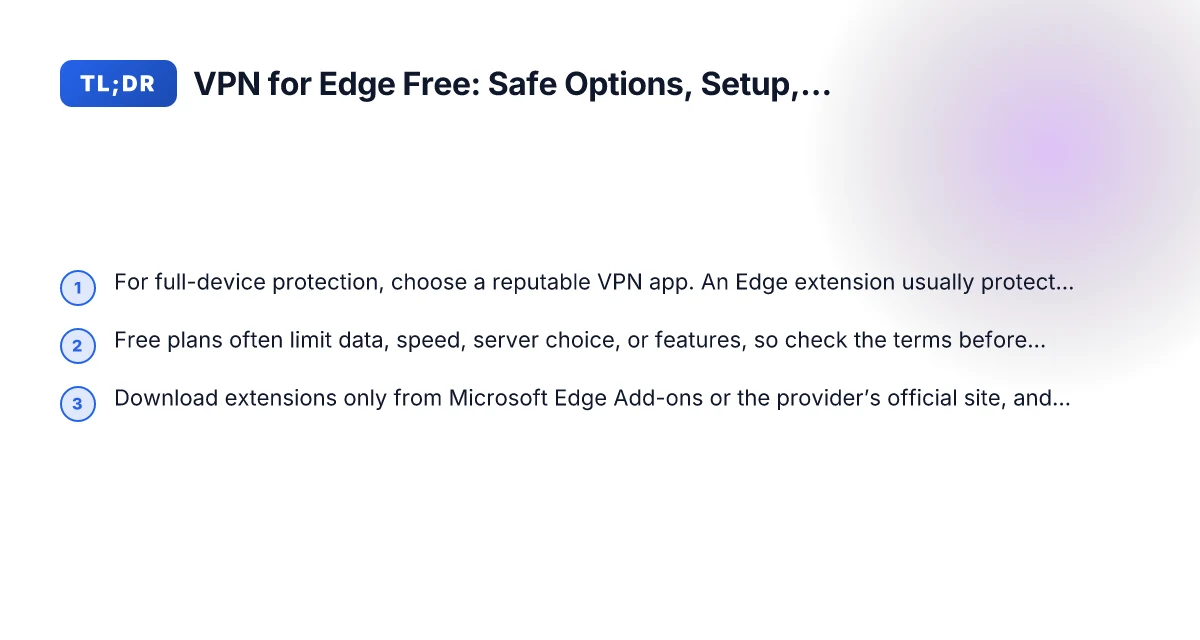
If you’re looking for a VPN for Edge free, start by deciding whether you need to protect only browser activity or all internet traffic on your device. A free VPN app from a reputable provider can cover Edge and other apps, while a VPN browser extension typically routes only traffic inside the browser. Free options may work for occasional browsing, but limits on data, speed, and locations can make them unsuitable for frequent streaming or large downloads.
Compare Edge VPN options by coverage and trade-offs
| Option | Protects Edge traffic | Protects other apps | Setup effort | Main trade-off |
|---|---|---|---|---|
| Browser VPN extension | Usually | No | Low | Browser traffic only |
| Full VPN app | Yes | Yes | Medium | Requires installing an app |
| Edge built-in settings | No VPN by themselves | No | Low | Do not create a VPN connection |
| Free extension from a known provider | Usually | No | Low | Check data and server limits |
| Free app from a known provider | Yes | Yes | Medium | Check monthly data limits |
| Unknown free extension | Unclear | No | Low | Privacy and security are uncertain |
Compiled November 2026; check the provider's site for current details.
| VPN | Obfuscation | From / month | Plan | Free plan | Refund | Alipay | UnionPay | Crypto | Website opens in China | Trustpilot | |
|---|---|---|---|---|---|---|---|---|---|---|---|
 ZoogVPN | Turn on manually Shadow | $2.49/mo | 27 months: $59.99 | Yes | 7 days | ✓ | ✓ | ✓ | ✓ | Official site blocked; our special link opens (4.4 s) | 4.2/5 (195 reviews) |
 NordVPN | Turn on manually Obfuscated Servers / NordWhisper | $3.49/mo | 27 months: $94.23 | No | 30 days | ? | ✗ | ✓ | ✓ | ✗ Blocked | 4.2/5 (51,628 reviews) |
 ExpressVPN | ✓ On by default all servers | $3.00/mo | 28 months: $84 | No | 30 days | ✗ | ✗ | ✓ | ✗ | ✗ Blocked | 4.4/5 (29,706 reviews) |
 Surfshark | ✓ On by default Camouflage, with OpenVPN | See site | See site | No | 30 days | ✗ | ✗ | ✗ | ✓ | ✗ Blocked | 4.3/5 (31,823 reviews) |
 Proton VPN | Turn on manually Stealth, free plan too | $2.99/mo | 12 months: $35.88 | Yes | 30 days | ✗ | ✗ | ✗ | ✓ | ✗ Blocked | 2.1/5 (1,040 reviews) |
 Astrill VPN | Turn on manually StealthVPN / OpenWeb | $12.50/mo | 24 months: $300 | No | See site | ✗ | ✗ | ✗ | ✓ | ✗ Blocked | 1.3/5 (110 reviews) |
 Private Internet Access | Turn on manually Shadowsocks, OpenVPN only | $2.03/mo | 40 months: $81.2 | No | 30 days | ✗ | ✗ | ✗ | ✗ | ✗ Blocked | 4.2/5 (11,033 reviews) |
 CyberGhost | Turn on manually selected servers | $2.19/mo | 28 months: $61.32 | No | 45 days | ✗ | ✗ | ✗ | ✓ | ✗ Blocked | 4.0/5 (24,178 reviews) |
 PureVPN | Turn on manually switch to OpenVPN | $1.69/mo | 60 months: $101.55 | No | 31 days | ? | ? | ✗ | ✓ | ✗ Blocked | 4.4/5 (17,994 reviews) |
 AdGuard VPN | ✓ On by default TrustTunnel | $2.99/mo | 24 months: $71.76 | Yes | 30 days | ✓ | ✗ | ✓ | ✓ | Official site blocked; our special link opens (3.7 s) | 4.3/5 (290 reviews) |
 Mullvad | Turn on manually QUIC / Shadowsocks / LWO | $5.61/mo | €5/mo | No | 14 days | ✗ | ✗ | ✗ | ✓ | ✗ Blocked | 3.2/5 (192 reviews) |
 Windscribe | Turn on manually Stealth / WStunnel | $5.75/mo | 12 months: $69 | Yes | See site | ✗ | ✗ | ✗ | ✓ | ✗ Blocked | 4.7/5 (13,355 reviews) |
 StrongVPN | Turn on manually Scramble, OpenVPN TCP | See site | See site | No | 30 days | ✓ | ✗ | ✗ | ✗ | ✗ Blocked | 4.4/5 (2,695 reviews) |
 LightXtreme 闪连 | Not listed | $7.08/mo | 12 months: $84.99 | Yes | 30 days | ✓ | ✓ | ✓ | ✓ | ✓ Yes (3.5 s) | No page |
Prices checked 2026-11-10 on each vendor's pricing page (cheapest long plan, USD). Check the vendor's checkout for the final price.
Obfuscation checked 2026-11-14 on each vendor's site and help center: "on by default" = nothing to set; "turn on manually" = switch protocol or mode in settings; "not listed" = the vendor describes no obfuscation.
Payment methods checked 2026-11-10 on each vendor's payment pages: all 14 take cards and PayPal; ✗ = not listed, ? = the vendor's own pages disagree.
China access: whether the official website opens from mainland China networks (tests the website only, not the VPN connection). Last checked 2026-11-18 01:02 Beijing time.
Trustpilot score and review count checked 2026-11-10.
What “VPN for Edge” means
Microsoft Edge can use a VPN in two common ways: through a VPN extension or through a VPN application installed on your computer.
A browser extension is added directly to Edge. Depending on the provider, it may encrypt or route browser traffic through a VPN server, or it may function as a proxy with more limited protection. Read the provider’s description carefully rather than assuming every extension offers the same security as its full VPN app.
A VPN app runs on your device and can usually protect traffic from Edge as well as other supported applications. It may also include features such as a kill switch, which can block internet access if the VPN connection drops. The exact features depend on the provider and plan.
Neither type makes you anonymous or guarantees complete online privacy. Websites can still identify you through account logins, cookies, and other tracking methods. Free VPN Edge: What It Is and How to Choose a Safe Option
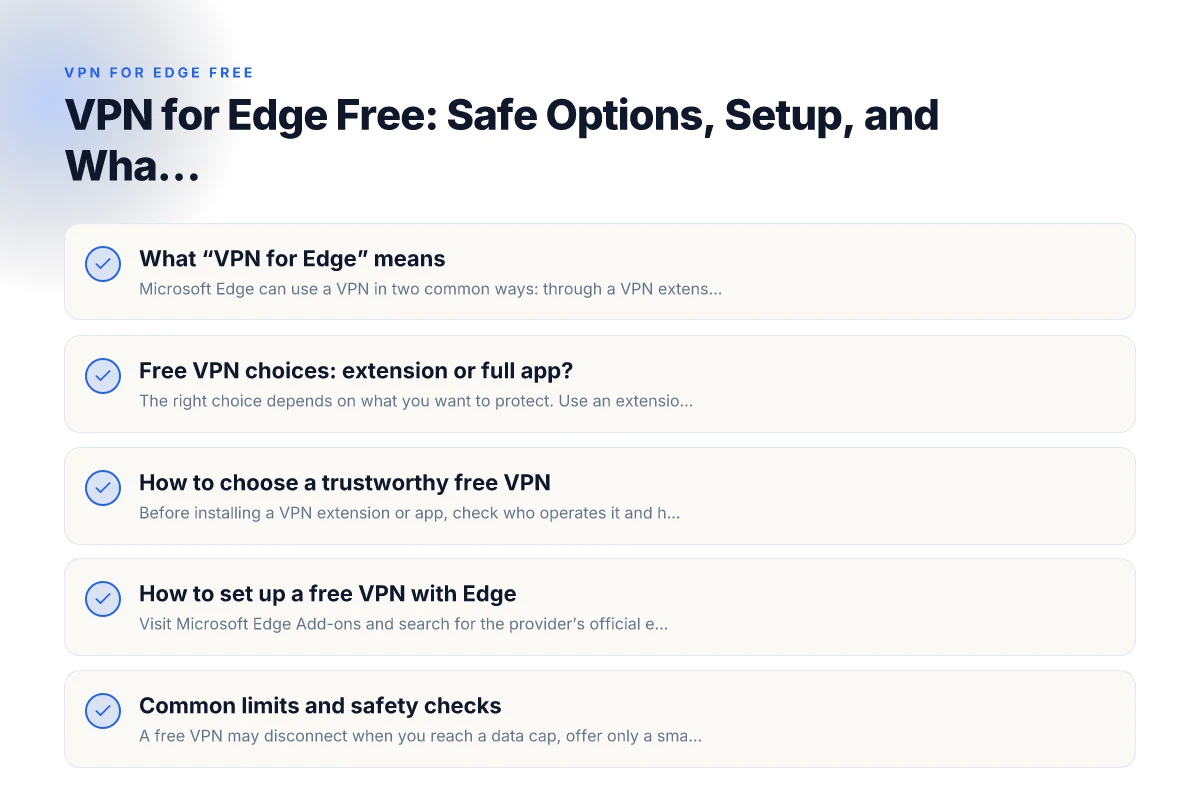
Free VPN choices: extension or full app?
The right choice depends on what you want to protect. Use an extension when you specifically need a browser-based connection and understand its limits. Choose a full VPN app when you want broader device coverage.
| Option | Typical coverage | Common free-plan trade-offs | Best suited to |
|---|---|---|---|
| VPN extension for Edge | Browser traffic, depending on the provider | Limited servers, features, or data; may not offer full VPN protection | Occasional browser use |
| VPN app for Windows or another device | Traffic from Edge and usually other apps | Monthly data caps, slower speeds, fewer locations | General device protection |
| Built-in browser or network feature | Varies by feature and configuration | May not be a full VPN or may have limited availability | Users who have verified what the feature protects |
Free plans vary widely, and availability can change. Some providers offer a limited version of a paid service, while others rely on advertising or data practices that may not suit privacy-conscious users. A free service is not automatically unsafe, but “free” alone is not a reliable measure of quality.
How to choose a trustworthy free VPN
Before installing a VPN extension or app, check who operates it and how it handles your information. A provider should clearly explain what it collects, why it collects it, and how long it keeps that information.
Look for these points: What Is a Proxy vs VPN? Key Differences and Which to Choose
- A clear privacy policy: Check whether the provider logs browsing activity, connection details, or identifiers. Be cautious if its explanations are vague.
- A credible business and support presence: Find the provider’s official website, support information, and details about its service.
- Transparent limits: Confirm data allowances, server locations, speed restrictions, and whether the free plan is time-limited.
- Suitable security features: For a full app, check for modern encryption and features such as a kill switch where available.
- Reasonable permissions: An extension should request permissions that make sense for its stated functions. Review the permission prompt before accepting.
- Official distribution: Get the extension from Microsoft Edge Add-ons or follow the provider’s official instructions. Avoid unknown download sites and look-alike extensions.
Also check whether the provider’s free plan supports the activity you have in mind. A small monthly data allowance may be enough for checking email or occasional browsing, but not for regular video streaming. If you need a specific country, verify that the free plan includes a server there.
Trust checks before choosing a free VPN
| Check | Reassuring sign | Warning sign | What to do |
|---|---|---|---|
| Provider identity | Recognized provider with clear contact details | Anonymous operator | Verify who runs it |
| Privacy policy | Explains data collection and retention | Vague or missing policy | Read before installing |
| Permissions | Requests access needed for its features | Requests unrelated access | Decline or choose another option |
| Business model | Clearly explains how it is funded | Unexplained “free forever” claims | Look for ads, limits, or paid plans |
| Independent reputation | Consistent, credible reviews | Repeated reports of misuse | Check more than one source |
| Security features | Describes encryption and connection handling | Makes unsupported security promises | Treat broad claims cautiously |
| Data limits | States any caps clearly | Limits are hidden | Confirm terms before relying on it |
Compiled November 2026; check the provider's site for current details.
How to set up a free VPN with Edge
Option 1: Install a browser extension
- Visit Microsoft Edge Add-ons and search for the provider’s official extension.
- Confirm the publisher name and read the listing, permissions, and user feedback.
- Select Get and review the permission request before adding it.
- Open the extension, create or sign in to an account if required, and choose an available location.
- Connect, then check the extension’s status before browsing.
Some extensions require an account, and some free plans restrict server selection. If the extension does not connect or behaves unexpectedly, disconnect it and consult the provider’s official support instructions. Edge Extensions VPN: How to Choose and Use One Safely
Option 2: Install the provider’s VPN app
- Go to the VPN provider’s official website and download the app for your device.
- Install it, create or sign in to your account, and choose the free plan if one is offered.
- Connect to a server and check that the app reports an active VPN connection.
- Open Edge and browse as usual. The app will generally cover other supported applications too, subject to its settings and platform.
Avoid running several VPN extensions and apps at the same time unless the provider specifically recommends that setup. Multiple VPN tools can interfere with one another and make connection problems harder to diagnose.
Common limits and safety checks
A free VPN may disconnect when you reach a data cap, offer only a small set of locations, or slow down during busy periods. Streaming platforms may also block VPN server addresses. Check the plan details before relying on a free service for a particular task.
After connecting, remember that a VPN changes how your connection is routed. It does not replace basic security habits. Keep Edge and your device updated, use strong unique passwords, and be cautious with suspicious links and downloads. A VPN also cannot prevent malware or stop every form of tracking.
If a site stops working, try a different server if the provider offers one, or disconnect the VPN for that site if appropriate. Do not disable important security protections just to make a VPN connection work. Urban VPN for Microsoft Edge: Setup, Features, and Safety
Edge VPN setup and safety checklist
| Step | Browser extension | Full VPN app | Check before proceeding |
|---|---|---|---|
| Choose provider | Select a reputable provider | Select a reputable provider | Review privacy terms |
| Install | Add from Edge Add-ons or provider instructions | Download from the provider’s official site | Avoid unfamiliar download links |
| Review access | Check requested browser permissions | Check requested device permissions | Allow only what makes sense |
| Sign in or register | Follow provider instructions | Follow provider instructions | Use the official service |
| Connect | Choose a server in the extension | Connect in the app | Confirm the connection is active |
| Test coverage | Check Edge traffic as directed by provider | Check device traffic as directed by provider | An extension may cover only browser traffic |
| Check for leaks | Use a reputable IP or DNS test | Use a reputable IP or DNS test | Results can vary by setup |
| Disconnect safely | Turn off the extension connection | Disconnect in the app | Do not assume closing Edge disconnects the VPN |
Compiled November 2026; check the provider's site for current details.
Recommendation
For a free VPN for Edge, a reputable provider’s full VPN app is usually the better choice if you want protection for Edge and other device traffic. Choose an Edge extension only when browser-specific coverage is enough and the provider clearly explains what it protects. In either case, verify the free-plan limits, read the privacy policy, and install only from an official source.