Edge VPN Extension: How to Choose and Use One Safely
Learn what an Edge VPN extension does, how to install it, and when a full VPN app is the better choice.
An Edge VPN extension is an add-on for Microsoft Edge that routes some or all browser traffic through a VPN provider’s servers. It can help protect browsing on public Wi-Fi, mask your IP address from websites, or connect you to a different region. The key detail is that an extension is not always a complete VPN: depending on how it works, it may protect only Edge rather than every connection on your device.
Edge VPN extension security checklist
| Check | Why it matters | What to look for | Warning sign |
|---|---|---|---|
| Publisher identity | Helps verify who provides the service | A recognizable, verifiable provider | Unclear publisher |
| Privacy policy | Explains how browsing data is handled | Clear data collection and retention terms | Vague or missing policy |
| Permissions | Shows what the extension can access | Permissions relevant to its features | Unexplained broad access |
| Encryption | Protects traffic between your device and VPN | Provider explains its encryption | No security details |
| Leak protection | Helps prevent traffic escaping the VPN tunnel | DNS and IP leak protection details | No mention of leak handling |
| Independent reviews | Offers outside evidence about the service | Credible, recent assessments | Only unverifiable claims |
| Updates | Helps address security issues and compatibility | Recent maintenance and support | Abandoned extension |
| Pricing and limits | Clarifies what the free or paid plan includes | Clear fees, limits, and renewal terms | Hidden costs or unclear limits |
Compiled November 2026; check the provider's site for current details.
| VPN | Obfuscation | From / month | Plan | Free plan | Refund | Alipay | UnionPay | Crypto | Website opens in China | Trustpilot | |
|---|---|---|---|---|---|---|---|---|---|---|---|
 ZoogVPN | Turn on manually Shadow | $2.49/mo | 27 months: $59.99 | Yes | 7 days | ✓ | ✓ | ✓ | ✓ | Official site blocked; our special link opens (4.4 s) | 4.2/5 (195 reviews) |
 NordVPN | Turn on manually Obfuscated Servers / NordWhisper | $3.49/mo | 27 months: $94.23 | No | 30 days | ? | ✗ | ✓ | ✓ | ✗ Blocked | 4.2/5 (51,628 reviews) |
 ExpressVPN | ✓ On by default all servers | $3.00/mo | 28 months: $84 | No | 30 days | ✗ | ✗ | ✓ | ✗ | ✗ Blocked | 4.4/5 (29,706 reviews) |
 Surfshark | ✓ On by default Camouflage, with OpenVPN | See site | See site | No | 30 days | ✗ | ✗ | ✗ | ✓ | ✗ Blocked | 4.3/5 (31,823 reviews) |
 Proton VPN | Turn on manually Stealth, free plan too | $2.99/mo | 12 months: $35.88 | Yes | 30 days | ✗ | ✗ | ✗ | ✓ | ✗ Blocked | 2.1/5 (1,040 reviews) |
 Astrill VPN | Turn on manually StealthVPN / OpenWeb | $12.50/mo | 24 months: $300 | No | See site | ✗ | ✗ | ✗ | ✓ | ✗ Blocked | 1.3/5 (110 reviews) |
 Private Internet Access | Turn on manually Shadowsocks, OpenVPN only | $2.03/mo | 40 months: $81.2 | No | 30 days | ✗ | ✗ | ✗ | ✗ | ✗ Blocked | 4.2/5 (11,033 reviews) |
 CyberGhost | Turn on manually selected servers | $2.19/mo | 28 months: $61.32 | No | 45 days | ✗ | ✗ | ✗ | ✓ | ✗ Blocked | 4.0/5 (24,178 reviews) |
 PureVPN | Turn on manually switch to OpenVPN | $1.69/mo | 60 months: $101.55 | No | 31 days | ? | ? | ✗ | ✓ | ✗ Blocked | 4.4/5 (17,994 reviews) |
 AdGuard VPN | ✓ On by default TrustTunnel | $2.99/mo | 24 months: $71.76 | Yes | 30 days | ✓ | ✗ | ✓ | ✓ | Official site blocked; our special link opens (3.7 s) | 4.3/5 (290 reviews) |
 Mullvad | Turn on manually QUIC / Shadowsocks / LWO | $5.61/mo | €5/mo | No | 14 days | ✗ | ✗ | ✗ | ✓ | ✗ Blocked | 3.2/5 (192 reviews) |
 Windscribe | Turn on manually Stealth / WStunnel | $5.75/mo | 12 months: $69 | Yes | See site | ✗ | ✗ | ✗ | ✓ | ✗ Blocked | 4.7/5 (13,355 reviews) |
 StrongVPN | Turn on manually Scramble, OpenVPN TCP | See site | See site | No | 30 days | ✓ | ✗ | ✗ | ✗ | ✗ Blocked | 4.4/5 (2,695 reviews) |
 LightXtreme 闪连 | Not listed | $7.08/mo | 12 months: $84.99 | Yes | 30 days | ✓ | ✓ | ✓ | ✓ | ✓ Yes (3.5 s) | No page |
Prices checked 2026-11-10 on each vendor's pricing page (cheapest long plan, USD). Check the vendor's checkout for the final price.
Obfuscation checked 2026-11-14 on each vendor's site and help center: "on by default" = nothing to set; "turn on manually" = switch protocol or mode in settings; "not listed" = the vendor describes no obfuscation.
Payment methods checked 2026-11-10 on each vendor's payment pages: all 14 take cards and PayPal; ✗ = not listed, ? = the vendor's own pages disagree.
China access: whether the official website opens from mainland China networks (tests the website only, not the VPN connection). Last checked 2026-11-18 01:02 Beijing time.
Trustpilot score and review count checked 2026-11-10.
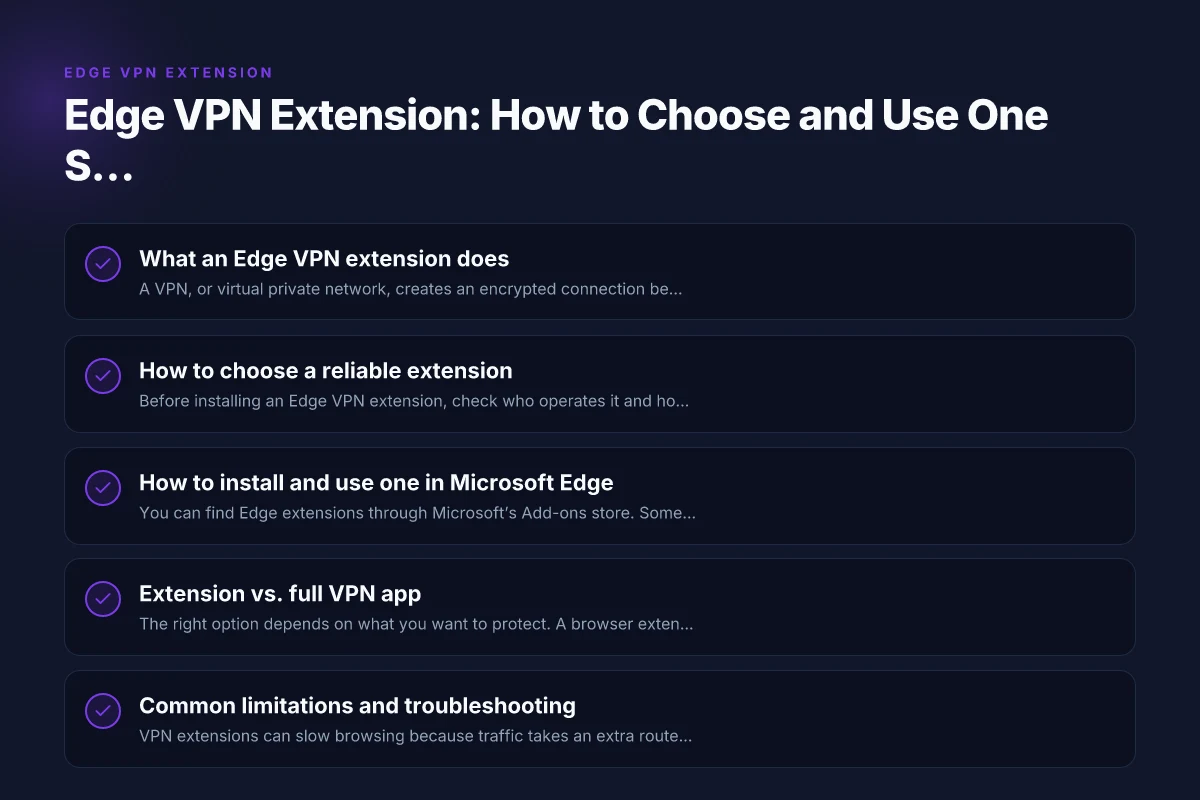
What an Edge VPN extension does
A VPN, or virtual private network, creates an encrypted connection between your device and a VPN server. Websites and services you visit generally see the server’s IP address instead of your public IP address. Encryption can make it harder for people on the same network to inspect your browsing traffic.
An Edge extension is a small piece of software installed in the browser. Providers use extensions in different ways:
- Some extensions control a full VPN app already installed on your computer.
- Some create a browser-only proxy connection.
- Some offer both, letting you choose a location or switch the connection on and off from Edge.
That distinction matters. A browser proxy can change the apparent location of browser traffic without routing traffic from other apps through a full VPN tunnel. It may also handle DNS requests or other traffic differently, depending on the provider.
A VPN does not make you anonymous. Websites can still recognize you through account logins, cookies, browser fingerprinting, or other tracking methods. A VPN also does not prevent malware, phishing, or unsafe downloads by itself. Urban VPN Extension Chrome: Setup, Features, and Safety
How to choose a reliable extension
Before installing an Edge VPN extension, check who operates it and how it handles your data. A free extension is not automatically unsafe, but some services make money through advertising, data collection, or restrictive paid upgrades. Read the provider’s privacy policy rather than relying only on claims such as “secure” or “anonymous.”
Look for these features:
- A clear privacy policy: It should explain what connection or usage data is collected and how long it is kept.
- Reputable ownership: Confirm the developer’s identity and whether the extension is offered by the VPN provider itself.
- Modern security: Prefer well-maintained products that explain how connections are protected.
- Useful server choices: Locations and performance vary by service. More locations do not necessarily mean better privacy.
- Leak protection: Check whether the service describes DNS and WebRTC protections, and test them if these safeguards matter to you.
- Recent updates and support: An actively maintained extension is more likely to address compatibility and security issues.
Treat permissions carefully. An extension may request broad access to websites so it can route or manage traffic. That can be necessary for its function, but the request should make sense for the product. Avoid lookalike extensions, unfamiliar developers, and add-ons with vague descriptions or suspiciously few details.
How to install and use one in Microsoft Edge
You can find Edge extensions through Microsoft’s Add-ons store. Some VPN providers also publish installation instructions on their official websites. Use a trusted source, and verify the developer name before adding anything. VPN PES Download: Safe Options for Playing eFootball
A typical setup looks like this:
- Open Microsoft Edge and visit the Microsoft Edge Add-ons store.
- Search for the VPN provider’s official extension.
- Check the listing, developer, permissions, and recent reviews.
- Select Get and approve the installation.
- Open the extension, then sign in or create an account if required.
- Choose a server location and connect.
- Visit a reputable IP-checking site to confirm that the browser appears to use the VPN server’s location.
The exact controls differ by provider. Some extensions connect automatically when Edge opens. Others require you to connect manually. If a page stops loading, try another server, check the provider’s service status, or temporarily disable the extension to troubleshoot.
Do not assume that seeing a new IP address proves every privacy feature is working. If you need stronger assurances, check for DNS or WebRTC leaks using a reputable testing service, and review the provider’s documentation. Keep Edge and the extension updated.
Edge extension vs. full VPN app Best Free VPN to Change Location: Safe Options and What to Expect
| Comparison point | Edge VPN extension | Full VPN app |
|---|---|---|
| Coverage | Usually protects browser traffic | Can protect traffic across the device |
| Setup | Installed through Edge’s extension store | Installed as a desktop or mobile app |
| Browser focus | Designed for Edge browsing | Works beyond the browser |
| Other apps | May not protect their traffic | Can protect supported apps |
| Connection control | Often managed in the browser | Managed through the VPN app |
| Best fit | Browser-only protection needs | Device-wide VPN needs |
| Limitations | Coverage depends on the extension | Requires app installation and setup |
| Check before use | Confirm what traffic is routed | Confirm supported devices and features |
Compiled November 2026; check the provider's site for current details.
Extension vs. full VPN app
The right option depends on what you want to protect. A browser extension is convenient when your concern is mainly web browsing in Edge. A desktop VPN app is generally more suitable when you want VPN coverage for multiple programs and device traffic.
| Feature | Edge VPN extension | Full VPN app |
|---|---|---|
| Coverage | Usually Edge traffic, though implementation varies | Typically traffic from the whole device |
| Setup | Quick to install in the browser | Requires installing and configuring an app |
| Control | Convenient browser toolbar controls | System-level controls and broader settings |
| Other apps | May not protect them | Usually routes their traffic through the VPN |
| Best suited to | Browser-focused use | Public Wi-Fi, multiple apps, or device-wide coverage |
Read the provider’s explanation carefully: an extension that controls a desktop VPN app may have different coverage from a standalone browser proxy. If you use email, messaging, games, or other sensitive apps outside Edge, confirm whether those connections are protected too.
Common limitations and troubleshooting
VPN extensions can slow browsing because traffic takes an extra route through a server. Distance, server load, your internet connection, and the provider’s infrastructure all affect speed. If performance drops, try a nearby server or disconnect when you do not need the VPN. How to Access ¥¥172.30.10.121¥share¥forticlientvpn Safely
Streaming platforms and some websites may block VPN server addresses. Switching locations can sometimes help, but access is not guaranteed, and service terms may restrict VPN use. A VPN also cannot bypass every network restriction.
If the extension will not connect:
- Confirm that Edge and the extension are up to date.
- Check your account status and the provider’s service page.
- Try another server location.
- Disable conflicting proxy or privacy extensions temporarily.
- Restart Edge, then reconnect.
- Contact the provider through its official support channel if the problem continues.
Remove extensions you no longer use. This reduces clutter and limits the number of add-ons with access to your browsing activity.
Edge VPN extension troubleshooting guide AWS VPN Gateway: What It Is, How It Works, and When to Use It
| Symptom | Possible cause | What to check | Next step |
|---|---|---|---|
| Extension will not install | Store or browser issue | Edge version and store availability | Update Edge and retry |
| Extension is missing | It may be disabled | Edge extensions settings | Enable it or reinstall |
| VPN will not connect | Login or service issue | Account status and provider status | Sign in again or contact support |
| Pages will not load | Connection or routing issue | VPN connection and network access | Reconnect or test another network |
| Some sites show your region | Site may use other location signals | IP and DNS leak protection | Check the provider’s leak guidance |
| Connection is slow | VPN routing can add delay | Server selection and network quality | Try another server |
| Only Edge traffic is protected | Extension coverage is browser-limited | Provider’s traffic coverage details | Use a full VPN app if needed |
| Extension behaves unexpectedly | Outdated or conflicting software | Updates and other privacy extensions | Update or disable conflicts |
Compiled November 2026; check the provider's site for current details.
Recommendation
Choose an Edge VPN extension from a reputable provider with transparent privacy practices, sensible permissions, and ongoing updates. Use it when you want convenient protection for browsing in Edge, and verify what traffic it actually covers. If you need protection for other apps or your whole device, install the provider’s full VPN app instead, and remember that a VPN complements, rather than replaces, safe browsing habits.