Urban VPN Extension Chrome: Setup, Features, and Safety
Learn how to install and use the Urban VPN extension for Chrome, what it can do, and how to evaluate its privacy and security.
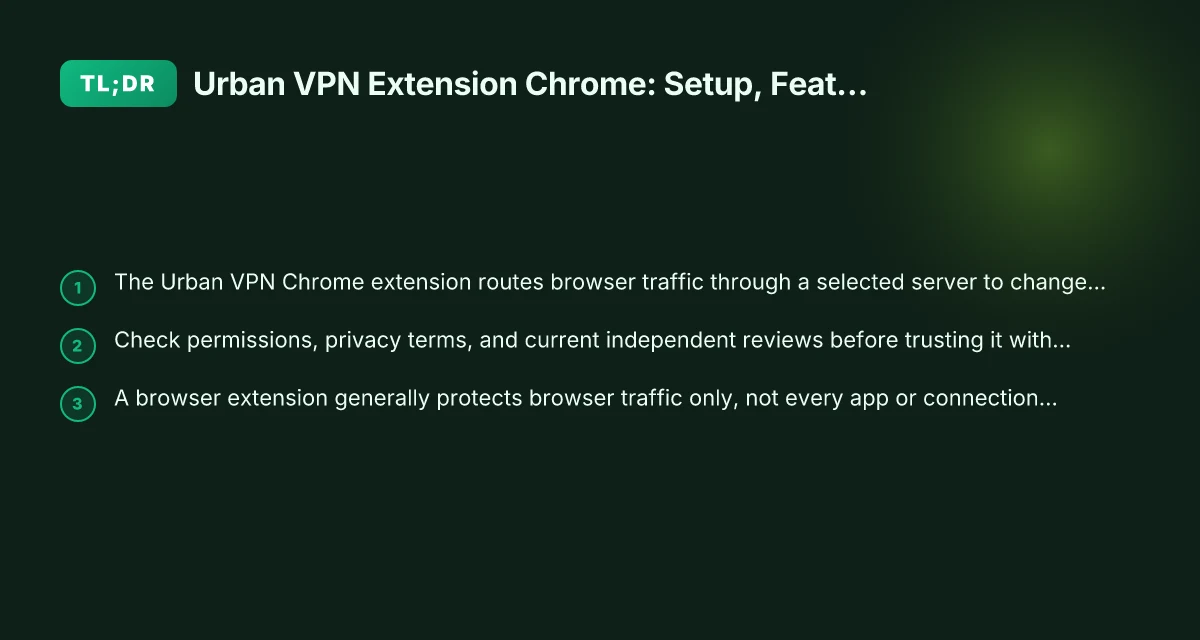
The Urban VPN extension for Chrome is a browser add-on designed to route Chrome traffic through a VPN server. It can help change the location websites see and may be useful for accessing region-specific pages or adding privacy on public Wi-Fi. To get started, find the extension through the official Chrome Web Store listing, review its publisher and permissions, install it, and connect to a server. Before using it for sensitive browsing, understand what traffic it covers and read the provider’s current privacy information.
Urban VPN Chrome extension setup and troubleshooting comparison
| Situation | What to check | Suggested action | What to expect |
|---|---|---|---|
| Find the extension | Chrome Web Store listing | Search for Urban VPN and verify the publisher | Confirm the extension before installing |
| Install | Browser compatibility | Add it through the Chrome Web Store | Extension appears in Chrome |
| Connect | Extension permissions | Review requested access before approving | Connection can proceed after approval |
| Choose a location | Available server locations | Select a location in the extension | Traffic may route through that location |
| Connection fails | Extension status | Disconnect, then reconnect | May restore the connection |
| Pages do not load | Site or browser behavior | Try another site or reload the page | Helps isolate the problem |
| Extension is unresponsive | Browser state | Restart Chrome and check for updates | May resolve a temporary issue |
| Still having trouble | Service status or support | Check Urban VPN’s help resources | Find current troubleshooting guidance |
Compiled November 2026; check the provider's site for current details.
| VPN | Obfuscation | From / month | Plan | Free plan | Refund | Alipay | UnionPay | Crypto | Website opens in China | Trustpilot | |
|---|---|---|---|---|---|---|---|---|---|---|---|
 ZoogVPN | Turn on manually Shadow | $2.49/mo | 27 months: $59.99 | Yes | 7 days | ✓ | ✓ | ✓ | ✓ | Official site blocked; our special link opens (4.4 s) | 4.2/5 (195 reviews) |
 NordVPN | Turn on manually Obfuscated Servers / NordWhisper | $3.49/mo | 27 months: $94.23 | No | 30 days | ? | ✗ | ✓ | ✓ | ✗ Blocked | 4.2/5 (51,628 reviews) |
 ExpressVPN | ✓ On by default all servers | $3.00/mo | 28 months: $84 | No | 30 days | ✗ | ✗ | ✓ | ✗ | ✗ Blocked | 4.4/5 (29,706 reviews) |
 Surfshark | ✓ On by default Camouflage, with OpenVPN | See site | See site | No | 30 days | ✗ | ✗ | ✗ | ✓ | ✗ Blocked | 4.3/5 (31,823 reviews) |
 Proton VPN | Turn on manually Stealth, free plan too | $2.99/mo | 12 months: $35.88 | Yes | 30 days | ✗ | ✗ | ✗ | ✓ | ✗ Blocked | 2.1/5 (1,040 reviews) |
 Astrill VPN | Turn on manually StealthVPN / OpenWeb | $12.50/mo | 24 months: $300 | No | See site | ✗ | ✗ | ✗ | ✓ | ✗ Blocked | 1.3/5 (110 reviews) |
 Private Internet Access | Turn on manually Shadowsocks, OpenVPN only | $2.03/mo | 40 months: $81.2 | No | 30 days | ✗ | ✗ | ✗ | ✗ | ✗ Blocked | 4.2/5 (11,033 reviews) |
 CyberGhost | Turn on manually selected servers | $2.19/mo | 28 months: $61.32 | No | 45 days | ✗ | ✗ | ✗ | ✓ | ✗ Blocked | 4.0/5 (24,178 reviews) |
 PureVPN | Turn on manually switch to OpenVPN | $1.69/mo | 60 months: $101.55 | No | 31 days | ? | ? | ✗ | ✓ | ✗ Blocked | 4.4/5 (17,994 reviews) |
 AdGuard VPN | ✓ On by default TrustTunnel | $2.99/mo | 24 months: $71.76 | Yes | 30 days | ✓ | ✗ | ✓ | ✓ | Official site blocked; our special link opens (3.7 s) | 4.3/5 (290 reviews) |
 Mullvad | Turn on manually QUIC / Shadowsocks / LWO | $5.61/mo | €5/mo | No | 14 days | ✗ | ✗ | ✗ | ✓ | ✗ Blocked | 3.2/5 (192 reviews) |
 Windscribe | Turn on manually Stealth / WStunnel | $5.75/mo | 12 months: $69 | Yes | See site | ✗ | ✗ | ✗ | ✓ | ✗ Blocked | 4.7/5 (13,355 reviews) |
 StrongVPN | Turn on manually Scramble, OpenVPN TCP | See site | See site | No | 30 days | ✓ | ✗ | ✗ | ✗ | ✗ Blocked | 4.4/5 (2,695 reviews) |
 LightXtreme 闪连 | Not listed | $7.08/mo | 12 months: $84.99 | Yes | 30 days | ✓ | ✓ | ✓ | ✓ | ✓ Yes (3.5 s) | No page |
Prices checked 2026-11-10 on each vendor's pricing page (cheapest long plan, USD). Check the vendor's checkout for the final price.
Obfuscation checked 2026-11-14 on each vendor's site and help center: "on by default" = nothing to set; "turn on manually" = switch protocol or mode in settings; "not listed" = the vendor describes no obfuscation.
Payment methods checked 2026-11-10 on each vendor's payment pages: all 14 take cards and PayPal; ✗ = not listed, ? = the vendor's own pages disagree.
China access: whether the official website opens from mainland China networks (tests the website only, not the VPN connection). Last checked 2026-11-18 01:02 Beijing time.
Trustpilot score and review count checked 2026-11-10.
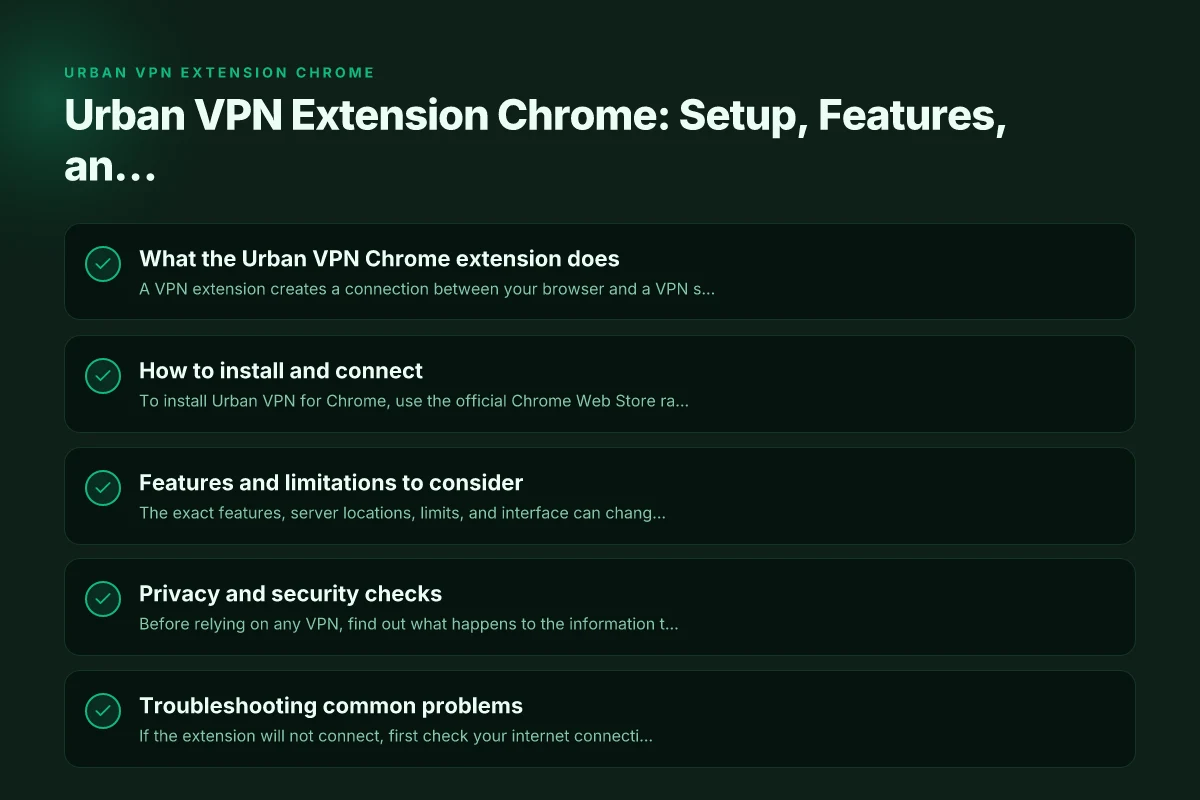
What the Urban VPN Chrome extension does
A VPN extension creates a connection between your browser and a VPN server. Websites typically see the server’s IP address rather than your ordinary public IP address. Depending on the service and the website, this may affect which content or version of a page you can access.
The extension is not the same thing as a complete device-wide VPN app. It generally handles traffic from Chrome, while other browsers and apps may continue using your regular internet connection. The exact coverage can depend on how the extension is implemented and configured.
Common reasons people try a Chrome VPN extension include:
- Changing the apparent browsing location.
- Accessing websites or content that varies by region, where permitted.
- Adding a layer of protection when browsing over public Wi-Fi.
- Reducing exposure of their regular IP address to websites.
A VPN does not make someone anonymous. Websites can still identify users through account logins, cookies, browser fingerprinting, and other tracking methods. VPN PES Download: Safe Options for Playing eFootball
How to install and connect
To install Urban VPN for Chrome, use the official Chrome Web Store rather than a download link from an unfamiliar site. Check that the listing is the genuine one and review its publisher, ratings, recent reviews, and requested permissions before adding it.
Basic setup
- Open the Urban VPN listing in the Chrome Web Store.
- Review the listing details and permissions.
- Select the option to add the extension to Chrome.
- Open the extension from Chrome’s extensions menu.
- Choose a server location and connect.
- Visit an IP-checking website to see whether the displayed IP location changes.
The extension may ask for access that enables it to manage or route browser traffic. Read the permission explanation carefully. If a permission seems broader than necessary or the listing’s publisher is unclear, pause before installing.
To disconnect, open the extension and select its disconnect option. You can also manage or remove it from Chrome’s extensions page. If you remove it, check whether you still have a separate Urban VPN app installed on your device.
Features and limitations to consider
The exact features, server locations, limits, and interface can change over time. Confirm current details in the Chrome Web Store listing and within the extension rather than relying on old reviews or promotional claims. Best Free VPN to Change Location: Safe Options and What to Expect
| Consideration | What it means for Chrome users |
|---|---|
| Server locations | The available countries determine which apparent locations you can select. |
| Browser coverage | The extension may cover Chrome traffic but not other apps on your device. |
| Speed | Routing through a VPN can slow browsing, and performance varies by server and network. |
| Streaming access | Services may block VPN connections, so access is not guaranteed. |
| Privacy practices | The provider’s current policy explains what data it may collect and retain. |
| Free access | A free option may have limits or other trade-offs; check the current terms. |
Changing an IP address does not necessarily bypass a website’s regional restrictions, and it does not grant permission to view content you are not authorized to access. Streaming platforms, banks, and other services may detect or block VPN connections.
For reliable coverage across all internet-connected apps, compare the extension with a full VPN application. A desktop app may also offer settings such as a system-wide kill switch, though available protections vary by provider and plan.
Urban VPN Chrome extension feature and limitation checklist
| Consideration | What to look for | Why it matters | Reader’s check |
|---|---|---|---|
| Browser coverage | Chrome extension support | Indicates which browser the extension serves | Confirm Chrome is supported |
| Location choice | Available connection locations | Affects the apparent connection location | Review the locations offered |
| Ease of use | Connect and disconnect controls | Determines how simple routine use is | Test the extension controls |
| Connection reliability | Stability during browsing | Interruptions can affect access | Check your connection in practice |
| Site compatibility | Whether important sites work | Some sites may restrict VPN connections | Test the sites you use |
| Permissions | Access requested by the extension | Broad access can affect privacy | Review permissions before installing |
| Privacy practices | Data collection and sharing terms | Helps explain how browsing-related data is handled | Read the current privacy policy |
| Security scope | Protection provided by the extension | Browser extensions may not cover every device or app | Check what traffic is protected |
Compiled November 2026; check the provider's site for current details. How to Access ¥¥172.30.10.121¥share¥forticlientvpn Safely
Privacy and security checks
Before relying on any VPN, find out what happens to the information that passes through it. A VPN provider may be able to observe connection-related data, so using one shifts some trust from your internet provider to the VPN operator. A privacy policy should explain what information is collected, why it is collected, how long it is kept, and whether it is shared.
Look for clear answers to these questions:
- Does the policy describe connection logs, browsing data, or diagnostic information?
- Is the service’s ownership and contact information easy to verify?
- Are security claims supported by recent, independent audits or technical documentation?
- Does the extension receive updates and have a transparent changelog?
- Can you find credible, recent reviews that discuss privacy as well as ease of use?
Treat claims such as “complete anonymity” or “total protection” with caution. A VPN can encrypt traffic between your browser and the VPN server, but it does not automatically protect you from phishing, malware, unsafe downloads, or tracking through your accounts. HTTPS remains important because it protects data between your browser and a website.
For sensitive tasks such as banking or handling confidential work information, consider whether a browser extension is appropriate at all. Follow your employer’s security requirements, use trusted networks and devices, and avoid assuming that a VPN makes an unsafe website trustworthy. AWS VPN Gateway: What It Is, How It Works, and When to Use It
Troubleshooting common problems
If the extension will not connect, first check your internet connection and confirm that Chrome is up to date. Disconnect and reconnect, try another available server, and restart Chrome. If the issue continues, review the extension’s current support guidance.
If a website still shows your usual location, clear site data or open a private window after checking the extension’s private-browsing permissions. Location can also be inferred from account details, browser settings, cookies, or device location access, not just your IP address.
If browsing becomes slow, try a server closer to your actual location. A distant server can add latency, while busy servers may have reduced capacity. Turn off the extension when you no longer need it, and remove it if you stop using it or no longer trust its permissions or privacy practices.
Privacy and safety checks before using Urban VPN for Chrome FortiClient VPN Connection Is Down: Causes and Fixes
| Check | Where to verify | Safer choice | If unclear |
|---|---|---|---|
| Publisher identity | Chrome Web Store listing | Install only the intended extension | Do not install until verified |
| Requested permissions | Chrome’s installation prompt | Approve only permissions you understand | Review the listing and policy |
| Data collection | Urban VPN privacy policy | Understand what data may be collected | Avoid sharing sensitive activity |
| Data sharing | Privacy policy and service terms | Check whether data is shared with third parties | Seek clarification before use |
| Connection protection | Extension settings and documentation | Confirm when the VPN is connected | Do not assume protection is active |
| Browser-only coverage | Product documentation | Treat the extension as browser-specific unless stated otherwise | Use suitable protection for other apps |
| Sensitive activity | Your threat model and service terms | Avoid relying on an unverified setup for high-risk tasks | Choose a service that meets your needs |
| Ongoing trust | Extension updates and policy changes | Recheck permissions and terms periodically | Disable or remove it if concerns arise |
Compiled November 2026; check the provider's site for current details.
Recommendation
The Urban VPN extension for Chrome may suit casual browsing when you want to route browser traffic through a different server, but install it only from the official Chrome Web Store and verify its current privacy terms, permissions, and reputation. Do not treat it as a guarantee of anonymity or device-wide protection. If you need stronger, broader coverage, compare reputable VPN providers and consider a full-device app with clearly documented security features.