Free VPN Extension for Microsoft Edge: How to Choose Safely
Find out what a free VPN extension for Microsoft Edge can do, how to compare options, and how to protect your privacy.
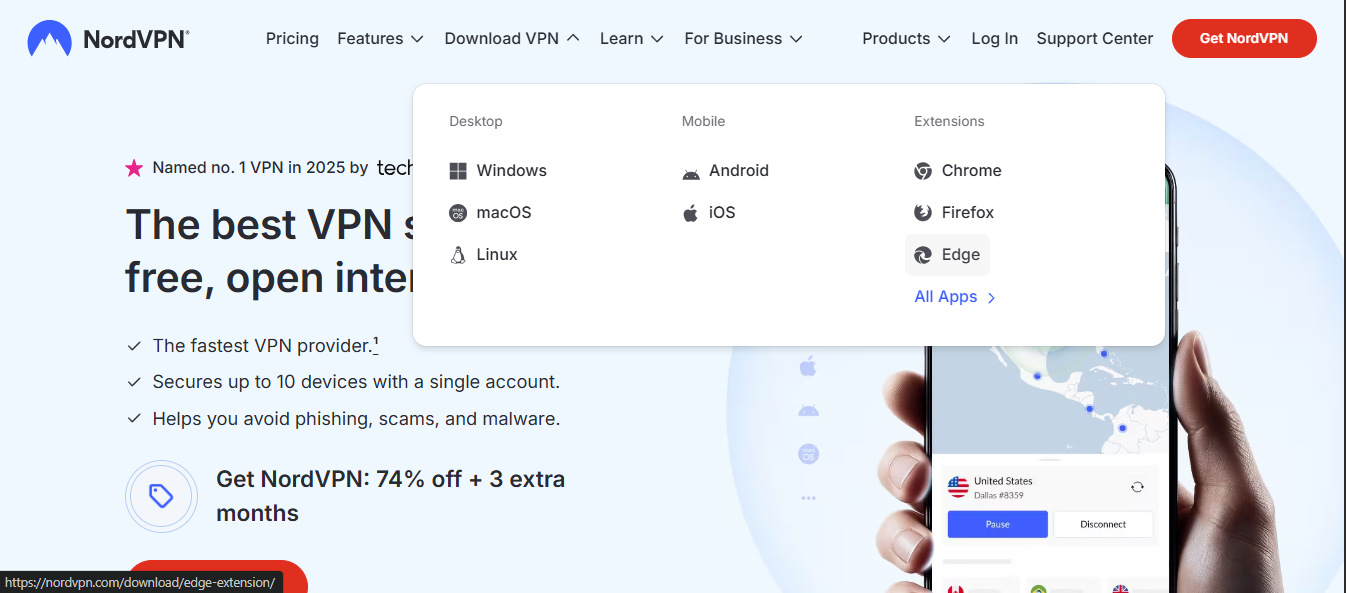
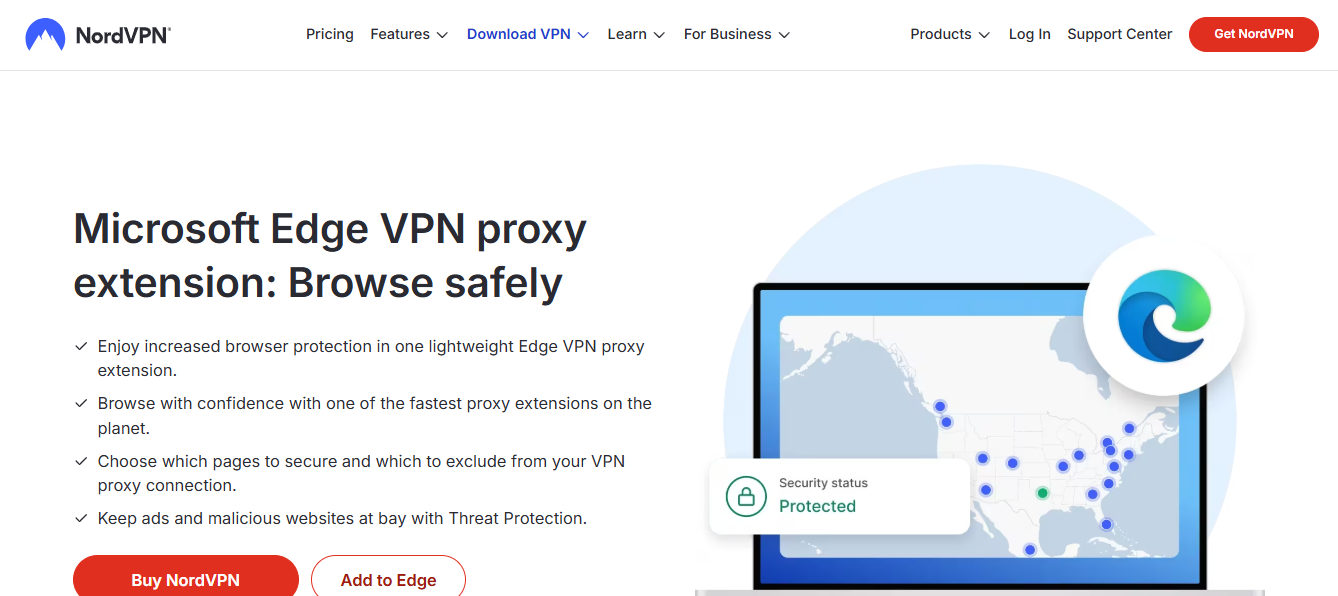
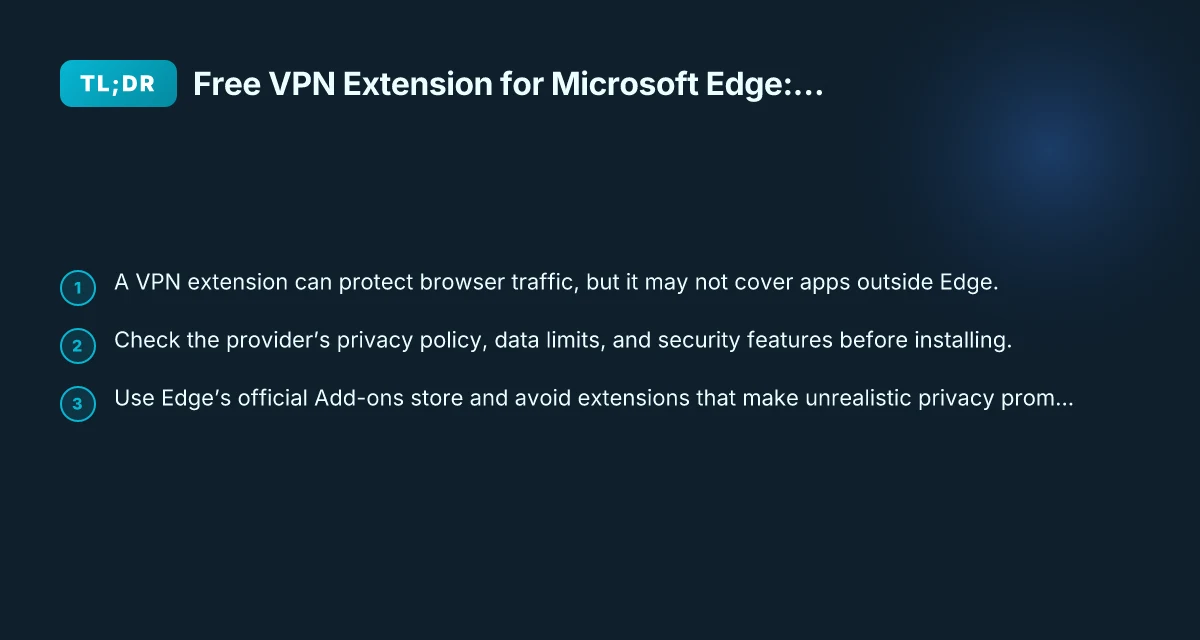
A free VPN extension for Microsoft Edge can help route browser traffic through a VPN server, hide your IP address from websites, and provide a more private connection on public Wi-Fi. The trade-off is that free plans often limit data, server locations, speed, or features. Before installing one, check what the extension protects, what information the provider collects, and whether its limitations suit your needs.
Compare free VPN extensions by safety and practical limits
| Criterion | What to look for | Why it matters | Warning sign |
|---|---|---|---|
| Provider identity | A clear, established provider | Makes accountability easier | Unknown operator |
| Privacy policy | Plain-language data practices | Shows what may be collected | Vague or missing policy |
| Business model | A clear explanation of how it is funded | Helps assess incentives | Unexplained “free” service |
| Permissions | Only permissions needed for its features | Limits browser access | Broad, unrelated permissions |
| Data limits | Clearly stated limits, if any | Avoids unexpected restrictions | Limits not disclosed |
| Server choices | Locations and availability explained | Helps set expectations | No useful details |
| Performance | Tested for your usual browsing | Free options may vary | Assumed to be consistently fast |
| Support | Help and contact details available | Useful when setup fails | No support information |
Compiled November 2026; check the provider's site for current details.
| VPN | Obfuscation | From / month | Plan | Free plan | Refund | Alipay | UnionPay | Crypto | Website opens in China | Trustpilot | |
|---|---|---|---|---|---|---|---|---|---|---|---|
 ZoogVPN | Turn on manually Shadow | $2.49/mo | 27 months: $59.99 | Yes | 7 days | ✓ | ✓ | ✓ | ✓ | Official site blocked; our special link opens (4.4 s) | 4.2/5 (195 reviews) |
 NordVPN | Turn on manually Obfuscated Servers / NordWhisper | $3.49/mo | 27 months: $94.23 | No | 30 days | ? | ✗ | ✓ | ✓ | ✗ Blocked | 4.2/5 (51,628 reviews) |
 ExpressVPN | ✓ On by default all servers | $3.00/mo | 28 months: $84 | No | 30 days | ✗ | ✗ | ✓ | ✗ | ✗ Blocked | 4.4/5 (29,706 reviews) |
 Surfshark | ✓ On by default Camouflage, with OpenVPN | See site | See site | No | 30 days | ✗ | ✗ | ✗ | ✓ | ✗ Blocked | 4.3/5 (31,823 reviews) |
 Proton VPN | Turn on manually Stealth, free plan too | $2.99/mo | 12 months: $35.88 | Yes | 30 days | ✗ | ✗ | ✗ | ✓ | ✗ Blocked | 2.1/5 (1,040 reviews) |
 Astrill VPN | Turn on manually StealthVPN / OpenWeb | $12.50/mo | 24 months: $300 | No | See site | ✗ | ✗ | ✗ | ✓ | ✗ Blocked | 1.3/5 (110 reviews) |
 Private Internet Access | Turn on manually Shadowsocks, OpenVPN only | $2.03/mo | 40 months: $81.2 | No | 30 days | ✗ | ✗ | ✗ | ✗ | ✗ Blocked | 4.2/5 (11,033 reviews) |
 CyberGhost | Turn on manually selected servers | $2.19/mo | 28 months: $61.32 | No | 45 days | ✗ | ✗ | ✗ | ✓ | ✗ Blocked | 4.0/5 (24,178 reviews) |
 PureVPN | Turn on manually switch to OpenVPN | $1.69/mo | 60 months: $101.55 | No | 31 days | ? | ? | ✗ | ✓ | ✗ Blocked | 4.4/5 (17,994 reviews) |
 AdGuard VPN | ✓ On by default TrustTunnel | $2.99/mo | 24 months: $71.76 | Yes | 30 days | ✓ | ✗ | ✓ | ✓ | Official site blocked; our special link opens (3.7 s) | 4.3/5 (290 reviews) |
 Mullvad | Turn on manually QUIC / Shadowsocks / LWO | $5.61/mo | €5/mo | No | 14 days | ✗ | ✗ | ✗ | ✓ | ✗ Blocked | 3.2/5 (192 reviews) |
 Windscribe | Turn on manually Stealth / WStunnel | $5.75/mo | 12 months: $69 | Yes | See site | ✗ | ✗ | ✗ | ✓ | ✗ Blocked | 4.7/5 (13,355 reviews) |
 StrongVPN | Turn on manually Scramble, OpenVPN TCP | See site | See site | No | 30 days | ✓ | ✗ | ✗ | ✗ | ✗ Blocked | 4.4/5 (2,695 reviews) |
 LightXtreme 闪连 | Not listed | $7.08/mo | 12 months: $84.99 | Yes | 30 days | ✓ | ✓ | ✓ | ✓ | ✓ Yes (3.5 s) | No page |
Prices checked 2026-11-10 on each vendor's pricing page (cheapest long plan, USD). Check the vendor's checkout for the final price.
Obfuscation checked 2026-11-14 on each vendor's site and help center: "on by default" = nothing to set; "turn on manually" = switch protocol or mode in settings; "not listed" = the vendor describes no obfuscation.
Payment methods checked 2026-11-10 on each vendor's payment pages: all 14 take cards and PayPal; ✗ = not listed, ? = the vendor's own pages disagree.
China access: whether the official website opens from mainland China networks (tests the website only, not the VPN connection). Last checked 2026-11-18 01:02 Beijing time.
Trustpilot score and review count checked 2026-11-10.
What a VPN extension does in Edge
A VPN extension adds controls to your browser, usually allowing you to connect to a server in a chosen location. When active, it can make websites see the VPN server’s IP address instead of your usual public IP address. Depending on how the service is built, it may also encrypt browser traffic between Edge and the VPN provider.
The word “VPN” can describe different products. Some extensions act as browser-only proxies, while others connect to a provider’s full VPN service. A browser-only extension generally protects traffic from Edge, not traffic from other browsers or desktop apps. For example, a separate email client, game, or software updater may continue using your regular internet connection.
A VPN does not make you completely anonymous. Websites may still identify you through account logins, cookies, browser fingerprinting, or information you choose to share. It also does not replace antivirus software or automatically block every phishing attempt.
How to compare free options
Free plans can vary considerably. Compare the service’s limits and privacy practices rather than choosing solely by its store rating or number of downloads. How Can I Tell If a VPN Is Blocking My Internet?
| Feature | What to check | Why it matters |
|---|---|---|
| Data allowance | Monthly or daily limits, if any | Video, downloads, and frequent browsing can use data quickly |
| Speed and servers | Available locations and any congestion limits | A crowded or distant server can make browsing slower |
| Privacy policy | What data is collected, retained, and shared | “Free” does not necessarily mean the service collects no data |
| Security | Encryption, connection handling, and leak protection | Weak safeguards can undermine the protection you expect |
| Scope | Browser-only protection or full-device VPN | Determines which apps and traffic are covered |
| Business model | Free tier, ads, or paid upgrades | Helps explain how the provider supports the service |
Look for clear answers about activity logs, diagnostic information, account details, and data sharing. A provider may need limited technical data to operate its service, but the policy should explain what it collects and how long it keeps it. Be cautious if the policy is vague or difficult to find.
Free plans may also restrict locations, cap data, or offer fewer features than paid subscriptions. Those restrictions can be reasonable, but they should be disclosed clearly. Avoid services that promise unlimited privacy or complete anonymity without explaining how their product works.
Safe installation and setup checklist for an Edge VPN extension
| Step | Safer approach | Check before continuing | Caution |
|---|---|---|---|
| Find the extension | Use Microsoft Edge Add-ons or the provider’s official site | Confirm the publisher name | Avoid lookalike listings |
| Review the listing | Read the description and update history | Check whether features match your needs | Treat bold claims skeptically |
| Check permissions | Review the requested access | Ask whether each permission is necessary | Decline extensions with unrelated access |
| Read privacy terms | Look for collection, use, and retention details | Confirm the policy is understandable | “No logs” claims need context |
| Install | Use the browser’s standard install flow | Verify the publisher again | Do not install from unknown downloads |
| Configure | Review settings and connection options | Choose settings you understand | Do not assume defaults protect everything |
| Test | Visit a reputable IP or connection-check site | Confirm the extension shows connected | A connected indicator is not a full audit |
| Maintain | Review updates and permissions periodically | Remove extensions you no longer use | Reassess after major policy changes |
Compiled November 2026; check the provider's site for current details. GlobalProtect VPN Not Connecting? Causes and Fixes
Install and set up an extension safely
To reduce the risk of installing a lookalike or unwanted add-on, start from Microsoft Edge’s official Add-ons store. Check the publisher’s name, listing details, permissions, update history, and privacy information. Reviews can offer clues, but they are not proof that an extension is secure.
After installing, review the permissions Edge requests. A VPN extension may need access to browser network requests to route traffic, but permissions should still be relevant to the product. Treat requests for unrelated access as a reason to investigate further.
A sensible setup process is:
- Confirm the extension is published by the provider you intended to use.
- Read the privacy policy and free-plan terms.
- Install only the permissions needed for the service.
- Connect to a server and check whether the extension shows a clear connection status.
- Disconnect it when you no longer need it, especially if it affects speed or access to local websites.
- Remove the extension if it stops receiving updates or its privacy terms change in ways you do not accept.
For sensitive tasks, do not assume that an extension is working just because its icon appears in Edge. Use the provider’s status tools, if available, and check the service’s documentation for any known limitations. NordVPN Windows: How to Download, Install, and Use It
When a free VPN extension may be enough
A free extension may suit occasional, low-bandwidth browsing when you want to change the apparent location of browser traffic or add a layer of protection on an unfamiliar Wi-Fi network. It can also be useful for trying a provider’s interface before deciding whether its paid plan is worth considering.
It may not be the right choice if you need:
- Reliable coverage for every app on your computer.
- Large amounts of streaming or download data.
- Consistently fast connections or many server locations.
- Advanced controls, such as a system-wide kill switch.
- A service with clearly documented independent security assessments.
For those needs, compare reputable full-device VPN apps and their terms. A paid plan is not automatically trustworthy, so apply the same checks to its ownership, policies, security claims, and renewal conditions.
Decide whether a free Edge VPN extension is enough WatchGuard SSLVPN: How It Works, Setup, and Security Best Practices
| Your situation | A free extension may fit? | Consider instead | Practical caution |
|---|---|---|---|
| Basic browser privacy on public Wi-Fi | Possibly | A trusted provider with clear terms | It may protect browser traffic only |
| Occasional access to a different location | Possibly | Check available locations first | Free plans may have restrictions |
| Frequent video streaming | Maybe not | Compare speed and data limits | Performance can vary |
| Large downloads | Often not ideal | Check transfer limits and reliability | Limits may interrupt use |
| Protecting every app on the device | No, not by itself | Consider a full VPN app | Browser extensions usually cover browser traffic |
| Sensitive work or confidential data | Do not rely on “free” alone | Seek an organization-approved service | Review security and privacy terms |
| Avoiding all tracking | No | Use broader privacy controls too | A VPN does not stop all tracking |
| Choosing a provider | Decide only after review | Compare policy, permissions, and support | Free does not automatically mean safe |
Compiled November 2026; check the provider's site for current details.
Common misconceptions and practical cautions
A VPN changes how your connection reaches websites, but it does not prevent every form of tracking. Signing into a social media account, for instance, can still identify you even when your IP address is masked. Browser privacy settings, careful account use, and security updates remain important.
Also distinguish a VPN extension from Edge’s built-in privacy features and from a provider’s desktop application. These tools may serve different purposes, and enabling multiple network-routing tools at once can cause conflicts. If a site stops loading, disconnect the extension and troubleshoot before changing unrelated security settings.
Avoid using a VPN to assume that all activity is private from the provider. The provider may be able to process connection data, so its policies and technical design matter. No extension can guarantee protection against every network, website, or device-level risk. Microsoft Edge Secure Network VPN Reviews: Is It Safe and Worth Using?
Recommendation
Choose a free VPN extension for Microsoft Edge only when the provider is identifiable, its privacy policy is specific, and its limits are acceptable. Install it through the official Edge Add-ons store, verify its permissions, and remember that browser extensions may not protect traffic from other apps. If you need dependable, device-wide coverage or frequent high-bandwidth use, compare a reputable full VPN service instead.