FortiGate IPsec VPN: Setup, Configuration, and Troubleshooting
Learn how FortiGate IPsec VPN works, how to configure a secure tunnel, and how to troubleshoot common connection issues.
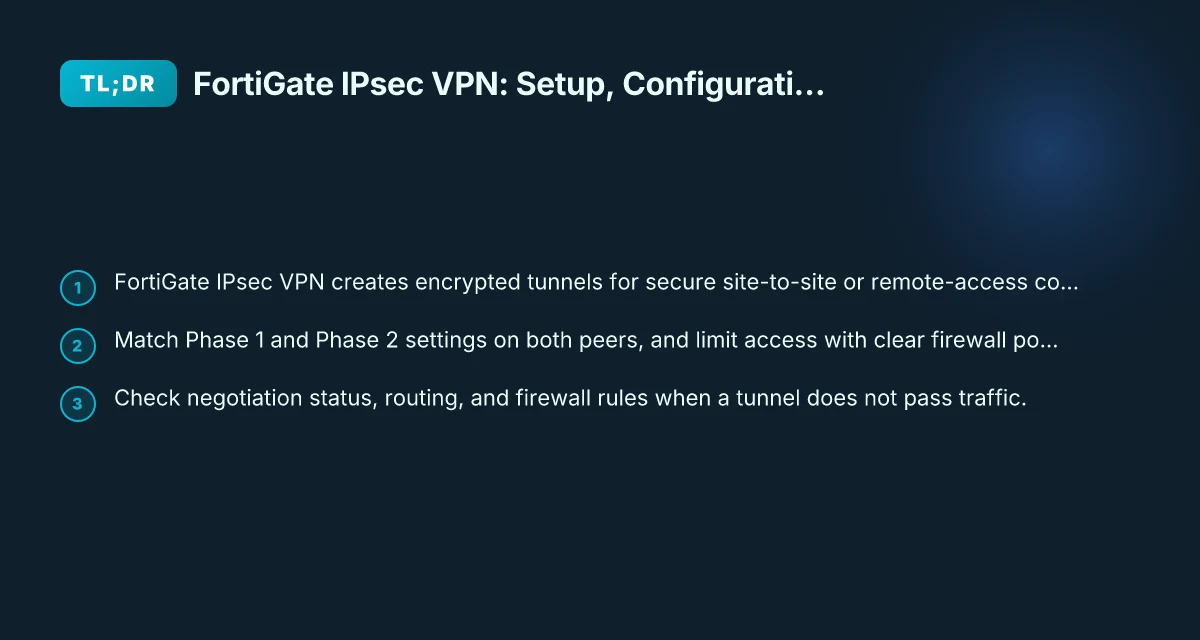
FortiGate IPsec VPN lets you securely connect two networks or provide remote users with encrypted access to an organization’s resources. To configure it, define matching Phase 1 and Phase 2 settings on the FortiGate and its peer, add routes and firewall policies, then test both tunnel status and traffic flow. The exact steps depend on whether you are building a site-to-site or remote-access VPN.
Compare FortiGate IPsec VPN deployment options
| Option | Best for | Connection pattern | Typical access | Main consideration |
|---|---|---|---|---|
| Site-to-site VPN | Connecting office networks | Gateway to gateway | Network-to-network | Configure both gateways |
| Remote-access VPN | Connecting individual users | Client to gateway | User-to-network | Provide users with VPN clients |
| Site-to-site with static peers | Gateways with fixed public addresses | Gateway to gateway | Network-to-network | Peer addresses must match |
| Site-to-site with dynamic peers | Peers with changing addresses | Gateway to gateway | Network-to-network | Requires appropriate peer identification |
| Remote access with user authentication | Managed user access | Client to gateway | User-to-network | Configure and maintain user authentication |
| Route-based VPN | Flexible routing and policy control | Tunnel interface | Routed networks or users | Requires compatible routes and policies |
Compiled November 2026; check the provider's site for current details.
| VPN | Obfuscation | From / month | Plan | Free plan | Refund | Alipay | UnionPay | Crypto | Website opens in China | Trustpilot | |
|---|---|---|---|---|---|---|---|---|---|---|---|
 ZoogVPN | Turn on manually Shadow | $2.49/mo | 27 months: $59.99 | Yes | 7 days | ✓ | ✓ | ✓ | ✓ | Official site blocked; our special link opens (4.4 s) | 4.2/5 (195 reviews) |
 NordVPN | Turn on manually Obfuscated Servers / NordWhisper | $3.49/mo | 27 months: $94.23 | No | 30 days | ? | ✗ | ✓ | ✓ | ✗ Blocked | 4.2/5 (51,628 reviews) |
 ExpressVPN | ✓ On by default all servers | $3.00/mo | 28 months: $84 | No | 30 days | ✗ | ✗ | ✓ | ✗ | ✗ Blocked | 4.4/5 (29,706 reviews) |
 Surfshark | ✓ On by default Camouflage, with OpenVPN | See site | See site | No | 30 days | ✗ | ✗ | ✗ | ✓ | ✗ Blocked | 4.3/5 (31,823 reviews) |
 Proton VPN | Turn on manually Stealth, free plan too | $2.99/mo | 12 months: $35.88 | Yes | 30 days | ✗ | ✗ | ✗ | ✓ | ✗ Blocked | 2.1/5 (1,040 reviews) |
 Astrill VPN | Turn on manually StealthVPN / OpenWeb | $12.50/mo | 24 months: $300 | No | See site | ✗ | ✗ | ✗ | ✓ | ✗ Blocked | 1.3/5 (110 reviews) |
 Private Internet Access | Turn on manually Shadowsocks, OpenVPN only | $2.03/mo | 40 months: $81.2 | No | 30 days | ✗ | ✗ | ✗ | ✗ | ✗ Blocked | 4.2/5 (11,033 reviews) |
 CyberGhost | Turn on manually selected servers | $2.19/mo | 28 months: $61.32 | No | 45 days | ✗ | ✗ | ✗ | ✓ | ✗ Blocked | 4.0/5 (24,178 reviews) |
 PureVPN | Turn on manually switch to OpenVPN | $1.69/mo | 60 months: $101.55 | No | 31 days | ? | ? | ✗ | ✓ | ✗ Blocked | 4.4/5 (17,994 reviews) |
 AdGuard VPN | ✓ On by default TrustTunnel | $2.99/mo | 24 months: $71.76 | Yes | 30 days | ✓ | ✗ | ✓ | ✓ | Official site blocked; our special link opens (3.7 s) | 4.3/5 (290 reviews) |
 Mullvad | Turn on manually QUIC / Shadowsocks / LWO | $5.61/mo | €5/mo | No | 14 days | ✗ | ✗ | ✗ | ✓ | ✗ Blocked | 3.2/5 (192 reviews) |
 Windscribe | Turn on manually Stealth / WStunnel | $5.75/mo | 12 months: $69 | Yes | See site | ✗ | ✗ | ✗ | ✓ | ✗ Blocked | 4.7/5 (13,355 reviews) |
 StrongVPN | Turn on manually Scramble, OpenVPN TCP | See site | See site | No | 30 days | ✓ | ✗ | ✗ | ✗ | ✗ Blocked | 4.4/5 (2,695 reviews) |
 LightXtreme 闪连 | Not listed | $7.08/mo | 12 months: $84.99 | Yes | 30 days | ✓ | ✓ | ✓ | ✓ | ✓ Yes (3.5 s) | No page |
Prices checked 2026-11-10 on each vendor's pricing page (cheapest long plan, USD). Check the vendor's checkout for the final price.
Obfuscation checked 2026-11-14 on each vendor's site and help center: "on by default" = nothing to set; "turn on manually" = switch protocol or mode in settings; "not listed" = the vendor describes no obfuscation.
Payment methods checked 2026-11-10 on each vendor's payment pages: all 14 take cards and PayPal; ✗ = not listed, ? = the vendor's own pages disagree.
China access: whether the official website opens from mainland China networks (tests the website only, not the VPN connection). Last checked 2026-11-18 01:02 Beijing time.
Trustpilot score and review count checked 2026-11-10.
What FortiGate IPsec VPN does
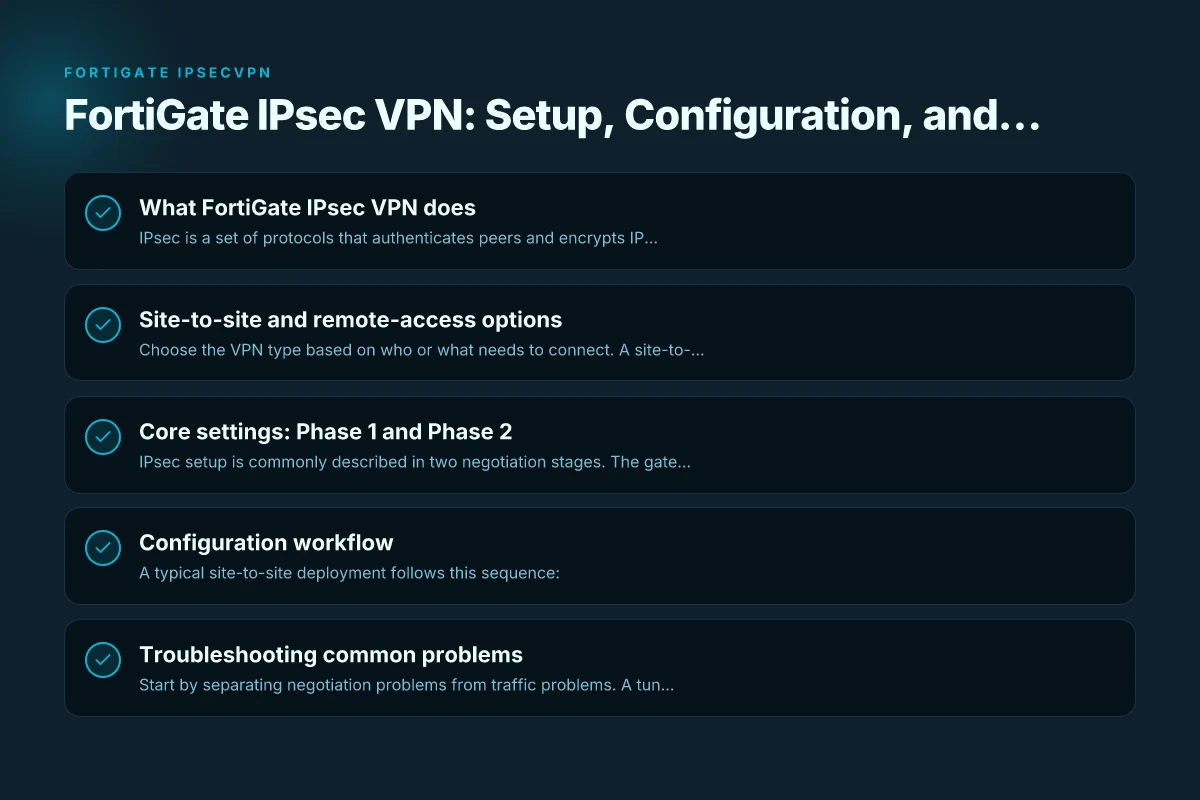
IPsec is a set of protocols that authenticates peers and encrypts IP traffic across an untrusted network, such as the internet. A FortiGate can terminate an IPsec tunnel and apply its firewall, routing, and security controls to traffic entering or leaving that tunnel.
Common uses include:
- Connecting two office networks with a site-to-site tunnel.
- Giving remote users access to selected internal services.
- Connecting a FortiGate to a cloud gateway or another compatible firewall.
- Providing backup connectivity alongside a private WAN link.
A working tunnel involves more than successful encryption negotiation. The FortiGate must also have suitable routes and policies, and the networks at each end must be reachable without conflicting address ranges.
Site-to-site and remote-access options
Choose the VPN type based on who or what needs to connect. A site-to-site VPN links fixed networks through gateways. A remote-access VPN connects individual devices, which may use dynamic addresses and require user authentication. VPN FortiGate: How It Works, How to Set It Up, and Which Type to Choose
| Option | Typical use | Main configuration needs |
|---|---|---|
| Site-to-site IPsec | Office-to-office or office-to-cloud connectivity | Peer gateway, local and remote networks, routes, firewall policies |
| Remote-access IPsec | Employee access from laptops or mobile devices | Client settings, user or group authentication, address pool, access policies |
FortiGate configuration screens and available options can vary by FortiOS version. For remote access, confirm client compatibility and authentication requirements before deploying to users. Avoid granting broad access merely to make an initial test succeed.
Core settings: Phase 1 and Phase 2
IPsec setup is commonly described in two negotiation stages. The gateway identities and secure control channel are established in Phase 1. Phase 2 defines how the actual network traffic is protected.
Phase 1
Configure the peer and agree on compatible security parameters, including:
- The remote gateway address or an appropriate dynamic-peer option.
- Authentication, such as a pre-shared key or certificates.
- IKE version and compatible encryption and integrity algorithms.
- Diffie-Hellman group, negotiation lifetime, and other required parameters.
Use strong, unique credentials and modern algorithms supported by both devices. If the FortiGate and its peer propose incompatible settings, negotiation may fail before a tunnel is established. Com.NordVPN.Android: What It Is and How to Install It Safely
Phase 2
Define which traffic should use the tunnel and how it is protected. For a site-to-site tunnel, this typically means specifying the local and remote network selectors, encryption and integrity settings, and lifetime.
The two peers need compatible Phase 2 settings. Check that subnet masks and network ranges are correct. A mismatch can prevent traffic from matching the tunnel even when Phase 1 is up. For route-based designs, confirm that the tunnel interface, routing, and policies reflect the intended traffic paths.
Compare core IPsec settings and configuration checks
| Area | Phase | What to configure | What to verify | Common issue |
|---|---|---|---|---|
| Peer identity | Phase 1 | Remote gateway and identification | Peer details agree | Identity mismatch |
| Authentication | Phase 1 | Shared secret or certificates | Both peers use matching credentials | Authentication failure |
| Encryption proposals | Phase 1 | Compatible algorithms | Proposals overlap | No matching proposal |
| Key exchange | Phase 1 | Compatible exchange settings | Peer settings agree | Negotiation failure |
| Traffic selectors | Phase 2 | Local and remote subnets | Selectors mirror the peer | Subnet mismatch |
| Encryption proposals | Phase 2 | Compatible data-protection algorithms | Proposals overlap | Phase 2 fails |
| Lifetime settings | Phase 1 and Phase 2 | Key lifetimes | Settings are compatible | Rekeying problems |
| Routing and policies | After tunnel setup | Routes and firewall policies | Intended traffic uses the tunnel | Tunnel up, traffic blocked |
Compiled November 2026; check the provider's site for current details. Certificate Validation Failure Cisco VPN: Causes and Fixes
Configuration workflow
A typical site-to-site deployment follows this sequence:
- Plan the network details. Record the local and remote subnets, peer addresses, authentication method, and required services. Check that the address ranges do not overlap.
- Create the IPsec tunnel. In the FortiGate VPN configuration, select a suitable template or configure the tunnel manually. Enter the peer details and Phase 1 and Phase 2 proposals agreed with the other gateway.
- Configure routing. Add a route for the remote network through the IPsec tunnel, or use the routing method appropriate to the design. Dynamic routing may be suitable for larger or changing networks.
- Add firewall policies. Permit only the necessary traffic between the internal interface and the VPN interface. Specify the correct source, destination, and services, and enable logging where useful.
- Configure the peer device. Apply compatible settings on the other gateway. A tunnel cannot reliably establish if the peer’s proposals, credentials, or traffic selectors differ.
- Test from both sides. Verify tunnel status, then test access to a known host or service in the remote network. Confirm return traffic is routed back through the VPN.
For remote access, the workflow also includes selecting an address pool, defining user or group authentication, and configuring client connection details. Restrict remote users to the resources they need, and use multifactor authentication where supported by the chosen design.
Troubleshooting common problems
Start by separating negotiation problems from traffic problems. A tunnel that is down usually points to peer reachability, authentication, or proposal mismatches. A tunnel that is up but carries no traffic more often points to routing, policies, selectors, or the destination host.
Check these items in order: Forticlientvpnonlineinstaller: What It Is and How to Install FortiClient VPN
- Peer reachability: Confirm that the public gateway addresses are correct and reachable. Check upstream firewalls and whether UDP 500 and UDP 4500 are permitted when required.
- Authentication and proposals: Verify the pre-shared key or certificate, IKE version, encryption and integrity algorithms, and Diffie-Hellman settings on both peers.
- Phase 2 selectors: Compare local and remote networks, masks, and traffic definitions exactly.
- Routes and policies: Confirm the FortiGate has a route to the remote network and policies allow the intended traffic in both directions.
- NAT and overlapping networks: Check whether NAT is changing traffic unexpectedly and whether local and remote subnets overlap.
- Endpoints: Make sure the destination host is online and its own firewall permits the test traffic.
FortiGate administrators can review VPN status and event logs in the GUI or use the FortiOS CLI diagnostic tools to inspect IKE and IPsec negotiation. Diagnostic commands and output vary across FortiOS releases, so use documentation for the installed version. Enable detailed debugging only while investigating, then disable it to avoid unnecessary log volume.
Security and maintenance
A reliable VPN also needs ongoing review. Keep FortiOS and peer-device software updated, use strong authentication, and remove outdated tunnels and accounts. Limit policies to required networks and services rather than permitting all traffic between sites.
Document the tunnel’s peer, subnets, authentication method, proposals, routes, and owner. Monitor tunnel events and test failover procedures if the VPN supports a backup gateway or redundant path. Before changing cryptographic settings, confirm compatibility with the peer and schedule a maintenance window if the change may interrupt connectivity.
Troubleshoot FortiGate IPsec VPN problems Best Free VPN Extension for Microsoft Edge: What to Know Before You Install
| Symptom | First check | Likely cause | Next action | Success indicator |
|---|---|---|---|---|
| Tunnel does not establish | Phase 1 status | Peer, identity, or authentication mismatch | Compare peer settings and credentials | Phase 1 is established |
| Phase 1 works, Phase 2 fails | Phase 2 status | Proposal or selector mismatch | Compare proposals and subnet selectors | Phase 2 is established |
| Tunnel is up, traffic fails | Routes and firewall policies | Missing route or policy | Verify route, policy, and traffic selectors | Intended traffic passes |
| One direction works only | Policies and return route | Asymmetric routing or missing return access | Check both directions and return path | Traffic works both ways |
| Intermittent disconnections | Logs and rekey behavior | Lifetime or connectivity issue | Review lifetimes and peer stability | Tunnel remains established |
| Users cannot connect | Client settings and authentication | Credential or client configuration issue | Verify user access and client parameters | User connects successfully |
Compiled November 2026; check the provider's site for current details.
Recommendation
For most FortiGate deployments, use a route-based IPsec design with modern, mutually supported cryptographic settings, narrowly scoped firewall policies, and documented routes. Build and test one tunnel at a time, verify actual application traffic from both ends, and consult the FortiOS documentation for the version in use before applying configuration changes.